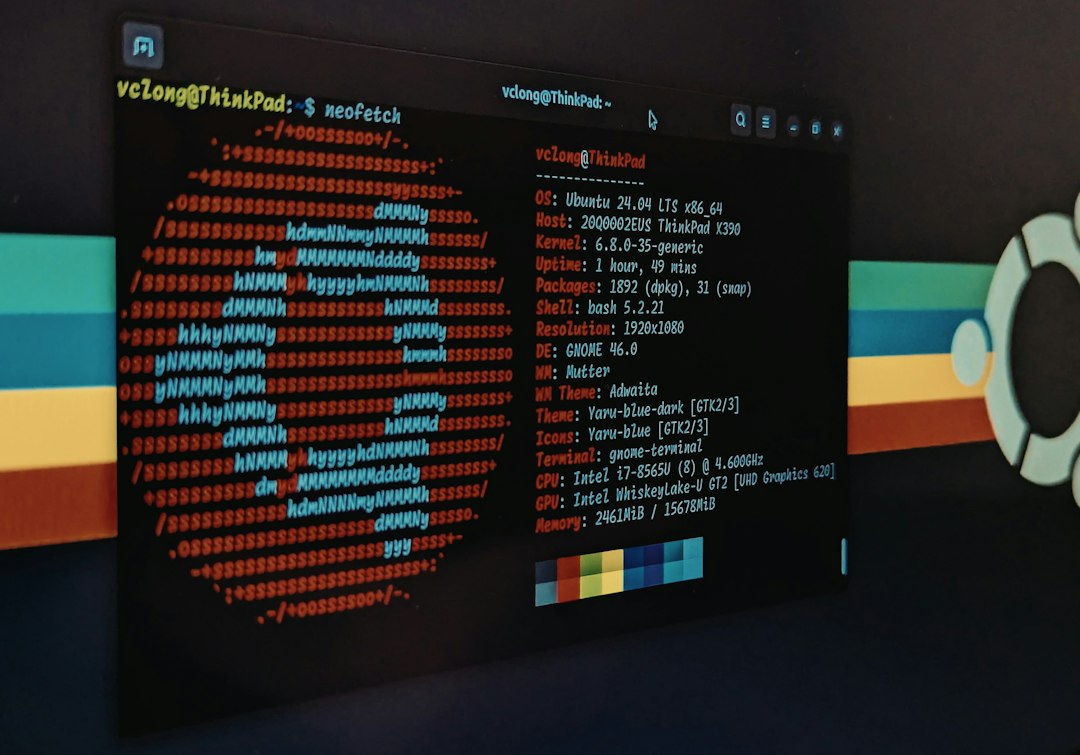

Use uname when you need kernel facts, and use hostnamectl when you need the friendly Linux OS story. That is the quick answer. One command checks the engine. The other shows the badge on the car.
TLDR: Run uname -r to see the Linux kernel version, such as 6.8.0-45-generic. Run hostnamectl to see the operating system name, kernel, machine type, and hostname in one place. In a 50-server audit, uname -r is great for spotting kernel mismatch fast, while hostnamectl saves clicks by showing about 6 to 10 useful fields at once. If you are fixing drivers, use uname; if you are documenting a server, use hostnamectl.

Why Linux version checks feel weird
Linux has more than one “version.” Fun, right? Also slightly annoying.
You may mean the kernel version. That is the core of Linux. It talks to your CPU, memory, disks, and devices.
You may mean the distribution version. That is Ubuntu 24.04, Debian 12, Fedora 40, Rocky Linux 9, and so on.
You may mean the system identity. That includes hostname, machine ID, chassis type, virtualization status, and architecture.
So one command rarely tells the whole story. That is why uname and hostnamectl both exist. They answer different questions.
What uname does
uname is old, tiny, and dependable. It reports kernel and hardware details. It is like asking your system, “What engine are you running?”
Try this:
unameYou may see:
LinuxThat is not very exciting. So most people use options.
uname -rshows the kernel release.uname -mshows the machine architecture.uname -ashows all available details.uname -sshows the kernel name.uname -nshows the network node name.
The most used command is this:
uname -rExample output:
6.8.0-45-genericThis tells you the kernel release. That helps with drivers, boot errors, security patches, and modules. If a vendor says, “This tool needs kernel 5.15 or newer,” uname -r gives the answer in one blink.
Honestly, it feels like Linux enjoys hiding simple facts behind three different doors. But uname -r is one of the clean doors.
What hostnamectl does
hostnamectl is part of systemd. It shows and manages the system hostname. It also prints useful system information.
Run:
hostnamectlYou may see something like this:
Static hostname: web01
       Icon name: computer-vm
         Chassis: vm
      Machine ID: 9f3a...
         Boot ID: 7c1b...
Virtualization: kvm
Operating System: Ubuntu 24.04.1 LTS
          Kernel: Linux 6.8.0-45-generic
    Architecture: x86-64
That is much richer. You get hostname, OS name, kernel, architecture, and sometimes virtualization details. Very handy.
Use hostnamectl when you need a quick server profile. It is great for documentation. It is also useful before filing a support ticket.
uname vs hostnamectl: the simple comparison
| Need | Best command | Why |
|---|---|---|
| Kernel version | uname -r |
Fast and direct. |
| Full kernel and hardware line | uname -a |
Shows many kernel facts in one line. |
| OS name and version | hostnamectl |
Shows the distribution name on many systems. |
| Hostname and system identity | hostnamectl |
Built for hostname and host metadata. |
| Old or minimal Linux system | uname |
Almost always available. |
Use case: checking a slow support issue
Picture this. A developer says the app fails only on one Linux server. Classic.
You SSH into three servers. You run:
uname -rTwo servers show:
6.8.0-45-genericThe broken server shows:
5.15.0-91-genericNow you have a clue. The kernel differs. A driver, container setting, or security feature may behave differently.
Then you run:
hostnamectlYou see the broken box is also on an older OS release. That saves time. Expect to waste time on “it works on my machine” drama if you skip this step.
When uname is better
Choose uname when you need speed. It is simple. It does not care about pretty output.
Good moments for uname:
- You are checking kernel patch levels.
- You are installing a kernel module.
- You are testing hardware architecture.
- You are writing a script for many Linux types.
- You are on a stripped-down server or container.
uname is also safer in scripts. Its output is short. It has been around for ages. Many rescue systems include it.
When hostnamectl is better
Choose hostnamectl when you want a readable system summary. It feels more human.
Good moments for hostnamectl:
- You need the OS name.
- You are checking the hostname.
- You are building an inventory report.
- You want to know if the system is a VM.
- You are preparing notes for support.
The catch is that hostnamectl depends on systemd. Most modern distributions use systemd. Some do not. Alpine Linux, old servers, containers, and custom builds may not have it.
Common mistakes
Mistake one: thinking uname -r shows Ubuntu or Debian version. It does not. It shows the kernel release.
Mistake two: thinking hostnamectl exists everywhere. It may not.
Mistake three: using uname -a and pasting the output in public. It can reveal hostnames and build details. Not always scary. Still, clean it up first.
Bonus command: check the distro file
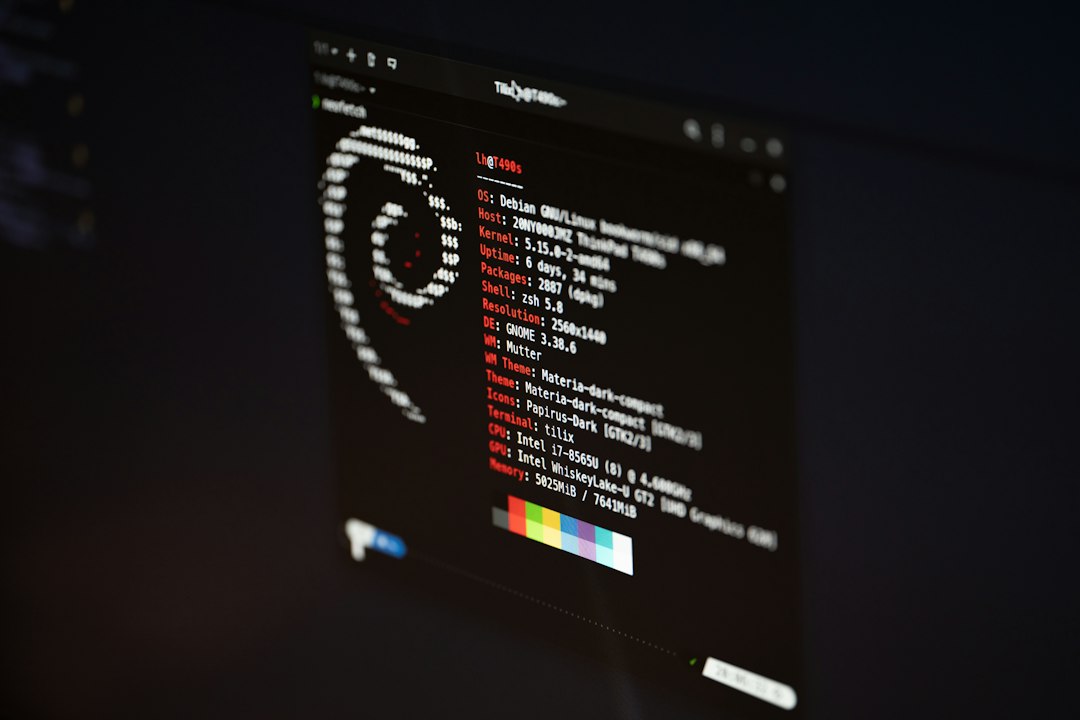
If you really need the Linux distribution version, this file is often the best source:
cat /etc/os-releaseExample output:
NAME="Ubuntu"
VERSION="24.04.1 LTS (Noble Numbat)"
ID=ubuntu
VERSION_ID="24.04"
This is clear. It is also script-friendly. Many tools read this file.
Best quick command combo
Use this pair for a clean snapshot:
uname -r
hostnamectl
If hostnamectl is missing, try:
cat /etc/os-releaseFor one short report, run:
echo "Kernel: $(uname -r)"
cat /etc/os-release | grep -E '^(NAME|VERSION)='
This gives you kernel and distro details. Fast. Simple. No guessing.
Final pick
Use uname for kernel truth. It is quick and everywhere.
Use hostnamectl for system identity. It gives a fuller, friendlier view.
If you remember only one rule, make it this: uname tells you what Linux is running under the hood, while hostnamectl tells you what kind of machine you are dealing with.