

For most STL checks, use PrusaSlicer or Cura first, then open MeshLab or FreeCAD when geometry gets weird. A plain STL viewer is fine for spinning a model around, but it rarely helps when you need to measure a wall, spot flipped normals, scale a part, or prep it for printing. STL is still everywhere, even though the format dates back to the 1980s and only stores surface geometry, not color, materials, or print settings [source: Library of Congress].
TLDR: If you only need a quick preview, ViewSTL is fast and simple. If you are preparing a file for FDM printing, PrusaSlicer or Ultimaker Cura will save you more time than a basic viewer. For example, checking a 100 MB STL in a browser may take under 10 seconds, but repairing, measuring, and slicing that same file needs a proper desktop tool. Use FreeCAD for precise measurement and MeshLab when the mesh itself is the problem.
1. PrusaSlicer: Best all-round STL viewer for print prep
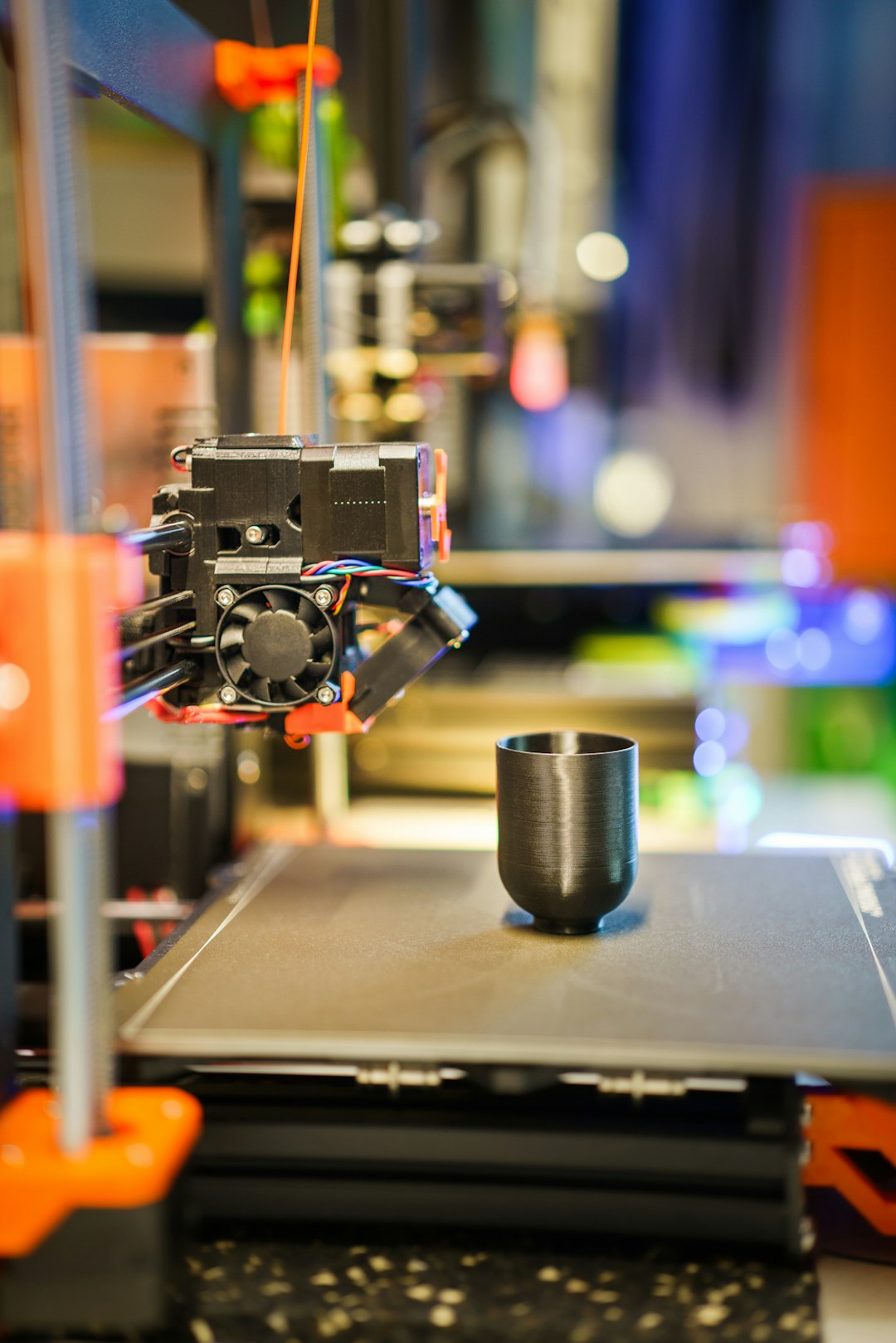
PrusaSlicer is more than a slicer. It is one of the most useful STL viewers because it shows the model the way a printer will see it. You can rotate, scale, cut, measure, inspect layers, add supports, and preview toolpaths.
The big win is the print preview. A normal viewer may show a perfect dragon or bracket. PrusaSlicer may reveal that the first layer barely touches the bed, the infill is too weak, or a support tower is about to waste 30 grams of filament.
- Best for: FDM print preparation and layer preview
- Useful tools: measuring, cutting, scaling, orientation, support preview
- Annoyance: the interface can feel busy if you only want to check one measurement
2. Ultimaker Cura: Best for quick slicing and printer profiles
Ultimaker Cura is another strong STL viewer alternative, especially if you own a common FDM printer. It supports many machines and has ready-made profiles, so you can drop in a model and get a quick idea of print time, material use, and support needs.
It drives me crazy that some settings hide behind menus, but Cura is still friendly for beginners. The visual preview is clear. You can see travel moves, walls, infill, supports, and layer changes. That matters when a model looks fine in 3D but will print with ugly seams or weak corners.
- Best for: beginners and common desktop 3D printers
- Useful tools: scale, mirror, rotate, support setup, material estimate
- Watch for: large STL files can slow down on older laptops
3. MeshLab: Best for broken or messy STL files
MeshLab is the tool to open when an STL file acts strange. Maybe it has holes. Maybe it has too many triangles. Maybe the surface looks inside out. MeshLab gives you inspection and cleanup tools that basic STL viewers do not even try to offer.
You can reduce polygon count, inspect non-manifold edges, flip normals, remove duplicate faces, and simplify scanned models. This is useful for photogrammetry, downloaded models, and old CAD exports that have been passed around too many times.
- Best for: mesh repair, cleanup, and model reduction
- Useful tools: filters, remeshing, hole repair, normal checks
- Annoyance: the names of some filters feel like they were written for researchers, not regular users

4. FreeCAD: Best for measuring and engineering checks
FreeCAD is not the fastest STL viewer, but it is great when accuracy matters. If you need to check a mounting hole, bracket thickness, overall length, or clearance between parts, FreeCAD is far more useful than a simple preview app.
The measuring tools are the main reason to use it. You can inspect distances, convert meshes into shapes, compare parts, and make edits if needed. It is not always smooth. Expect to waste time on imports if the STL has a wild triangle count. Still, for mechanical parts, FreeCAD earns its place.
- Best for: engineering checks and part measurement
- Useful tools: distance measurement, section views, mesh to shape conversion
- Watch for: scanned organic models may feel sluggish
5. ViewSTL: Best for fast browser-based checks
ViewSTL is the simplest option on this list. It runs in a browser, so you can inspect an STL without installing anything. That makes it handy when someone sends you a file and you only need to confirm what it is.
It is not a repair tool. It is not a slicer. But for a fast visual check, it works well. You can rotate, zoom, switch shading modes, and spot obvious issues such as the wrong orientation or a missing feature.
- Best for: quick previews and shared computers
- Useful tools: browser viewing, zoom, shading, simple inspection
- Watch for: do not upload private client files to any web tool unless you trust its privacy terms

Which STL viewer should you choose?
If you are printing the model, start with PrusaSlicer or Cura. They show the real print risk, not just the shape. If the STL is damaged, open it in MeshLab. If you need exact measurements, use FreeCAD. If you just want to see what is inside a file, use ViewSTL.
A good STL workflow is simple: preview, measure, repair if needed, then slice. That order saves filament, time, and those annoying failed prints that peel off the bed after two hours. A basic viewer can show you the model. A better viewer tells you whether it is actually ready to print.