

Bloxstrap is the best Froststrap alternative for most Roblox players, but Fishstrap, Roblox FPS Unlocker, and Roblox Account Manager each solve a different desktop pain. Roblox reported 79.5 million average daily active users in Q2 2024, so it is no shock that players want more control than the stock launcher gives them [source: Roblox].
TLDR: If you want a full Froststrap-style replacement, start with Bloxstrap. If you only care about smoother motion on a 144 Hz monitor, Roblox FPS Unlocker is faster to set up and less cluttered. For example, a player who changes launch flags, joins private servers, and swaps accounts five times a week could save 30 to 60 seconds per session by using a custom launcher or account manager. That sounds small, until it becomes 15 to 20 minutes a month of clicking less.
1. Bloxstrap: the closest “safe default” replacement
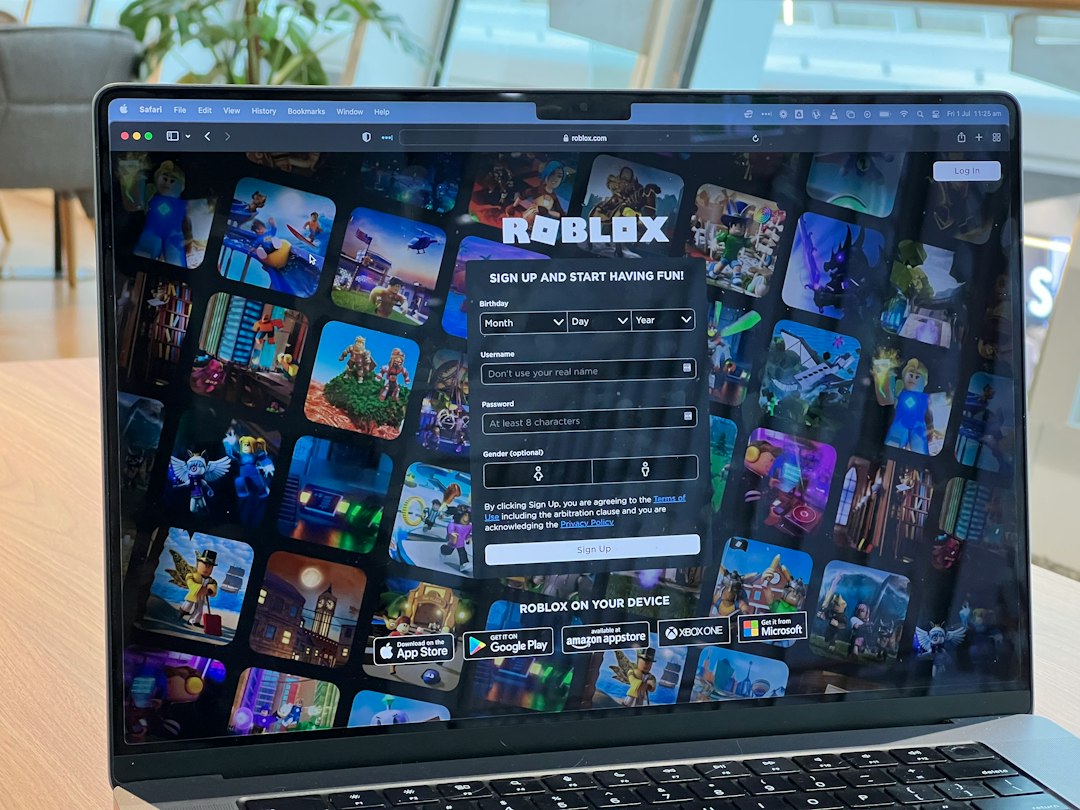
Bloxstrap is the tool most people should try first if Froststrap is gone, broken, or just acting weird after an update. It is a custom bootstrapper for Roblox on Windows. In plain terms, it gives you a better control panel before Roblox starts.
It lets you manage Fast Flags, choose release channels, change some visual assets, adjust client behavior, and set up Discord Rich Presence. That makes it useful for players who want more control without building a messy folder full of scripts and shortcuts.
- Best for: players who want broad launcher customization.
- Strong point: clean settings, useful presets, active community support.
- Weak point: Fast Flags can break after Roblox updates.
The catch is that Roblox updates often. A setting that worked last week may do nothing today. That is not always Bloxstrap’s fault. It is the cost of using hidden or testing features. Still, Bloxstrap is the most rounded pick if you want a Froststrap-like setup without starting from zero [source: GitHub].
2. Fishstrap: a lighter pick for tinkerers
Fishstrap is another Roblox bootstrapper option, often mentioned by users who like Froststrap-style control but want a different build or feel. It is better suited to people who are comfortable testing settings and fixing the odd issue after updates.
Use Fishstrap if you enjoy tuning small details. Things like channel settings, client tweaks, and launch behavior are the main draw. Honestly, it feels like the kind of tool that works best when you already know what you want to change.
- Best for: players who like testing launcher behavior.
- Strong point: flexible setup for users who miss Froststrap’s tweak-heavy feel.
- Weak point: less beginner-friendly than Bloxstrap.
If you are setting up Roblox for a younger player, skip the experimental flags and keep things simple. Broken launch settings are annoying. Expect to waste time on them if you turn on options just because they sound cool.
3. Roblox FPS Unlocker: simple, focused, and still useful
Roblox FPS Unlocker is not a full launcher replacement. That is the point. It does one job: it removes or adjusts the default frame rate cap so Roblox can better match high refresh rate displays.
If you have a 120 Hz, 144 Hz, or 165 Hz monitor, this can make camera movement feel cleaner. It will not magically fix a weak PC. It also will not improve bad internet or laggy servers. But if your hardware is already strong, it can make Roblox feel less stiff.
- Best for: players who only want smoother motion.
- Strong point: quick setup and fewer settings to break.
- Weak point: it does not manage themes, channels, or account workflows.
It drives me crazy when a player installs a giant launcher just to change one frame rate setting. If that is your only goal, use the smaller tool. Keep it updated, download it from the official project page, and avoid random reuploads.
4. Roblox Account Manager: better for workflow than graphics
Roblox Account Manager is different from the other tools here. It is less about graphics or client flags and more about desktop workflow. If you manage several Roblox accounts for testing, development, trading checks, group work, or alt-based QA, it can cut down a lot of repeated logging in.
This is where customization becomes practical. You can organize account access, reduce browser switching, and launch sessions faster. For Roblox developers testing permissions or social features, that can be a real time saver.
- Best for: developers, testers, and users with multiple accounts.
- Strong point: saves time when switching between accounts.
- Weak point: poor security habits can put accounts at risk.
Be careful here. Any tool that touches account sessions deserves extra caution. Use two-factor authentication. Do not share your files. Do not download “fixed” versions from comment sections. That tiny shortcut can become a very expensive mistake.
Which Froststrap alternative should you choose?
- Choose Bloxstrap if you want the best all-around Froststrap replacement.
- Choose Fishstrap if you like experimenting and do not mind the occasional rough edge.
- Choose Roblox FPS Unlocker if smoother frame rates are your only goal.
- Choose Roblox Account Manager if you switch accounts often and want fewer repetitive steps.
The smart move is to avoid stacking too many tools at once. Start with one. Test Roblox for a few days. If everything feels stable, add another only if it solves a real problem. More settings do not always mean a better setup.
For most players, Bloxstrap plus Roblox FPS Unlocker covers the sweet spot: better control and smoother gameplay without turning your desktop into a troubleshooting hobby. If your main problem is account switching, swap FPS Unlocker for Roblox Account Manager. Keep backups of your settings, update carefully, and treat every third-party Roblox tool with a little suspicion. That habit saves headaches.