
Seeing the STATUS_STACK_BUFFER_OVERRUN error in Chrome can be alarming. The message sounds technical, even ominous, and often appears alongside a sudden browser crash. If you’re in the middle of important work, streaming content, or accessing online accounts, this issue can feel disruptive and frustrating. Fortunately, while the name of the error is complex, the solutions are often straightforward once you understand what’s happening behind the scenes.
TL;DR: The STATUS_STACK_BUFFER_OVERRUN error in Chrome usually happens due to corrupted browser files, problematic extensions, outdated software, or malware. Updating Chrome, disabling extensions, scanning for viruses, and resetting browser settings solve the issue in most cases. In rarer situations, system file corruption or hardware problems may be involved. Start with simple browser fixes before moving to advanced system troubleshooting.
Let’s break down what this error means and walk through practical steps to fix it.
What Is STATUS_STACK_BUFFER_OVERRUN?
The STATUS_STACK_BUFFER_OVERRUN error is typically associated with a crash at the application level. In simple terms, it means a program (in this case, Chrome) attempted to write more data to memory than it was allocated. Modern operating systems treat this as a serious safety violation and immediately shut down the application to prevent further damage or exploitation.
Common causes include:
- Corrupted Chrome files
- Malicious or poorly coded extensions
- Outdated browser versions
- Malware infections
- Conflicts with third party software
- Damaged Windows system files
Understanding the potential source helps you apply the right fix efficiently.
1. Update Google Chrome
An outdated Chrome installation is one of the most common reasons for this error. Developers constantly fix bugs and patch security vulnerabilities, and running an older version may expose you to crashes.
How to update Chrome:
- Open Chrome.
- Click the three dots in the upper right corner.
- Select Help > About Google Chrome.
- Chrome will automatically check for updates.
- Click Relaunch after updating.
If the issue was caused by a known bug, this step alone may resolve it.
2. Disable or Remove Problematic Extensions
Extensions enhance Chrome’s functionality, but they can also introduce instability. A single poorly coded or outdated extension may trigger a stack buffer overrun.
To test extensions:
- Type chrome://extensions/ in the address bar.
- Disable all extensions.
- Restart Chrome.
- Re enable extensions one by one to find the culprit.
If the error disappears after disabling extensions, you’ve likely found the cause. Remove any extension that consistently triggers the crash.
Tip: Only install extensions from reputable developers and keep their number minimal.
3. Scan for Malware
Because buffer overruns are often associated with security vulnerabilities, malware is a possible cause. Malicious software may alter browser behavior or inject code into Chrome processes.
Steps to perform a malware check:
- Use Windows Security: Open Settings > Privacy & Security > Windows Security > Virus & threat protection.
- Run a Full Scan.
- Consider a secondary scanner for deeper analysis.
Chrome also includes a built in cleanup tool:
- Go to Settings > Reset and clean up.
- Select Clean up computer.
- Click Find.
Removing malicious software often resolves persistent crashes instantly.
4. Reset Chrome Settings
If your browser configuration is corrupted, resetting Chrome may clear problematic settings without deleting bookmarks or saved passwords.
To reset Chrome:
- Open Settings.
- Navigate to Reset and clean up.
- Select Restore settings to their original defaults.
- Confirm by clicking Reset settings.
This action disables extensions, clears temporary data, and restores default configurations. Many unexplained crashes disappear after a reset.
5. Create a New Chrome User Profile
Corruption within your Chrome user profile may also trigger the error. Creating a fresh profile isolates the problem.
Steps:
- Click your profile icon in Chrome.
- Select Add.
- Create a new profile.
- Test browsing activity.
If the error no longer occurs, your original profile was likely corrupted.
6. Repair Windows System Files
If browser specific fixes fail, the issue may lie within the operating system itself. Windows provides built in tools to detect and repair corrupted system files.
Run System File Checker:
- Search for Command Prompt.
- Right click and choose Run as administrator.
- Type:
sfc /scannow - Press Enter and wait for completion.
You can also use the DISM tool:
- Open Command Prompt as administrator.
- Type:
DISM /Online /Cleanup Image /RestoreHealth - Press Enter.
Restart your computer after the process finishes.
7. Reinstall Chrome Completely
Sometimes the simplest solution is the most effective: a clean reinstall.
Steps for a clean reinstall:
- Uninstall Chrome via Settings > Apps.
- Delete leftover folders in
C:\Program Files\GoogleandAppData\Local\Google. - Download the latest version from the official website.
- Install it fresh.
This eliminates corrupted program files entirely.
Tool Comparison Chart for Diagnostics
| Tool | Purpose | Difficulty Level | Best For |
|---|---|---|---|
| Chrome Built in Cleanup | Detects harmful software affecting Chrome | Easy | Quick browser specific malware scan |
| Windows Security | Full system malware detection | Easy | General protection and virus removal |
| System File Checker | Repairs corrupted Windows system files | Moderate | OS level corruption issues |
| DISM Tool | Restores Windows system image health | Advanced | Persistent system related crashes |
8. Check Hardware and Drivers
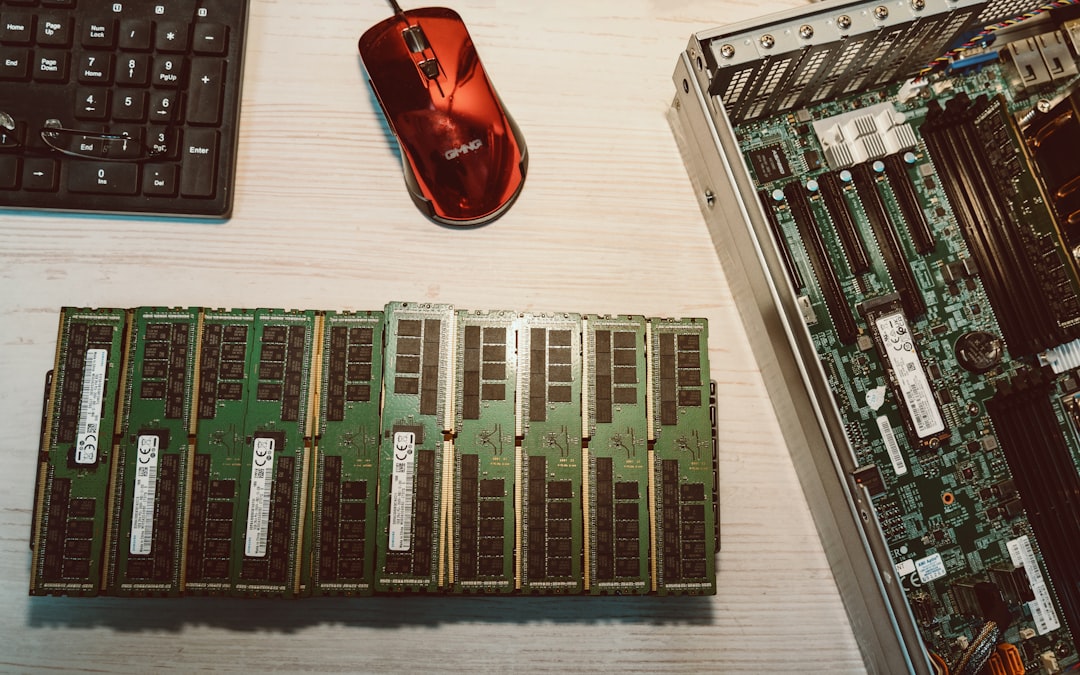
Although rare, failing RAM or outdated drivers can also cause buffer overrun errors.
What to check:
- Update graphics and chipset drivers.
- Run Windows Memory Diagnostic.
- Ensure your system is not overheating.
Faulty memory modules can produce unpredictable application crashes, including Chrome failures.
9. Temporarily Disable Third Party Security Software
Some overly aggressive antivirus programs interfere with browser processes. Temporarily disabling them (while offline) can help identify conflicts.
If Chrome works normally afterward, consider adjusting your antivirus settings or switching to a lighter alternative.
Preventing STATUS_STACK_BUFFER_OVERRUN in the Future
Once resolved, prevention should be your next priority. Follow these best practices:
- Keep Chrome and Windows updated.
- Limit the number of installed extensions.
- Install software only from trusted sources.
- Run regular malware scans.
- Avoid modifying system files unless necessary.
Stability is often about maintaining a clean and updated system.
When to Seek Professional Help
If none of the solutions resolve the issue, you may be dealing with deeper operating system corruption or hardware degradation. In that case:
- Back up important data immediately.
- Consider performing a Windows repair install.
- Consult a professional technician.
An unresolved stack buffer overrun should not be ignored, as it may signal broader instability.
Final Thoughts
The STATUS_STACK_BUFFER_OVERRUN error in Chrome may sound intimidating, but in most cases, it’s caused by manageable issues like outdated software, corrupted browser settings, or troublesome extensions. By methodically working through updates, malware scans, resets, and system checks, you can typically restore full functionality without drastic measures.
Think of this error not as a catastrophe, but as a warning sign. Modern operating systems are designed to shut down insecure processes to protect you. With a bit of troubleshooting, your Chrome browser can return to being fast, stable, and secure.