

System driver errors can disrupt normal computer operations, and one issue that frequently troubles Windows users is the mslo64.sys driver error. This error is typically linked to malware protection software, system conflicts, or corrupted drivers. When it appears, users may experience blue screen errors (BSOD), system freezes, startup failures, or unexpected restarts. Understanding the root cause and applying the correct fix can restore system stability and prevent further damage.
TL;DR: The mslo64.sys driver error is often caused by corrupted drivers, outdated Windows updates, or conflicts with security software. Fixing it usually involves updating or reinstalling drivers, running system repair scans, or removing problematic programs. Advanced solutions may include restoring Windows or checking hardware health. Acting quickly helps prevent system crashes and data loss.
What Is mslo64.sys?
The mslo64.sys file is a system driver typically associated with certain security or malware protection programs. SYS files are essential components of the Windows operating system because they allow hardware and software to communicate with each other. When one of these files becomes corrupted or incompatible, the system may generate a stop code or crash.
Common symptoms of the error include:
- Blue Screen of Death (BSOD)
- Slow performance and freezing
- Unexpected restarts
- Driver power state failure messages
- Startup failures

What Causes the mslo64.sys Driver Error?
There are several potential triggers behind this issue. Identifying the root cause makes troubleshooting much easier.
- Corrupted or outdated drivers
- Conflicts with antivirus or malware protection software
- Incomplete Windows updates
- Malware or virus infections
- Faulty hardware (especially RAM or hard disk)
Understanding the cause is critical before trying more advanced repairs.
How to Fix mslo64.sys Driver Error
1. Restart Your Computer
It may sound basic, but temporary glitches can trigger driver errors. Restarting the system clears temporary memory conflicts and minor corruption.
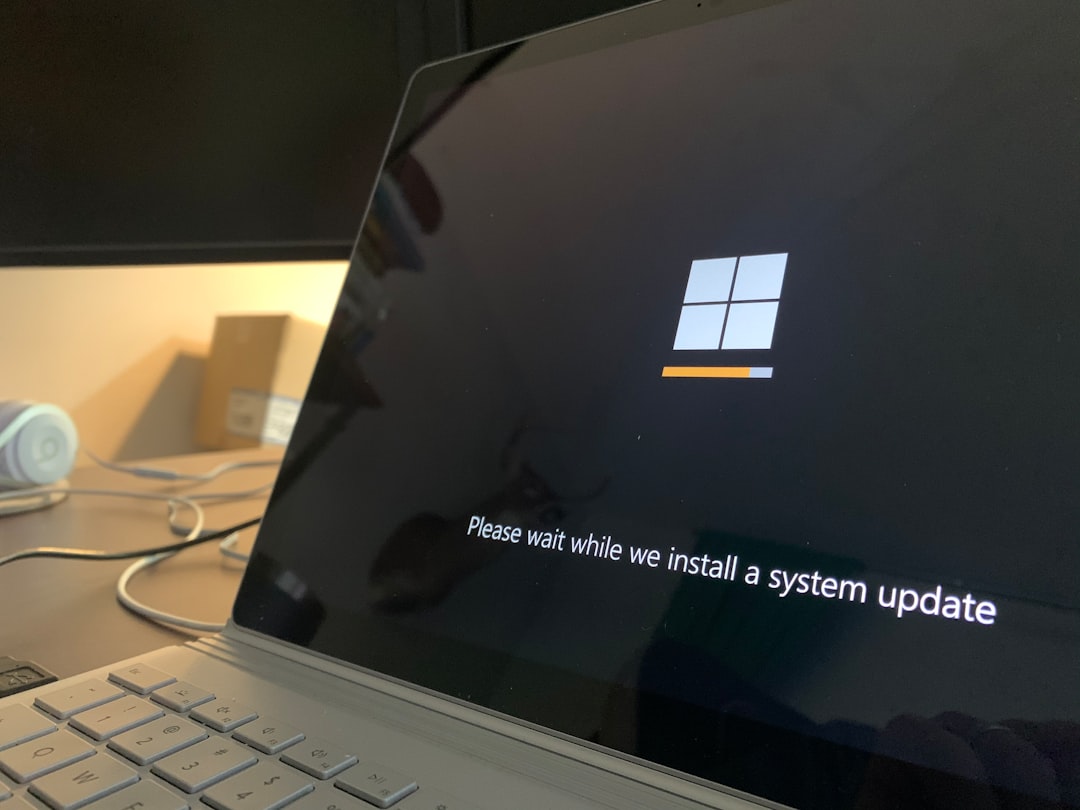
2. Update Windows
Microsoft regularly releases patches that fix driver compatibility issues. Keeping Windows updated ensures system stability.
Steps:
- Open Settings
- Select Update & Security
- Click Windows Update
- Choose Check for updates
If updates are available, install them and reboot the system.
3. Update or Reinstall the Driver
Outdated or corrupted device drivers are one of the main causes of this error.
Using Device Manager:
- Press Win + X
- Click Device Manager
- Locate suspicious or recently updated devices
- Right-click and select Update driver
If updating does not work, choose Uninstall device and restart the computer. Windows will attempt to reinstall the driver automatically.
4. Run System File Checker (SFC)
The SFC scan detects and repairs corrupted system files.
Steps:
- Open Command Prompt as Administrator
- Type: sfc /scannow
- Press Enter
- Wait for the scan to complete
If errors are found, Windows will automatically attempt to repair them.
5. Run DISM Tool
If SFC cannot fix the issue, the Deployment Image Servicing and Management (DISM) tool may help.
- Open Command Prompt as Administrator
- Enter: DISM /Online /Cleanup-Image /RestoreHealth
- Press Enter
This command repairs deeper system image corruption.
6. Temporarily Disable Security Software
Since mslo64.sys is often linked to security software, conflicts may occur after updates. Temporarily disabling your antivirus or anti-malware program can help identify if it is the source.
If disabling resolves the problem, consider:
- Updating the security software
- Reinstalling the program
- Switching to an alternative security solution
7. Perform a System Restore
If the problem started recently, restoring the system to a previous working state may fix it.
- Search for Create a restore point
- Click System Restore
- Select a restore point before the error started
- Confirm and restart
This method is especially useful if the error appeared after a Windows update or new software installation.
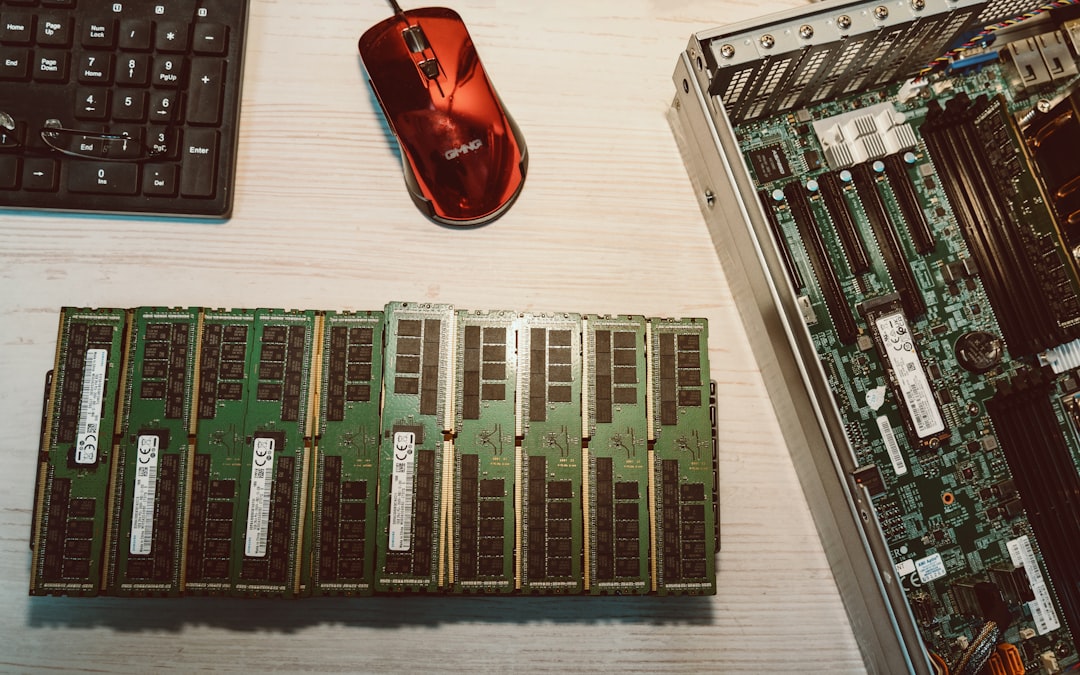
8. Check for Hardware Issues
Hardware failures can also trigger driver crashes. Running diagnostic tests ensures your memory and storage are functioning correctly.
- Use Windows Memory Diagnostic
- Run CHKDSK by typing: chkdsk /f /r in Command Prompt
9. Boot in Safe Mode
Safe Mode loads only essential Windows drivers. If the error does not occur in Safe Mode, a third-party program is likely causing the issue.
To enter Safe Mode:
- Press Win + R
- Type msconfig
- Go to the Boot tab
- Select Safe boot
- Restart the computer
10. Reset or Reinstall Windows
As a last resort, resetting Windows may be necessary. Choose the option to keep personal files if possible.
Steps:
- Open Settings
- Select Update & Security
- Click Recovery
- Choose Reset this PC
Comparison of Fixing Tools and Methods
| Tool/Method | Difficulty Level | Effectiveness | Best For |
|---|---|---|---|
| Windows Update | Easy | High | Update-related errors |
| Device Manager | Moderate | High | Driver conflicts |
| SFC Scan | Moderate | Medium to High | Corrupted system files |
| DISM Tool | Advanced | High | Deep system corruption |
| System Restore | Easy to Moderate | High | Recent changes causing error |
| Reset Windows | Advanced | Very High | Severe system damage |
Preventing Future Driver Errors
Once the issue is resolved, taking preventive measures can reduce the risk of recurrence.
- Keep Windows updated regularly
- Install drivers only from official sources
- Use reliable antivirus software
- Create regular system restore points
- Perform routine system scans
- Avoid installing unnecessary third-party utilities
Preventative maintenance is far easier than recovering from major system crashes.
Frequently Asked Questions (FAQ)
1. Is mslo64.sys a virus?
Not necessarily. The file is typically associated with legitimate security software. However, malware can disguise itself using similar file names. Running a full antivirus scan is recommended to confirm its authenticity.
2. Can I delete mslo64.sys?
Deleting a system driver manually is not recommended. Doing so may cause further system instability. Instead, update or reinstall the associated software properly.
3. Why does the error appear after a Windows update?
Major updates sometimes create compatibility conflicts with existing drivers or third-party software. Updating drivers or installing patches usually resolves this issue.
4. Does reinstalling Windows permanently fix the problem?
In most cases, yes. A clean installation removes corrupted files and faulty drivers. However, hardware issues could still cause errors afterward.
5. How do I know if hardware is causing the error?
If system crashes persist after reinstalling drivers and Windows, hardware diagnostics should be performed. Faulty RAM or hard disk issues are common contributors.
6. Can outdated BIOS cause this error?
Yes, in rare cases. An outdated BIOS can create compatibility problems between hardware and drivers. Updating BIOS should only be done carefully and according to manufacturer instructions.
7. Is Safe Mode safe to use for troubleshooting?
Yes. Safe Mode loads minimal drivers and is a safe environment to identify software conflicts or instability.
Resolving the mslo64.sys driver error requires patience and a methodical approach. By following the steps outlined above, most users can restore system stability without professional assistance. Keeping the system updated and practicing preventative maintenance will greatly reduce the chances of this issue reappearing.