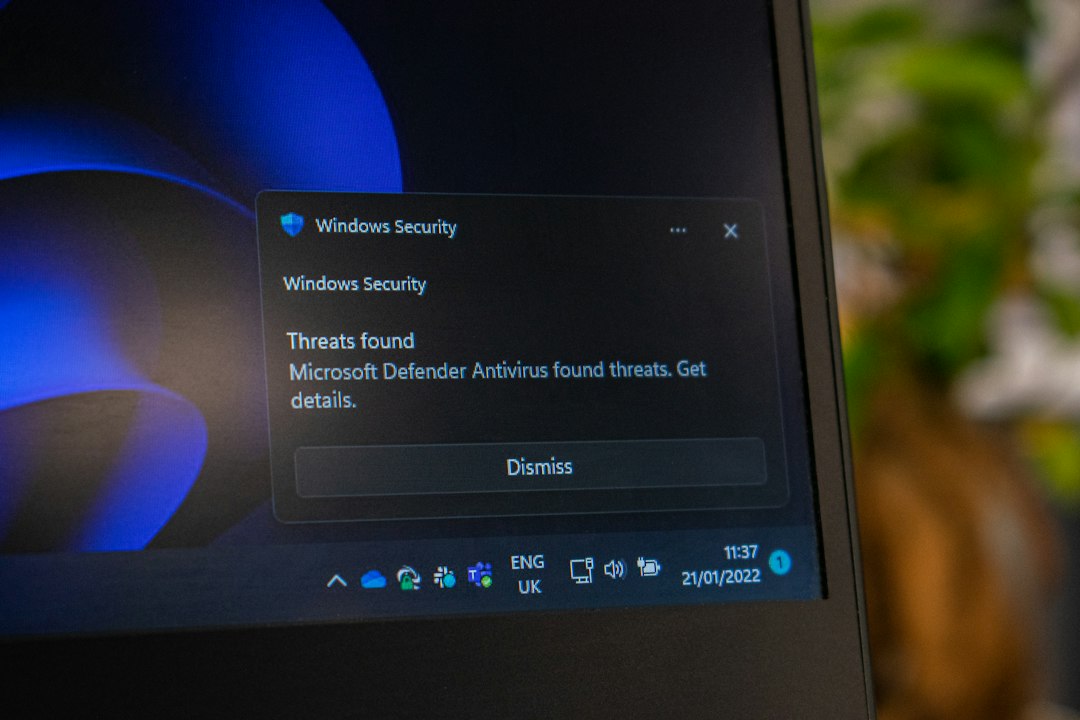

The safest fix for a DEP app crash is to confirm the cause, test a per-app override, and avoid turning DEP off for the whole PC. Data Execution Prevention, or DEP, is a Windows memory protection feature that helps stop code from running from protected memory regions [source: Microsoft]. When an older app crashes on launch, DEP can be one reason, especially if the error looks like 0xc0000005, BEX, or BEX64.
TLDR: DEP should stay enabled unless a trusted app clearly fails because of it. A help desk might test 10 launch attempts, find the app crashes 100% of the time with DEP on, then confirm it opens after a per-program DEP override. For example, a 32-bit inventory tool from 2012 may crash in 3 seconds on Windows 11, while Process Explorer shows DEP is active for the process. The right move is a narrow exception, not a system-wide security cut.
What DEP Does, in Plain Terms
DEP blocks programs from running code in areas of memory meant for data. That sounds dull, but it stops many common exploit tricks. Malware often tries to stuff code into memory and run it from there. DEP says, nope.
The catch is that some old or poorly written apps do the same thing by accident. They may use outdated plug-ins, legacy copy protection, old runtimes, or custom memory tricks. Then Windows may close the app. It feels like a random crash, but DEP may be doing its job.
Image not found in postmeta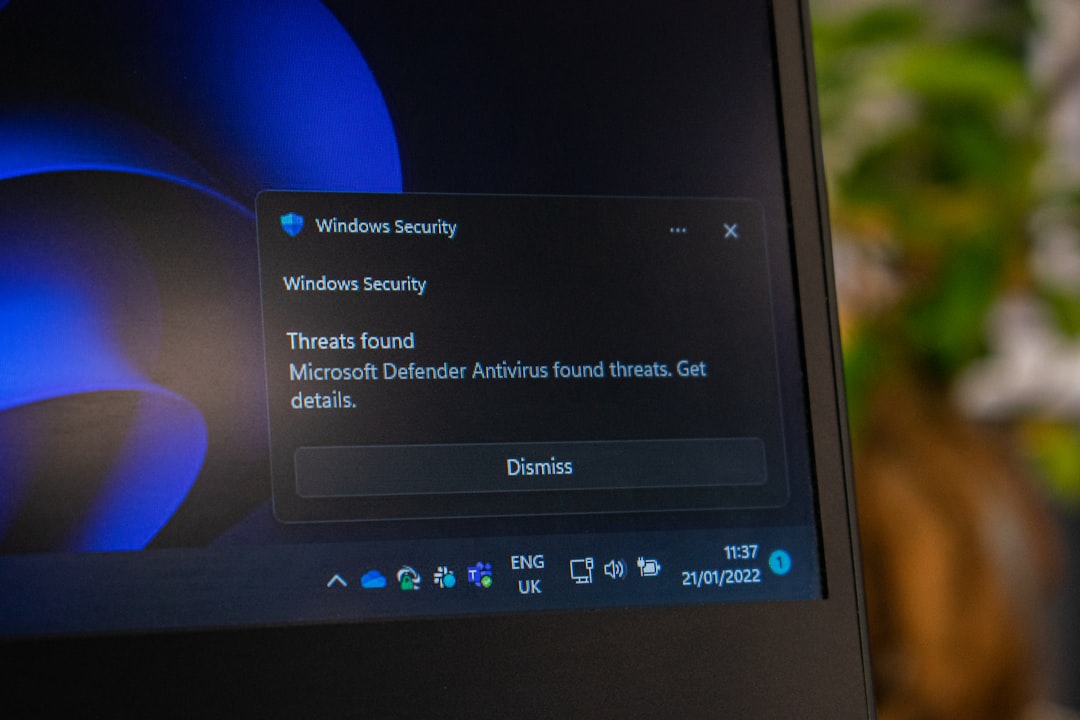
First Signs of a DEP Compatibility Problem
A DEP issue often looks like a normal application crash. Support teams should check for these clues:
- The app closes at startup or when opening a specific file.
- Event Viewer shows Event ID 1000 for an application error.
- The exception code is 0xc0000005, often tied to access violations.
- The crash name includes BEX or BEX64 in older error reports.
- The app is old, usually 32-bit, abandoned, or built for Windows 7 or earlier.
DEP is not always the cause. A bad driver, missing runtime, broken plug-in, or antivirus block can look similar. That is why Process Explorer and Windows Security are useful together.
Check DEP Status with Process Explorer
Process Explorer from Microsoft Sysinternals gives a fast view of running processes and security flags [source: Microsoft Learn]. It helps confirm whether DEP is enabled for the app while it runs.
- Download and run Process Explorer as an administrator.
- Open View, then Select Columns.
- Check columns related to process image details, including DEP Status if available.
- Start the problem app.
- Find the process and review its DEP state.
If the app closes too fast, the technician may need to launch it several times while watching Process Explorer. Annoying, yes. It can take 20 extra seconds per attempt, but it often saves an hour of guessing.
Image not found in postmeta
Test DEP Changes in Windows Security
Modern Windows versions expose DEP controls through Windows Security under exploit protection. The exact names can vary a little by Windows version, but the path is usually close to this:
- Open Windows Security.
- Select App & browser control.
- Choose Exploit protection settings.
- Open Program settings.
- Select Add program to customize.
- Add the app by exact file path, such as C:\Program Files (x86)\OldApp\oldapp.exe.
- Find Data Execution Prevention.
- Use a program-specific override only for that trusted executable.
- Restart the app and test the same action that caused the crash.
The setting should be tested with care. If the app still crashes, DEP was probably not the main problem. The override should be removed so the machine does not carry useless risk.
Use the Old System DEP Panel When Needed
Some administrators still use the classic DEP panel. It is found through System Properties, then Performance Settings, then the Data Execution Prevention tab. This panel can allow DEP for essential Windows programs only, or for all programs except selected ones.
The second option is safer than disabling DEP broadly, but it still needs restraint. Exceptions should be limited to known, signed, trusted apps. Random freeware should not get a pass just because it crashes. That is how a compatibility fix becomes a security hole.
Rules That Prevent Bad Fixes
- Do not turn off DEP globally. That weakens the whole system.
- Prefer per-app testing. One app exception is easier to audit.
- Check whether the app is 32-bit or 64-bit. DEP behavior can differ, and 64-bit apps are more restricted.
- Update the app first. A vendor patch is better than a DEP exception.
- Test with plug-ins disabled. The real offender may be an add-on.
- Document the change. Include the app path, version, date, and reason.
A Practical Troubleshooting Flow
- Reproduce the crash twice.
- Check Event Viewer for the faulting module and error code.
- Run Process Explorer and inspect the app process.
- Update the app, runtime, and plug-ins.
- Add a temporary DEP override in Windows Security.
- Test the same workflow again.
- Keep the override only if it clearly fixes the issue.
FAQ
- What is DEP in Windows?
- DEP is a security feature that blocks code from running in protected memory areas. It helps reduce exploit risk.
- Can DEP break older apps?
- Yes. Some legacy apps use memory behavior that DEP blocks. This is common with old 32-bit business tools.
- Should DEP be disabled?
- System-wide DEP should not be disabled. A per-app exception may be acceptable for a trusted app after testing.
- How can Process Explorer help?
- It can show process details, including DEP-related status, so technicians can confirm what protections are active.
- What if a DEP exception does not fix the crash?
- DEP is likely not the cause. The technician should remove the override and check updates, plug-ins, drivers, and event logs.