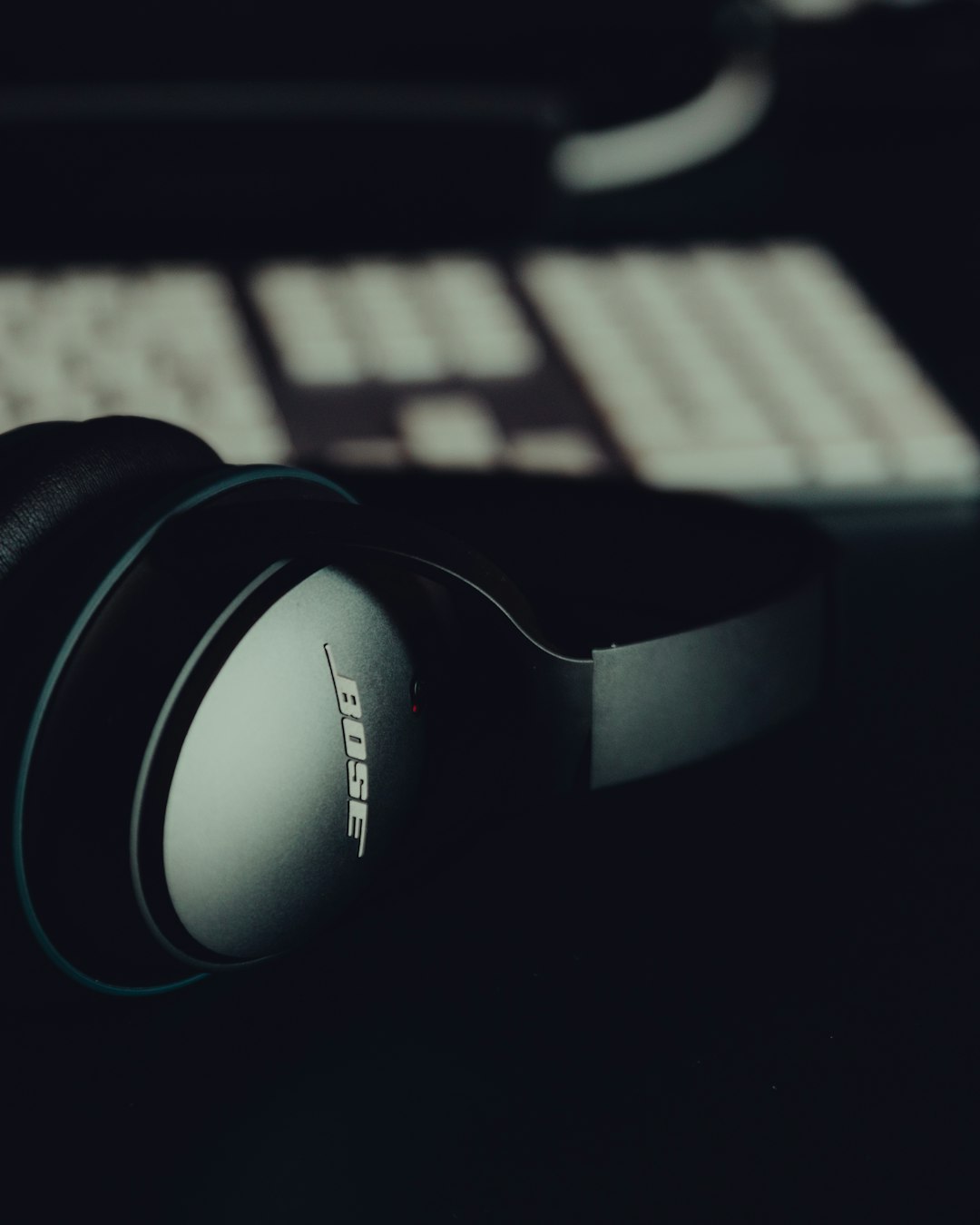

Wireless headphones like the Bose Ultra 2 are designed to deliver immersive sound and seamless connectivity. But like any advanced piece of technology, they can occasionally run into glitches—such as pairing problems, distorted audio, or unresponsive controls. When basic troubleshooting does not solve the issue, performing a hard reset can restore your headphones to their original factory state and eliminate persistent software bugs.
TLDR: A hard reset on Bose Ultra 2 headphones restores the device to factory settings and resolves persistent connectivity or performance issues. Start by powering off the headphones, clearing Bluetooth pairings, and using the designated reset button sequence. After resetting, reconnect your device as if it were new. This process takes only a few minutes and can fix most software-related problems.
What Is a Hard Reset and When Should You Use It?
A hard reset (also called a factory reset) wipes stored data such as Bluetooth pairings and customized settings, returning your headphones to their default configuration. This is different from a soft reset, which simply restarts the device without deleting data.
You should consider performing a hard reset if you are experiencing:
- Constant Bluetooth disconnections
- Headphones not turning on or off properly
- Unresponsive buttons or touch controls
- Audio lag or distorted sound
- Failure to pair with multiple devices
If your Bose Ultra 2 works fine except for minor issues, try restarting them first. However, if problems persist, a hard reset is often the most effective solution.
Before You Begin: Important Preparations
Before initiating the reset process, take a few preparatory steps to ensure everything goes smoothly:
- Charge your headphones to at least 20–30% battery.
- Disconnect your headphones from all connected devices.
- Have your Bluetooth device nearby for re-pairing after the reset.
- Make note of any personalized EQ or sound settings, as these will be erased.

Being prepared helps you avoid interruptions and ensures that the reset process completes successfully.
Step-by-Step Guide: How to Hard Reset Bose Ultra 2 Headphones
Step 1: Power Off the Headphones
Start by turning off your Bose Ultra 2 completely. Press and hold the power button until you see the LED indicator turn off. Wait a few seconds to make sure the device fully shuts down.
This prevents incomplete resets and ensures the internal system properly reboots during the process.
Step 2: Clear Bluetooth Device List
To avoid pairing conflicts, clear the stored Bluetooth device memory:
- Turn the headphones back on.
- Press and hold the Bluetooth button for about 10 seconds.
- Wait until you hear a voice prompt saying that Bluetooth devices have been cleared.
This removes all saved connections and prepares the headphones for a fresh reset.
Step 3: Perform the Hard Reset Combination
Now it’s time for the actual hard reset.
- Turn the headphones off again.
- Plug the USB-C charging cable into the headphones.
- While plugging into a power source, press and hold the Power/Bluetooth button for 10–15 seconds.
- Release the button when you see the LED indicator flash or hear a prompt.
This sequence forces the internal firmware to reset to factory defaults.
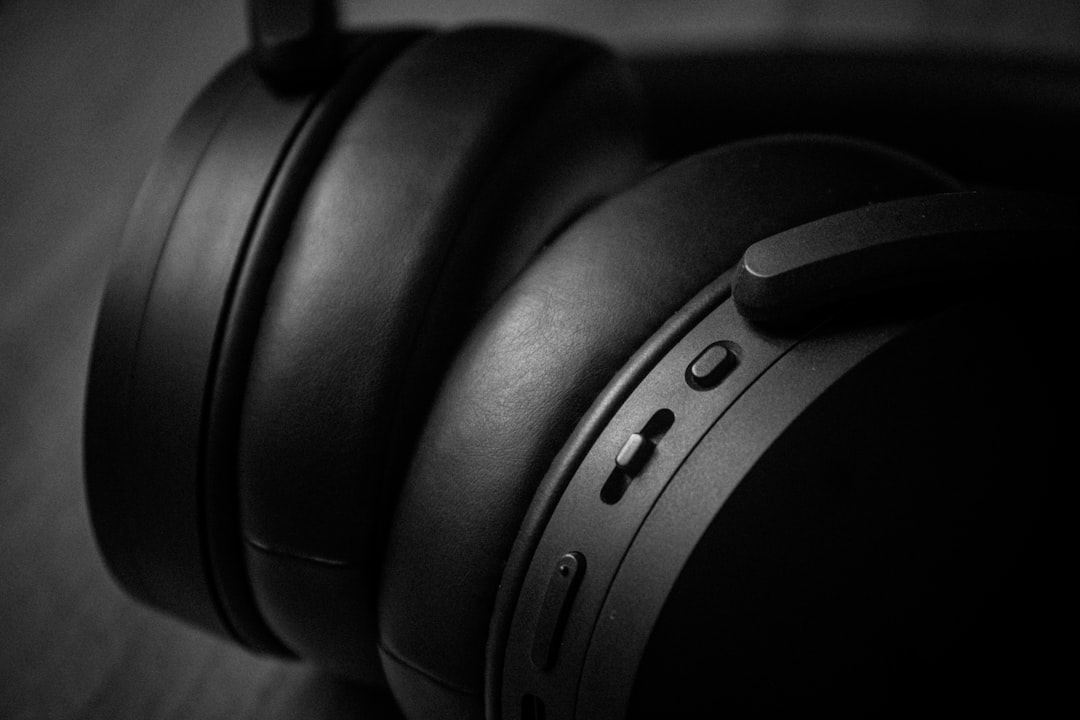
Once complete, your headphones will restart automatically or power down. At this point, the reset is complete.
Step 4: Reconnect Your Device
Because the reset erased all stored connections, you will need to pair your Bose Ultra 2 again:
- Turn the headphones on.
- Enable Bluetooth on your smartphone, tablet, or computer.
- Select “Bose Ultra 2” from the available devices list.
- Confirm pairing if prompted.
Your headphones should now function as if they were brand new.
What Happens After a Hard Reset?
After performing a reset, the headphones:
- Forget all paired devices
- Restore default sound settings
- Remove custom EQ adjustments
- Clear internal software glitches
It’s important to reconfigure any personalized settings through the Bose app if you previously customized sound profiles or noise cancellation preferences.
Troubleshooting Common Issues After Reset
Sometimes users expect an instant fix but still experience issues. Here’s what to check:
Headphones Won’t Turn On
- Ensure the battery has sufficient charge.
- Try a different USB-C cable or power adapter.
- Hold the power button for a full 20 seconds.
Still Cannot Connect via Bluetooth
- Forget the device in your phone’s Bluetooth settings and reconnect.
- Restart your phone or computer.
- Move away from Wi-Fi routers or other interference sources.
No Sound After Reset
- Check volume levels on both the headphones and device.
- Verify the correct audio output source is selected.
- Test with another device to isolate the problem.
In most cases, a proper hard reset resolves persistent software issues.
How Often Should You Hard Reset?
You should not frequently perform factory resets unless necessary. A hard reset is ideal when:
- Firmware updates fail
- Major connectivity issues occur
- The device becomes unresponsive
- You plan to sell or give away the headphones
For regular maintenance, simply turning your headphones off occasionally and keeping firmware updated is sufficient.

Additional Tips for Maintaining Your Bose Ultra 2
To minimize the need for future resets, consider the following best practices:
- Update firmware regularly through the Bose app.
- Avoid draining the battery completely too often.
- Store headphones safely to prevent hardware damage.
- Keep Bluetooth device list short to reduce connection conflicts.
- Restart occasionally to refresh internal processes.
Taking proper care not only prevents glitches but also extends the overall lifespan of your device.
Soft Reset vs. Hard Reset: Quick Comparison
If you’re unsure which reset to perform, here’s a breakdown:
- Soft Reset: Turns the device off and back on; keeps all settings intact.
- Hard Reset: Restores factory settings; removes all saved data.
Always try a soft reset first. If problems continue, move to a hard reset for a more comprehensive fix.
When to Contact Support
If a hard reset does not resolve your issue, the problem may be hardware-related. You should seek professional support if:
- The headphones will not charge at all.
- Buttons feel physically stuck or damaged.
- Audio cuts out in one ear consistently.
- There is visible water or impact damage.
A reset cannot fix damaged components, so professional service may be required.
Final Thoughts
Knowing how to hard reset your Bose Ultra 2 headphones is an essential troubleshooting skill that can save time and frustration. While these premium headphones are built for reliability, temporary software glitches can still occur. Thankfully, the reset process is straightforward and takes only a few minutes.
By following the step-by-step instructions in this guide—powering off, clearing Bluetooth pairings, performing the reset sequence, and reconnecting your device—you can restore your headphones to optimal performance. Remember to use factory resets only when necessary and maintain your device properly to keep enjoying immersive, uninterrupted sound.
A simple reset today might be all you need to bring your music back to life.