
You turn on your PC. Everything seems normal. Then you see it. A thin red line across the screen. Or maybe several. They won’t go away. They make your stomach drop. Is your monitor dying? Is your graphics card broken? Relax. Red lines on a PC screen are common. And in many cases, they are fixable.
TL;DR: Red lines on your PC screen can be caused by loose cables, outdated drivers, stuck pixels, monitor damage, or graphics card issues. Start with simple fixes like restarting your computer and checking cables. Then test your monitor and update drivers. If the lines stay on every device, your screen may need repair or replacement.
Let’s break it down in a simple and fun way. No tech degree needed.
What Do Red Lines Mean?
Red lines are a display problem. They can appear:
- Horizontally (left to right)
- Vertically (top to bottom)
- As a single thin line
- As multiple thick lines
- Only in certain apps
- All the time, even during startup
The way they appear gives you clues.
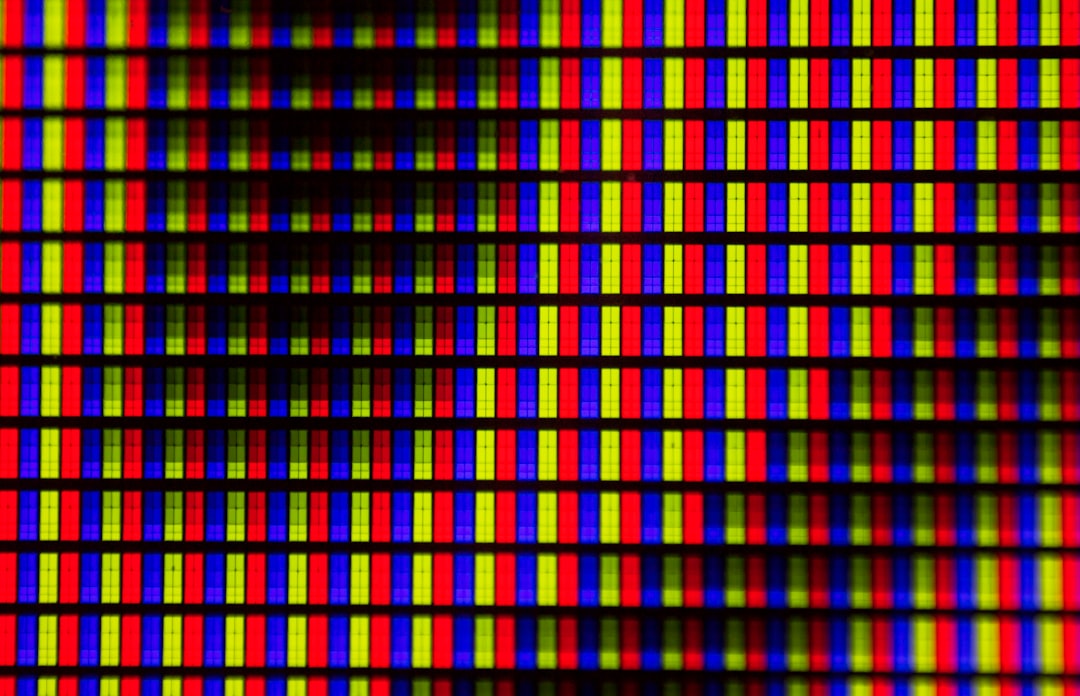
Think of your screen like a giant grid of tiny lights called pixels. Each pixel has sub-pixels in red, green, and blue. If something goes wrong with the red parts, you may see red lines.
Common Causes of Red Lines
1. Loose or Damaged Cables
This is the easiest fix. And the most common.
If your HDMI or DisplayPort cable is loose, bent, or damaged, the signal gets disturbed. That can show up as colored lines.
Signs it’s the cable:
- The line flickers when you move the cable
- The line disappears sometimes
- You recently moved your PC
Fix:
- Turn off your PC
- Unplug the display cable
- Plug it back in tightly
- Try a different cable if possible
Simple. Quick. Very often effective.
2. Graphics Driver Problems
Your graphics driver is software that tells your computer how to talk to your screen.
If it’s outdated or corrupted, weird things can happen. Including red lines.
This might be the issue if:
- The lines appeared after a system update
- The lines only show inside Windows (not in BIOS)
- You recently installed a new graphics card
Fix:
- Open Device Manager
- Find “Display adapters”
- Update the driver
- Or uninstall and reinstall it
You can also download the latest driver directly from your graphics card manufacturer’s website.
Restart your PC after updating. Always.
3. Stuck or Dead Pixels
Sometimes, it’s not cables or drivers. Sometimes it’s tiny pixels misbehaving.
A stuck pixel is frozen on one color. A dead pixel does not light up at all.
If a whole vertical or horizontal row of pixels is stuck showing red, you see a red line.
How to check:
- Take a screenshot
- View it on another device
If the red line does not show in the screenshot, it’s likely a monitor pixel problem.
Possible fixes:
- Gently massage the area with a soft cloth
- Use pixel-fixing software that flashes colors rapidly
- Display a solid white screen for a while
Be gentle. Pressing too hard can damage the screen.
4. Monitor Panel Damage
This is more serious.
If your monitor was dropped. Hit. Or squeezed during transport. The LCD panel inside may be damaged.
Internal cracks can cause permanent colored lines.
Signs of panel damage:
- Lines never move
- Lines appear even when nothing is connected
- There are visible cracks or dark spots
Test it:
- Disconnect the monitor from the PC
- Turn it on alone
- Check the built-in menu screen
If the red lines still appear, your monitor is likely the problem.
Sadly, panel damage usually means replacement.
5. Graphics Card Failure
Your GPU (graphics processing unit) creates the images you see.
If it starts failing, you may notice:
- Red lines
- Random shapes
- Screen flickering
- PC crashes during gaming
This is more common in older PCs. Or systems that overheat.
How to test:
- Connect your monitor to another computer
- Or use integrated graphics if available
If the lines disappear with another system, your graphics card is the likely cause.
You may need repair or replacement.
Do the Lines Appear During Startup?
This detail matters a lot.
If the red lines appear:
- Before Windows loads → Likely hardware
- After Windows loads → Possibly software
Hardware problems include:
- Monitor damage
- Bad cable
- Failing GPU
Software problems include:
- Driver bugs
- Resolution issues
- Refresh rate conflicts
This simple observation can save hours of guessing.
Quick Troubleshooting Checklist
Here is a simple order to follow.
- Restart your PC
- Check all cables
- Try a different cable
- Switch HDMI/DisplayPort slots
- Update graphics drivers
- Test the monitor on another PC
- Lower the screen resolution
- Change the refresh rate
Many red line issues are solved in the first three steps.
What About Red Lines on a Laptop?
Laptops are a bit different.
Because the screen is built in.
Here’s what to check:
- Connect the laptop to an external monitor
If the external monitor looks fine, your laptop screen is likely damaged.
It could be:
- A loose internal display cable
- A failing LCD panel
- Pressure damage from closing the lid on something
Laptop screen repairs are possible. But sometimes expensive. Always compare the repair cost to the laptop’s value.
Can Overheating Cause Red Lines?
Yes. Especially during gaming.
When your GPU overheats, strange visual glitches can appear. Including colored lines.
Check for:
- Loud spinning fans
- Very hot air from vents
- Lag before the lines appear
Fix:
- Clean dust from fans
- Improve airflow
- Avoid blocking vents
- Replace thermal paste (advanced users)
Cool hardware is happy hardware.
Can You Prevent Red Lines?
Not always. But you can reduce the risk.
Tips:
- Do not yank display cables
- Avoid pressing on your screen
- Keep your PC dust free
- Update drivers regularly
- Use a surge protector
Screens are delicate. Treat them gently.
When Should You Replace the Monitor?
Consider replacing it if:
- The red lines are permanent
- They appear without any cable connected
- The screen has physical cracks
- Repair costs are high
Modern monitors are often affordable. Especially compared to repair labor.
If your monitor is very old, a new one may also give you:
- Better resolution
- Higher refresh rate
- Improved color quality
- Lower power usage
Sometimes a problem becomes an upgrade opportunity.
Final Thoughts
Seeing red lines on your PC screen can be scary. But don’t panic.
Start simple. Restart. Check cables. Update drivers.
Then test your monitor and graphics card step by step.
Most cases are not dramatic. Many are small connection issues. Some are software glitches. Only a few mean serious hardware damage.
Be patient. Be systematic.
Your screen might just need a little attention. And now, you know exactly where to start.