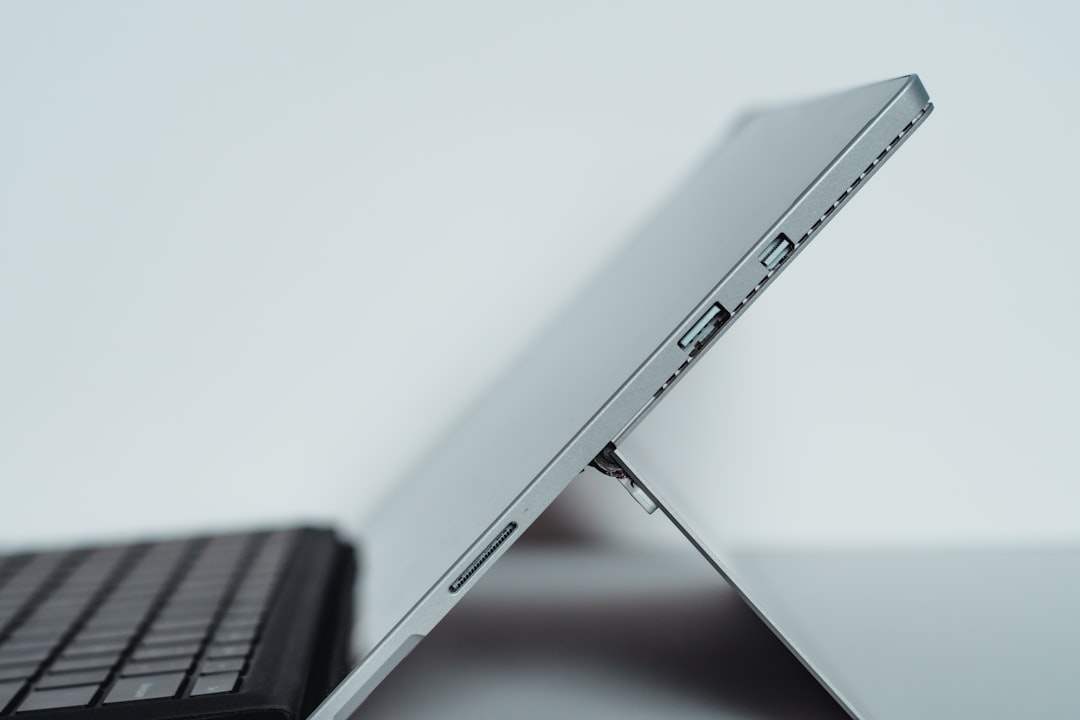

Taking a screenshot on a Surface Pro is an essential skill for students, professionals, and everyday users alike. Whether you need to capture an important document, save a snippet from a website, or document an error message for troubleshooting, knowing the correct method can save you time and effort. Because the Surface Pro combines touchscreen functionality with a detachable keyboard and stylus support, there are multiple effective ways to capture your screen.
TLDR: You can take a screenshot on a Surface Pro using keyboard shortcuts like Windows + Shift + S or Windows + PrtScn, physical buttons like Power + Volume Up, or built-in tools such as Snipping Tool. Each method serves a slightly different purpose, depending on whether you want a full screen, partial capture, or quick annotation. Mastering these options ensures you can quickly capture exactly what you need.
Why Knowing Multiple Screenshot Methods Matters
The Surface Pro runs Windows and supports keyboard, touch, and pen input. This flexibility means you are not limited to just one method of capturing your screen. For example:
- Keyboard shortcuts are ideal for speed and efficiency.
- Touch and hardware buttons are useful when using the device as a tablet.
- Snipping tools provide better editing and precision.
Understanding when and how to use each method ensures you can work efficiently regardless of how you are using your device.
Method 1: Using Keyboard Shortcuts
If your Surface Pro is connected to a Type Cover or external keyboard, keyboard shortcuts are the fastest way to take screenshots.
1. Windows Key + Shift + S (Snipping Tool Shortcut)
This is one of the most powerful and flexible screenshot methods available in Windows.
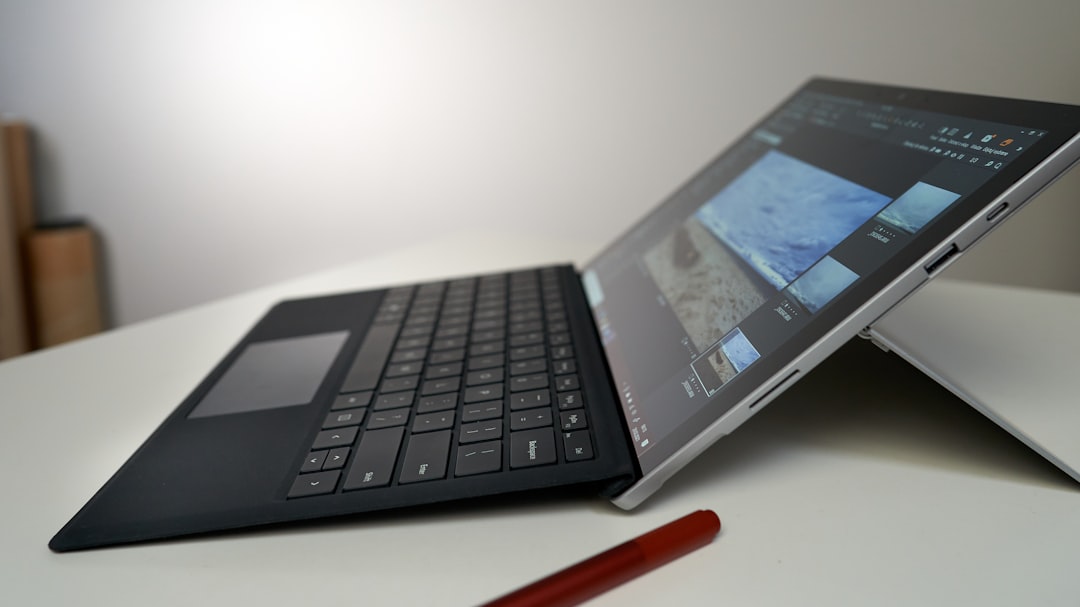
- Press Windows + Shift + S simultaneously.
- The screen will dim, and a small menu will appear at the top.
- Select the type of snip you want:
- Rectangular Snip
- Freeform Snip
- Window Snip
- Full-screen Snip
- The screenshot is copied to your clipboard.
- Click the notification to edit and save it.
Best for: Capturing specific parts of the screen with precision.
2. Windows Key + PrtScn
This method captures the entire screen instantly and saves it automatically.
- Press Windows + PrtScn.
- The screen will briefly dim to indicate a screenshot was taken.
- Find the image in Pictures > Screenshots.
Best for: Quickly saving full-screen captures without additional editing.
3. PrtScn Key Alone
Pressing PrtScn copies the entire screen to your clipboard. You must then paste it into an application like Paint, Word, or an email.
Best for: Quick copy-and-paste tasks.
Method 2: Using Physical Buttons (Tablet Mode)
If you are using your Surface Pro without a keyboard, you can take screenshots using hardware buttons. This approach mimics the screenshot process on smartphones and tablets.
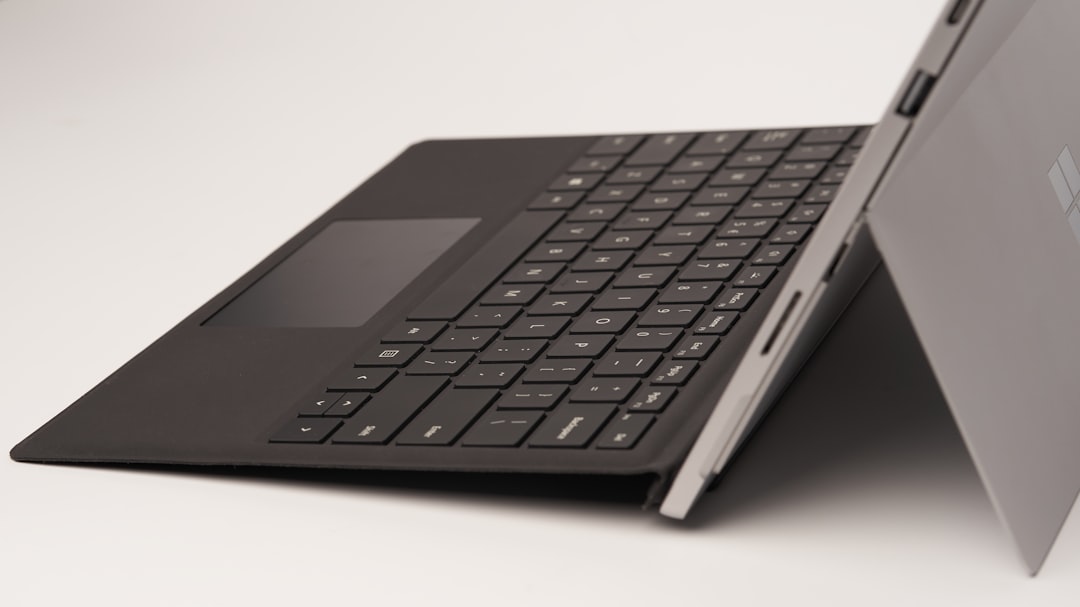
- Press and hold the Power button.
- Simultaneously press the Volume Up button.
- The screen will dim briefly to confirm the screenshot.
- The image will be saved in Pictures > Screenshots.
Important: Press both buttons at the same time. Holding one too long before pressing the other may trigger unintended actions like shutting down the device.
Best for: Users operating the Surface Pro purely as a tablet.
Method 3: Using the Snipping Tool
The Snipping Tool is built into Windows and offers more advanced screenshot capabilities. It is especially valuable if you need to annotate or delay a capture.
How to Open the Snipping Tool
- Click the Start menu.
- Type Snipping Tool.
- Select the app from the results.
Alternatively, use the shortcut Windows + Shift + S to trigger the snipping feature directly.
Features of the Snipping Tool
- Delay timer for capturing dropdown menus.
- Annotation tools including pen and highlighter.
- Crop and edit options.
- Direct sharing capabilities.
This tool provides greater flexibility than basic keyboard shortcuts, making it the preferred method in professional environments.
Method 4: Using Surface Pen
If you use a Surface Pen, taking screenshots becomes even more convenient.
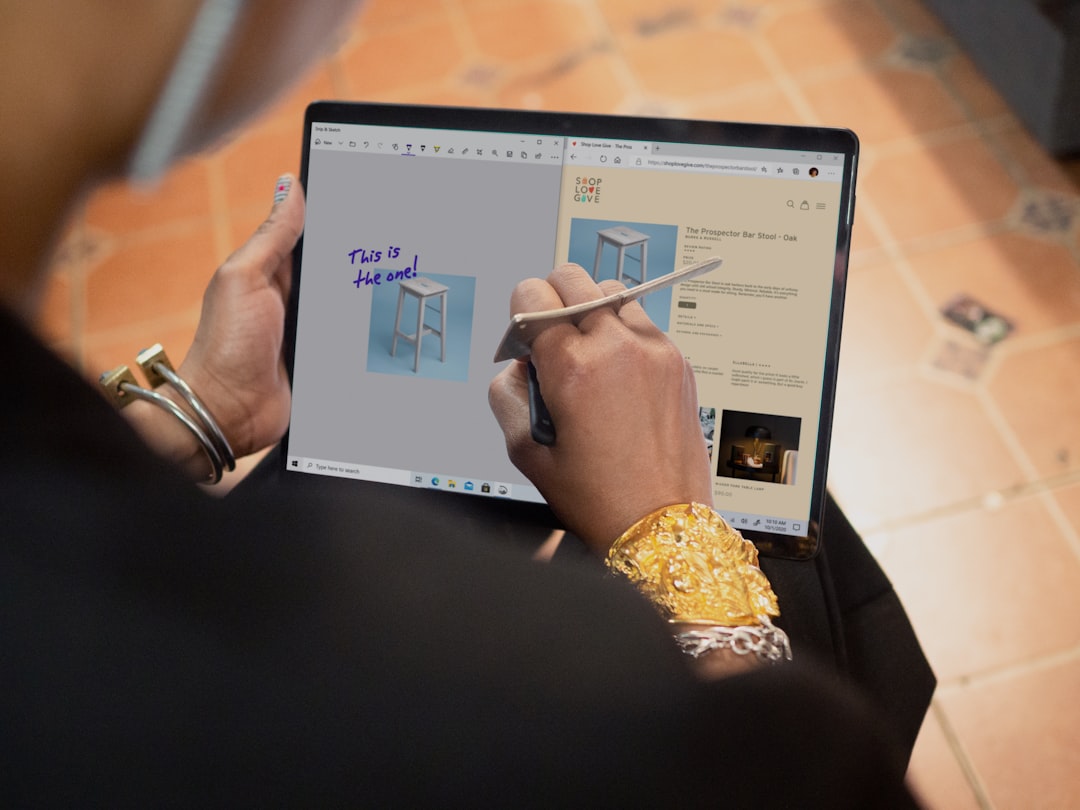
Most Surface Pens can be configured so that clicking the top button opens the Snipping Tool.
- Click the top of your Surface Pen.
- The Snipping Tool opens automatically.
- Select your desired snip type and capture the screen.
You can annotate directly using the pen, making this method ideal for students and designers who need to mark up screenshots quickly.
Best for: Users who frequently annotate or edit images.
Where Screenshots Are Saved
By default, screenshots taken with Windows + PrtScn or the hardware buttons are saved in:
- This PC
- Pictures
- Screenshots
Images taken using Windows + Shift + S are copied to the clipboard first. You must manually save them after editing.
Understanding where your screenshots are stored prevents confusion and saves time when locating important files later.
How to Edit and Share Screenshots
After taking a screenshot, you can edit it using:
- Snipping Tool editor
- Microsoft Paint
- Photos app
- Third-party editing software
Common edits include:
- Cropping unnecessary sections
- Highlighting important areas
- Adding arrows or notes
- Blurring sensitive information
For professional communications, always ensure confidential data is removed before sharing screenshots.
Troubleshooting Common Issues
Screenshot Shortcut Not Working
- Ensure your keyboard is properly connected.
- Check if the Fn key needs to be pressed with PrtScn.
- Update Windows to the latest version.
Screenshot Not Saving
- Verify storage space availability.
- Check the Screenshots folder.
- Confirm OneDrive settings if automatic cloud backup is enabled.
Surface Pen Not Launching Snipping Tool
Go to:
- Settings
- Bluetooth & devices
- Pen & Windows Ink
Ensure the shortcut setting is configured correctly.
Choosing the Right Method for Your Needs
Each screenshot method serves a distinct purpose:
- For speed: Use Windows + PrtScn.
- For precision: Use Windows + Shift + S.
- For tablet use: Use Power + Volume Up.
- For annotation: Use Snipping Tool or Surface Pen.
Adopting the appropriate method enhances productivity and ensures accurate results.
Security and Professional Considerations
When capturing screenshots in a professional setting, keep the following in mind:
- Avoid exposing confidential or personal information.
- Store screenshots securely if they contain sensitive data.
- Use secure file-sharing platforms when distributing images.
Screenshots often include more information than intended, such as browser tabs or background applications. Reviewing and editing before sharing is a responsible practice.
Conclusion
Taking a screenshot on a Surface Pro is straightforward once you understand the available options. Whether you prefer keyboard shortcuts, hardware buttons, built-in tools, or the Surface Pen, each method provides reliable functionality tailored to different working styles. By mastering these techniques, you can capture, edit, and share screen content efficiently and professionally. As the Surface Pro is designed for versatility, leveraging its multiple screenshot methods ensures you make the most of your device in every situation.