When a Windows system suddenly displays the message “WINTRUST.dll is missing from your computer”, it can leave users confused and concerned. This error may prevent certain applications from launching, disrupt system operations, or even block Windows updates. Understanding what WINTRUST.dll does and how to fix related errors is essential for restoring system stability and protecting data integrity.
TLDR: The “WINTRUST.dll is missing” error usually appears due to corruption, accidental deletion, malware infection, or failed Windows updates. WINTRUST.dll is a critical system file responsible for verifying digital signatures and ensuring file authenticity. Repairing corrupted system files, running security scans, restoring the file from System File Checker, or reinstalling Windows components often resolves the issue. Avoid downloading DLL files from random websites, as this can expose the system to further risks.
What Is WINTRUST.dll and Why Is It Important?
WINTRUST.dll is a vital system library file in Microsoft Windows. It plays a crucial role in digital signature verification and helps ensure that applications and drivers are authentic and have not been tampered with.
More specifically, WINTRUST.dll:
- Validates the authenticity of executable files
- Ensures driver signatures meet Microsoft standards
- Supports secure Windows updates
- Helps protect against malicious software
If this file is missing or corrupted, Windows cannot properly verify trusted publishers. As a result, certain programs may fail to load, and security warnings may appear unexpectedly.
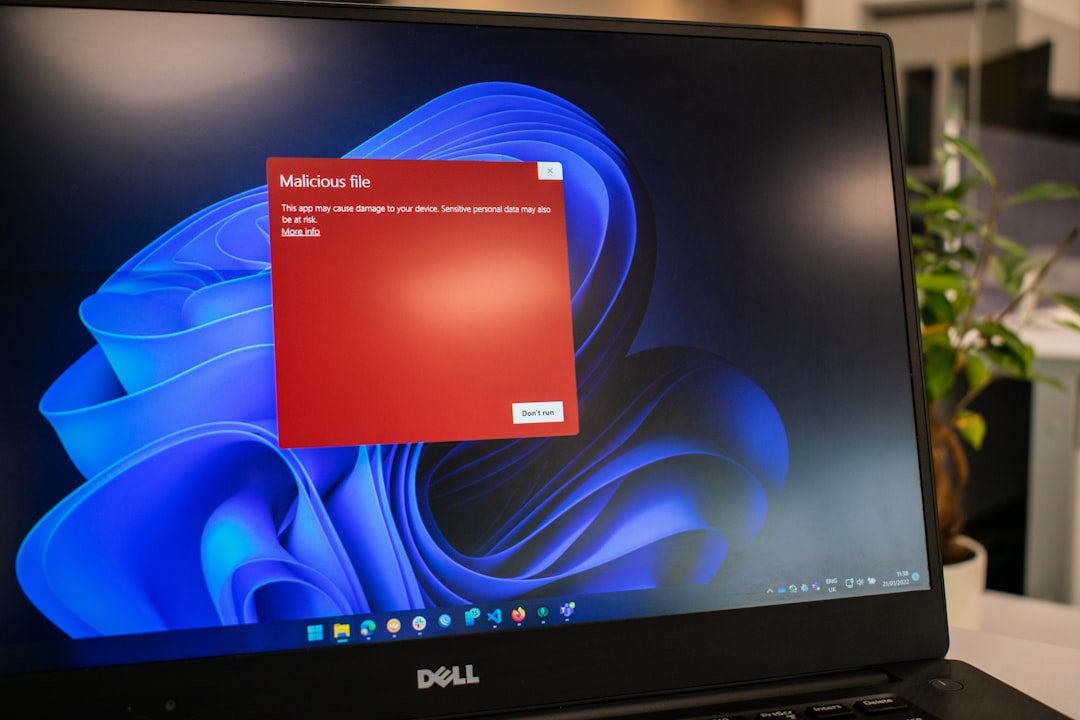
Common Causes of the WINTRUST.dll Missing Error
Several factors may trigger this issue. Understanding the underlying cause helps determine the most effective solution.
1. Accidental Deletion
Users sometimes delete DLL files while cleaning system folders or uninstalling programs, mistakenly believing they are unnecessary.
2. Malware Infection
Malicious software often targets DLL files. In some cases, malware removes or replaces WINTRUST.dll, triggering system instability.
3. Corrupted System Files
Unexpected shutdowns, power outages, or disk errors can corrupt essential Windows files.
4. Failed Windows Updates
Incomplete or interrupted Windows updates can leave system files in a damaged state.
5. Registry Errors
Incorrect entries in the Windows registry may prevent the system from properly locating or loading WINTRUST.dll.
Common Error Messages Related to WINTRUST.dll
Users may encounter variations of this problem, such as:
- WINTRUST.dll is missing from your computer
- The program can’t start because WINTRUST.dll is missing
- WINTRUST.dll not found
- WINTRUST.dll access violation
- Failed to load WINTRUST.dll
These messages may appear when launching specific applications, installing drivers, or starting Windows.
How to Fix WINTRUST.dll Missing Errors
Fixing the issue involves a structured troubleshooting approach. The following methods are commonly successful.
1. Restart the Computer
This may seem simple, but temporary glitches can cause DLL errors. Restarting the system may reload the file correctly.
2. Run System File Checker (SFC)
Windows includes a built-in tool that scans and repairs corrupted system files.
- Open the Start menu and search for Command Prompt.
- Right-click and select Run as administrator.
- Type: sfc /scannow
- Press Enter and wait for the scan to complete.
This process automatically restores missing or corrupted system files, including WINTRUST.dll.

3. Use DISM Tool
If SFC does not resolve the issue, users can run the Deployment Imaging Service and Management Tool:
- Open Command Prompt as administrator.
- Type: DISM /Online /Cleanup Image /RestoreHealth
- Press Enter.
This command repairs the Windows system image.
4. Perform a Malware Scan
Because malware can intentionally remove or replace DLL files, running a full system scan is highly recommended. Use:
- Windows Security (built-in)
- A reputable third-party antivirus program
A clean system prevents further damage.
5. Restore the System
If the error began recently, restoring Windows to an earlier state may solve the issue:
- Search for System Restore in the Start menu.
- Select a restore point from before the error occurred.
- Follow on-screen instructions.
6. Reinstall the Affected Program
If the error appears when launching a specific app, reinstalling that program may replace the necessary DLL dependencies.
7. Update Windows
Installing the latest updates ensures that system components are properly configured and secured.
8. Avoid Downloading DLL Files from Unofficial Sites
While it may be tempting to download WINTRUST.dll directly, doing so from unverified sources poses serious security risks. Many DLL download websites bundle malware or altered versions of system files.
Comparison of Common Repair Tools
| Tool | Purpose | Built Into Windows? | Difficulty Level | Recommended Use |
|---|---|---|---|---|
| System File Checker | Repairs corrupted system files | Yes | Easy | First troubleshooting step |
| DISM | Repairs Windows image | Yes | Moderate | After SFC fails |
| System Restore | Reverts system to earlier state | Yes | Easy | When error is recent |
| Antivirus Scanner | Removes malware | Yes or third party | Easy | When infection suspected |
When to Consider Reinstalling Windows
If all troubleshooting methods fail, the system may have deeper corruption. In such cases:
- Back up important data
- Perform a Windows reset
- Consider a clean installation
This step should be a last resort because it removes installed programs and custom settings.
Preventing Future DLL Errors
Prevention is always better than repair. Users can reduce the likelihood of encountering WINTRUST.dll issues by following these best practices:
- Keep Windows Updated: Install updates regularly.
- Use Reliable Antivirus Software: Protect against malware.
- Avoid Registry Cleaners: Poor registry tools often cause more harm than good.
- Shut Down Properly: Avoid abrupt power-offs.
- Create Restore Points: Before major changes or installations.
Proactive maintenance greatly reduces system instability.
Why WINTRUST.dll Matters for Security
The importance of WINTRUST.dll extends beyond simple application launches. This file plays a direct role in protecting users from unsigned or malicious executables. Without it, Windows cannot reliably validate digital certificates.
This validation process ensures:
- Drivers are officially signed
- Software publishers are verified
- System files remain authentic
A missing WINTRUST.dll file may therefore pose both stability and security risks.
FAQ: WINTRUST.dll Is Missing from Your Computer
1. Can WINTRUST.dll be downloaded separately?
It is not recommended to download DLL files from third-party websites. Instead, use built-in Windows tools like SFC or reinstall Windows components.
2. Is WINTRUST.dll a virus?
No. WINTRUST.dll is a legitimate Microsoft Windows system file. However, malware can disguise itself using similar names.
3. Why did the error appear after a Windows update?
Updates can sometimes fail or become corrupted. Running SFC and DISM usually resolves this issue.
4. Will reinstalling the program fix the error?
If the error appears only when launching a specific application, reinstalling that program may fix the problem.
5. Is this error dangerous?
While not immediately catastrophic, it can disrupt security verification processes. Prompt repair is recommended.
6. How long does it take to fix?
Most users resolve the issue within 15–30 minutes using built-in Windows tools.
7. What if SFC does not detect any problems?
If SFC reports no issues but the error persists, run the DISM tool or consider System Restore.
In conclusion, the “WINTRUST.dll is missing from your computer” error can be alarming, but it is usually fixable through structured troubleshooting. By understanding the file’s purpose and using the appropriate repair tools, users can restore both functionality and security to their Windows system.