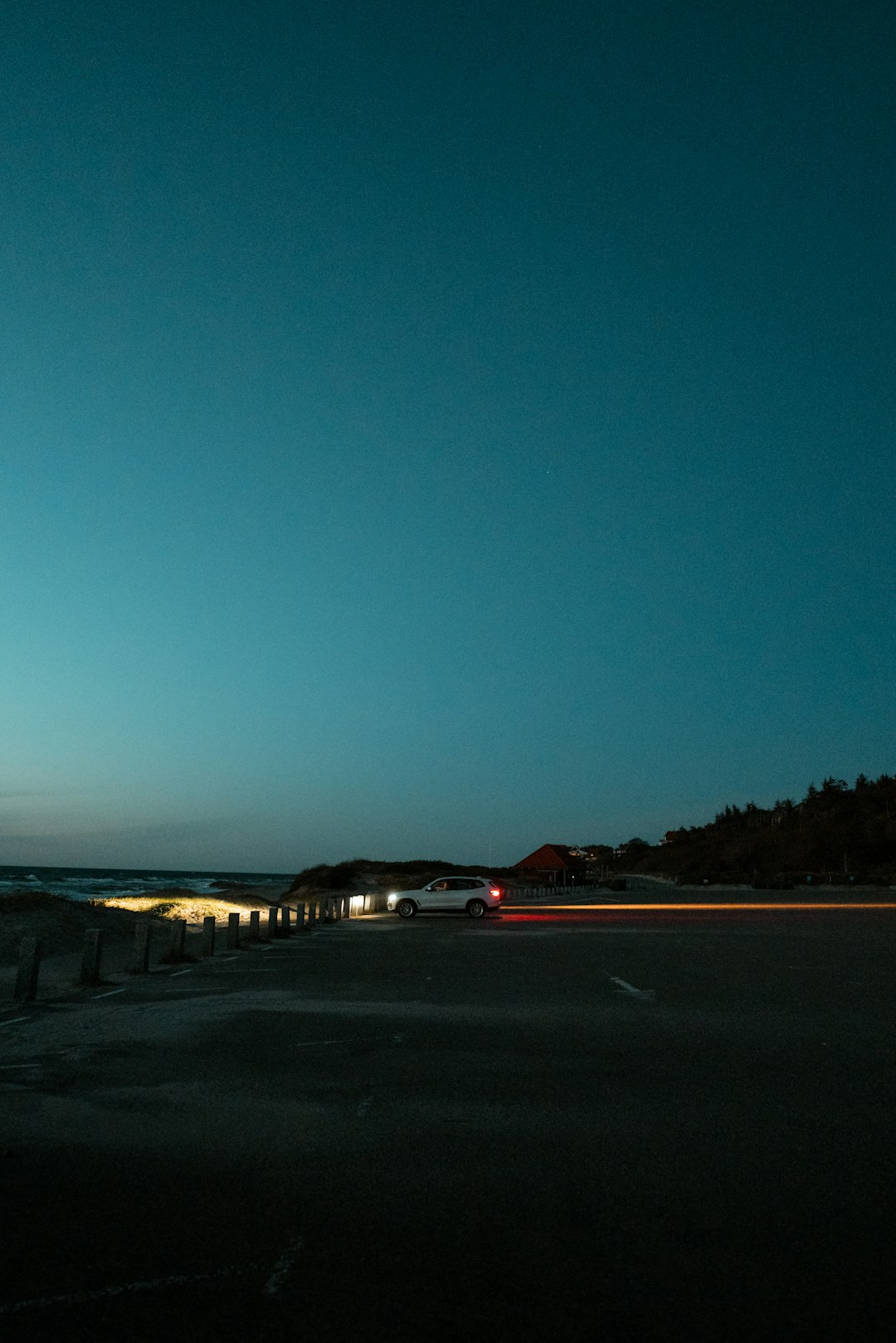

Choose VEED if you want the quickest blue hour look with simple controls; choose Kapwing if you want more layout control, captions, and reusable brand assets. For most social videos, export at 1080p unless your original footage is lower quality; YouTube still lists 1920 x 1080 as the standard size for 16:9 HD video [source: YouTube Help]. A convincing blue hour filter should cool the shadows, soften the highlights, reduce harsh contrast, and add a slight violet or cyan cast without making skin look gray.
TLDR: VEED is better for a fast blue hour filter because its color controls are direct and easy to find. Kapwing is better when the same clip also needs subtitles, resizing, overlays, or a branded template. For example, a café owner turning a 30-second sunset patio clip into three social posts may finish faster in VEED, while a marketing assistant making 12 captioned product clips may save more time in Kapwing. Expect the actual color edit to take about 3 to 7 minutes once the video is uploaded.
What a blue hour filter should actually do
A blue hour look is not just a blue overlay. Real blue hour light appears shortly before sunrise or after sunset. It has cooler shadows, softer contrast, and a calmer mood. The sky often shifts toward deep blue, while streetlights, windows, and skin tones may keep a warmer edge.
That balance matters. Push the blue too far and the video looks cheap. Leave the warmth untouched and the scene may still feel like late afternoon. A serious edit should adjust several settings:
- Temperature: lower it to make the image cooler.
- Tint: add a slight magenta or violet tone if the image turns green.
- Exposure: reduce it gently for evening mood.
- Contrast: keep it moderate, not crushed.
- Saturation: reduce loud colors, then bring back key colors if needed.
- Vignette: use lightly to pull attention toward the subject.
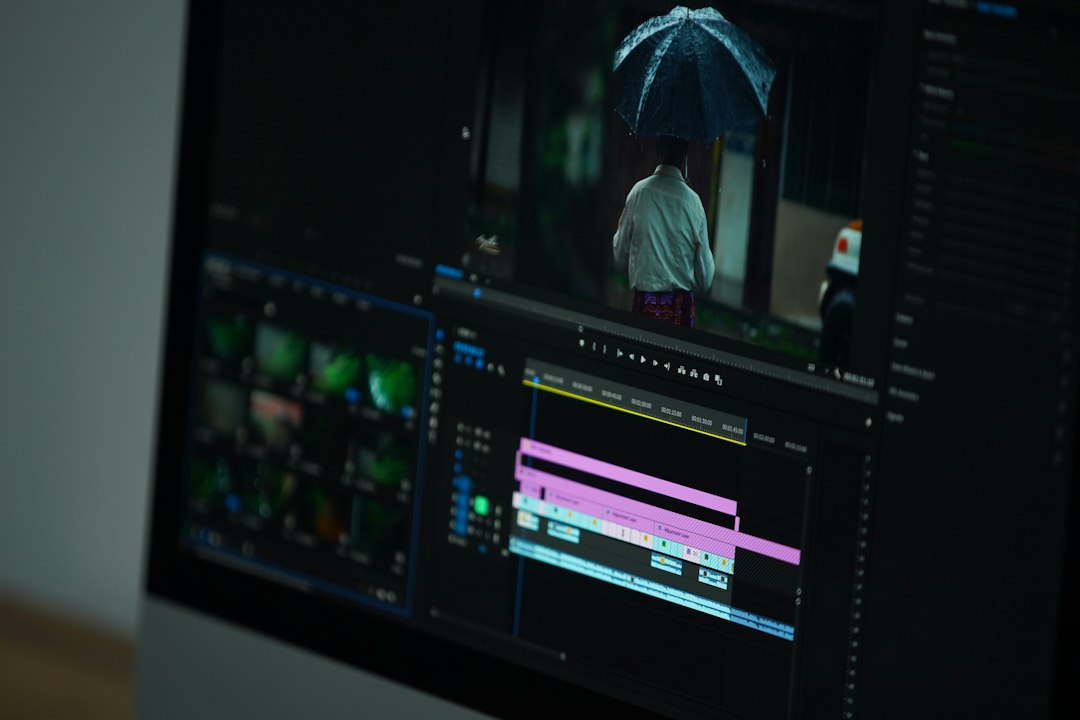
VEED: better for a quick blue hour pass
VEED is a good choice when the goal is simple: upload a clip, cool the image, trim it, export it. The interface is clear enough for people who do not edit video every day. That matters when a client wants a preview in 20 minutes and you do not want to hunt through nested menus.
To apply a blue hour style in VEED, use this workflow:
- Upload the video to VEED.
- Open the video editing panel and find the color or adjustment controls.
- Lower temperature until the scene feels cooler.
- Reduce brightness or exposure slightly.
- Add a small boost to contrast, but avoid hard black shadows.
- Lower saturation if oranges, reds, or greens look too strong.
- Preview the whole clip before export, not just one still frame.
The strongest reason to use VEED is speed. The color tools feel built for quick correction rather than heavy grading. If the clip was shot outdoors near sunset, that is often enough. A blue hour effect can look natural with only a few slider changes.
Honestly, it feels like VEED is at its best when you stop before over-editing. Do not stack too many effects. Keep the edit clean. If your footage already has a bright orange sunset, cool the shadows but leave a little warmth in windows, lamps, or faces. That contrast makes the result more believable.
Kapwing: better for social packaging and repeat work
Kapwing is a stronger pick when the blue hour filter is only one part of the job. If you also need subtitles, square crops, vertical versions, logos, progress bars, or text callouts, Kapwing can feel more complete. It is often the better choice for creators who turn one source video into several platform-specific assets.
The color workflow is similar:
- Upload the clip to Kapwing.
- Select the video layer on the canvas.
- Open the adjustment options.
- Cool the image using temperature or color settings.
- Adjust brightness, contrast, and saturation.
- Add text, subtitles, stickers, or brand elements if needed.
- Export in the correct aspect ratio for the target platform.
Kapwing can take a little longer if you only want a filter. The extra canvas and layout controls add steps. The catch is that those same controls become useful once you are making a full social post, not just correcting color. If you need a 9:16 TikTok version, a 1:1 feed version, and a 16:9 website version, Kapwing starts to make more sense.

Side-by-side comparison
| Feature | VEED | Kapwing |
|---|---|---|
| Best for | Fast color edits and simple exports | Social clips, captions, templates, and resizing |
| Blue hour workflow | Direct and quick | Slightly slower, but more flexible |
| Ease for beginners | Very approachable | Still easy, but more options to sort through |
| Best user | Solo creator, small business owner, quick editor | Content team, marketer, educator, social media manager |
Recommended blue hour settings
Start with modest settings. Online editors can make colors fall apart if you push sliders too far, especially with phone footage. Compression, low light noise, and mixed lighting can all make the edit look rough.
Use this as a safe starting point:
- Temperature: reduce by 15% to 30%.
- Brightness or exposure: reduce by 5% to 15%.
- Contrast: increase by 5% to 10%, or leave neutral for portraits.
- Saturation: reduce by 5% to 12%.
- Tint: add a slight magenta shift if the image feels green.
- Sharpness: avoid heavy increases, as low light noise becomes more visible.
For people, protect skin tone first. A blue hour city shot can be very cool and moody. A talking-head video cannot. If the person looks sick or gray, reduce the blue effect and keep the background cooler instead.
Which tool produces the better result?
The final image quality depends more on your footage and settings than on the editor. VEED and Kapwing can both create a credible blue hour effect. The difference is workflow.
Use VEED when speed matters most. It is the better pick for a real estate walkthrough, restaurant patio reel, travel clip, or simple YouTube short intro. Upload, adjust, preview, export. That is the appeal.
Use Kapwing when the video needs packaging. Captions, title cards, team templates, and multiple sizes are where it becomes more useful. It may take a few extra clicks, but those clicks are justified when the final post needs more than color.
Common mistakes to avoid
- Making everything blue: keep some warm highlights for contrast.
- Crushing shadows: dark does not always mean cinematic.
- Ignoring faces: skin tone problems make the edit look amateur.
- Editing one frame only: preview motion, especially under changing light.
- Exporting too many times: repeated compression can reduce quality.
It drives me crazy when a filter looks good on the thumbnail but falls apart during playback. Watch the full clip. Check bright skies, dark corners, faces, and any text on screen. If noise appears in the shadows, brighten them slightly or reduce contrast.
Final recommendation
VEED is the better choice for applying a blue hour filter quickly online. It suits users who want a clean result without building a full social layout. Kapwing is the better choice for teams and creators who need captions, resizing, and branded versions in the same project.
If you are editing one video, start with VEED. If you are producing a batch of posts from the same footage, use Kapwing. Either way, keep the blue hour effect subtle. The best version should feel like natural evening light, not a blue sticker placed over the video.