

USB Loader GX is one of the most popular homebrew applications for launching Wii games from a USB drive. However, many users encounter a frustrating issue: their games simply do not appear in the loader. Whether the screen shows an empty game list or only partial titles, the problem usually stems from configuration, formatting, or compatibility errors rather than something permanently broken.
TLDR: If USB Loader GX is not showing your games, the issue is usually related to incorrect USB formatting, wrong folder structure, missing cIOS, outdated software, or drive compatibility problems. Ensuring your drive is formatted to FAT32, properly structured, and connected to the correct USB port solves most issues. Updating cIOS and USB Loader GX can also restore missing titles. In rare cases, switching USB drives may be necessary.
Below are the top five ways to fix USB Loader GX not showing games, along with practical steps for each solution.
1. Check USB Drive Format (FAT32 Is Required)
The most common reason games do not appear is improper USB formatting. USB Loader GX works best with FAT32 formatted drives. If your drive is formatted as NTFS, exFAT, or WBFS, the loader may fail to detect games correctly.
What to Do:
- Connect the USB drive to a computer.
- Open Disk Management (Windows) or Disk Utility (Mac).
- Check the file system of the drive.
- Reformat the drive to FAT32 if necessary.
For larger drives (over 32GB), Windows does not offer FAT32 formatting by default. You can use tools like GUIFormat or Wii Backup Manager to format properly.
Important: Back up your data before formatting, as this process erases everything.
Cluster Size Tip: Set the allocation unit (cluster) size to 32KB for optimal Wii compatibility.
2. Verify Proper Folder Structure
Even if your drive is correctly formatted, USB Loader GX will not show games unless they are stored in the correct directory structure.
The required folder layout is:
- /wbfs/Game Title [GameID]/GameID.wbfs
For example:
- /wbfs/Mario Kart Wii [RMCE01]/RMCE01.wbfs
If your games are placed directly in the root directory or incorrectly named, they may not appear.
Best Practice: Use Wii Backup Manager to transfer games to your USB drive. It automatically creates the correct structure and avoids naming errors.
| Tool | Main Purpose | Beginner Friendly | Automatic Folder Setup |
|---|---|---|---|
| Wii Backup Manager | Transfer and manage Wii backups | Yes | Yes |
| GUIFormat | Format drive to FAT32 | Yes | No |
| Windows Disk Management | Partition and format drives | Moderate | No |
If your structure is incorrect, reorganize the files using Wii Backup Manager to prevent detection issues.
3. Ensure cIOS Is Installed and Updated
USB Loader GX relies on custom IOS (cIOS) to read and run games from a USB device. If cIOS is missing, outdated, or improperly installed, the loader may show no games at all.
The most commonly recommended versions are:
- d2x cIOS base 56 (Slot 249)
- d2x cIOS base 57 (Slot 250)
How to Check:
- Open USB Loader GX.
- Go to Settings.
- Check which IOS slot the loader is using.
If cIOS is not installed, you will need to use the d2x cIOS installer via the Homebrew Channel.
Warning: Follow a trusted guide specific to your Wii model (original Wii vs Wii U vWii). Installing the wrong files may cause system issues.
4. Use the Correct USB Port
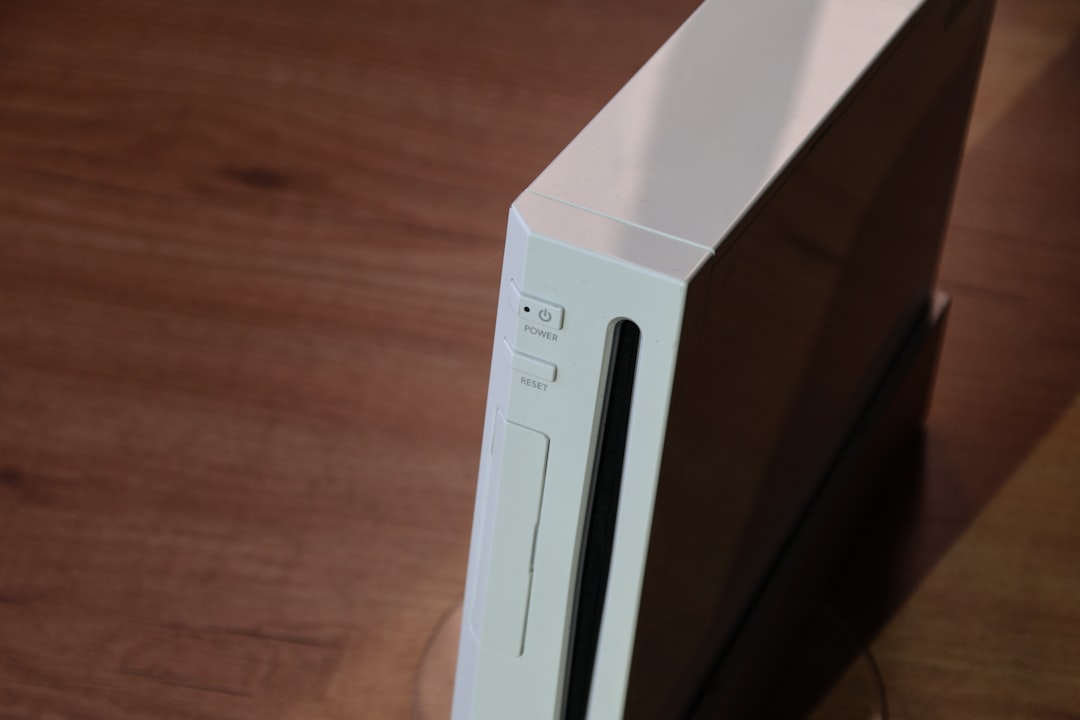
This may sound simple, but it fixes the issue surprisingly often. The Wii has two USB ports on the back. USB Loader GX typically only reads from USB Port 0.
When the Wii is lying horizontally, Port 0 is:
- The bottom port
When standing vertically, it’s:
- The left port
If your drive is plugged into the wrong port, the loader may not detect it at all.
Quick Fix:
- Turn off the Wii completely.
- Switch the USB cable to the correct port.
- Restart USB Loader GX.
This alone resolves the issue for many users who assume something more complicated is wrong.
5. Check Drive Compatibility and Power Issues
Not all USB drives behave the same way with the Wii. Some modern USB 3.0 flash drives, external SSDs, or large-capacity hard drives may fail to initialize properly.
Common Symptoms:
- USB Loader GX freezes on startup.
- The drive light blinks but games do not appear.
- The loader says “Waiting for HDD.”
Solutions:
- Use a powered external hard drive instead of a flash drive.
- Try a Y-cable for drives requiring extra power.
- Test with a smaller capacity USB drive.
- Avoid exFAT formatting.
Many experienced users report the highest compatibility with externally powered HDDs rather than small USB sticks.
Bonus Fix: Update USB Loader GX
If everything appears correctly configured but games still do not show, your version of USB Loader GX might be outdated.
- Download the latest revision.
- Replace the existing files on your SD card.
- Ensure config files are not corrupted.
Corrupt configuration files can also cause game lists to fail. Deleting the USBLoaderGX config file and allowing it to regenerate can help.
Final Thoughts
When USB Loader GX is not showing games, the issue usually comes down to one of five things: drive format, folder structure, cIOS installation, USB port selection, or drive compatibility. By methodically checking each element, users can resolve the issue without replacing hardware or reinstalling the entire homebrew setup.
Rather than guessing, follow the fixes step by step. In most cases, the problem is solved within minutes once the underlying cause is identified.
Frequently Asked Questions (FAQ)
1. Why does USB Loader GX say “Waiting for HDD”?
This usually means the drive is not formatted correctly, is plugged into the wrong USB port, or is not receiving enough power. Try switching ports and ensuring FAT32 formatting.
2. Can USB Loader GX read NTFS drives?
While some versions support NTFS, FAT32 is the most stable and recommended format. NTFS often causes detection or compatibility issues.
3. Do I still need WBFS format?
No. WBFS is outdated and unnecessary. Store games as .wbfs files inside the /wbfs/ folder on a FAT32 drive instead.
4. Why are only some of my games showing?
This could indicate corrupted files or improperly named folders. Use Wii Backup Manager to verify and re-transfer missing titles.
5. Is a USB flash drive good enough?
Some flash drives work, but compatibility varies. An externally powered hard drive generally offers better stability and fewer detection problems.
6. Will reinstalling USB Loader GX delete my games?
No. Games are stored on the USB drive. Reinstalling the loader only affects application files on your SD card.
By applying the fixes above, users can restore full functionality to USB Loader GX and get back to enjoying their Wii game library without unnecessary frustration.

