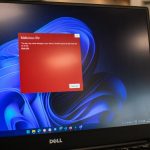

When users encounter the SIGILL error code while using Google Docs, confusion often follows. Documents may suddenly fail to load, the browser may crash, or the application can become unresponsive without warning. While the error appears technical and intimidating, it typically points to a low-level system issue rather than a problem with the document itself. Understanding what SIGILL means and how to resolve it can help restore productivity quickly and prevent repeated disruptions.
TLDR: The SIGILL error in Google Docs usually indicates that a browser, extension, or system component attempted to execute an illegal CPU instruction. It is often caused by corrupted browser files, outdated software, incompatible extensions, or hardware acceleration conflicts. Updating the browser, disabling extensions, clearing cache, or reinstalling the application typically resolves the issue. In rare cases, hardware or operating system compatibility problems may be responsible.
What Is the SIGILL Error?
SIGILL stands for “Signal Illegal Instruction.” It is a system-level signal generated when a program attempts to execute an invalid or unsupported CPU instruction. In technical terms, the operating system halts the process to prevent further damage or instability.
Although SIGILL errors are more commonly associated with compiled programs and development environments, they can surface in browser-based applications like Google Docs. When this happens, the issue is not usually with the document but rather with how the browser or system is processing code.
In the context of Google Docs, users might experience:
- Sudden browser crashes while editing a document
- Tabs that reload repeatedly without explanation
- The “Aw, Snap!” Chrome error message
- Freezing during auto-save operations
- Complete browser shutdown when opening Docs
Because Google Docs runs inside a browser (usually Google Chrome), the root cause is often tied to the browser environment rather than Google Docs directly.
Common Causes of the SIGILL Error in Google Docs
Several factors can trigger this error. Identifying the right one is key to applying the proper fix.
1. Outdated Browser Version
Browsers frequently receive updates that improve compatibility and patch bugs. An outdated version of Chrome, Edge, or another browser may attempt to interpret newer instructions incorrectly, resulting in a SIGILL error.
2. Corrupted Browser Cache or Files
Corrupt temporary files can interfere with how Google Docs loads scripts and resources. When the browser tries to execute damaged code, it may produce the illegal instruction signal.
3. Faulty or Incompatible Extensions
Browser extensions run additional scripts that interact with webpages. If an extension conflicts with Google Docs or is poorly optimized, it may execute invalid instructions that crash the browser process.
4. Hardware Acceleration Issues
Modern browsers use hardware acceleration to improve performance. However, GPU driver incompatibilities can trigger SIGILL errors during rendering tasks.
5. Operating System or CPU Compatibility Problems
Rarely, older processors may lack support for specific instruction sets required by updated browser versions. In such cases, the application attempts to execute code the CPU does not understand.
How to Fix the SIGILL Error in Google Docs
Resolving the issue involves systematic troubleshooting. Users should follow these steps in order to identify the root cause.
Step 1: Update the Browser
Ensuring that Chrome, Firefox, or Edge is fully updated is the simplest and most effective solution.
- Open browser settings
- Navigate to About or About Chrome
- Install any pending updates
- Restart the browser
Many SIGILL errors disappear after an update because compatibility bugs are corrected.
Step 2: Clear Cache and Cookies
Clearing cached files removes potentially corrupted data.
- Open browser settings
- Select Privacy and Security
- Choose Clear browsing data
- Select cached images and files
- Restart the browser
Step 3: Disable Extensions
Extensions are one of the most common sources of conflict.
- Open the extensions manager
- Disable all extensions temporarily
- Test Google Docs
- Re-enable extensions one by one to identify the culprit
Step 4: Turn Off Hardware Acceleration
Turning off hardware acceleration forces the browser to rely on software rendering.
- Open browser settings
- Search for hardware acceleration
- Disable the feature
- Restart the browser
Step 5: Reinstall the Browser
If corrupted installation files are responsible, a full uninstall and reinstall may resolve the issue.
Step 6: Check System Updates
Operating system updates may include important compatibility patches, particularly for newer web standards and security features.
When the Problem Is Hardware-Related
In rare situations, the SIGILL error indicates a deeper compatibility issue between modern software and older hardware. For example:
- Older CPUs lacking required instruction sets
- Outdated graphics drivers
- Memory instability issues
If multiple applications produce SIGILL errors—not just Google Docs—this may suggest a broader system problem. Running hardware diagnostics or updating graphics drivers can help.
Preventing Future SIGILL Errors
While not all errors are preventable, proactive maintenance reduces risk significantly. Best practices include:
- Keep browsers updated
- Limit installed extensions
- Regularly clear cache
- Update graphics drivers
- Maintain operating system updates
Users working in professional or academic environments should also consider using a stable release version of Chrome instead of experimental builds.
SIGILL vs. Other Google Docs Errors
SIGILL differs from typical Google Docs errors such as:
- Offline syncing errors
- Permission denied messages
- Document loading failures
- Network timeouts
Those issues are usually related to connectivity or account permissions. SIGILL, by contrast, is a low-level execution error tied to system instructions.
When to Seek Professional Help
If troubleshooting fails, users may need professional assistance in the following cases:
- The error persists across multiple browsers
- Other applications crash with similar signals
- The computer frequently shows system-level crashes
- Hardware diagnostics indicate faults
An IT professional can examine system logs to determine whether deeper operating system or hardware issues are present.
Conclusion
The SIGILL error in Google Docs can seem intimidating, but it is usually a browser or system configuration issue rather than a document problem. In most cases, updating the browser, clearing cache, disabling extensions, or adjusting hardware acceleration resolves the issue quickly. Although rare, hardware incompatibilities or outdated CPU instruction sets can also contribute. With systematic troubleshooting and regular system maintenance, users can minimize interruptions and keep their Google Docs workflow running smoothly.
Frequently Asked Questions (FAQ)
- What does SIGILL stand for?
SIGILL stands for “Signal Illegal Instruction.” It occurs when a program attempts to execute a CPU instruction that is invalid or unsupported. - Is the SIGILL error caused by Google Docs itself?
Usually not. The error typically originates from the browser, extensions, operating system, or hardware environment rather than Google Docs directly. - Can a corrupted document trigger a SIGILL error?
It is rare. Most of the time, the issue lies in the browser’s processing rather than in the document file. - Does reinstalling Chrome fix the SIGILL error?
In many cases, yes. Reinstalling can replace corrupted files that may be causing illegal instruction errors. - Should hardware acceleration be enabled or disabled?
If SIGILL errors occur frequently, temporarily disabling hardware acceleration can help determine if GPU incompatibility is the cause. - Can outdated hardware cause SIGILL errors?
Yes. Older CPUs that lack modern instruction sets may struggle with newer browser versions, potentially triggering SIGILL errors. - Is the SIGILL error dangerous?
The error itself is a protective mechanism. It prevents further execution of problematic code, which helps maintain system stability.