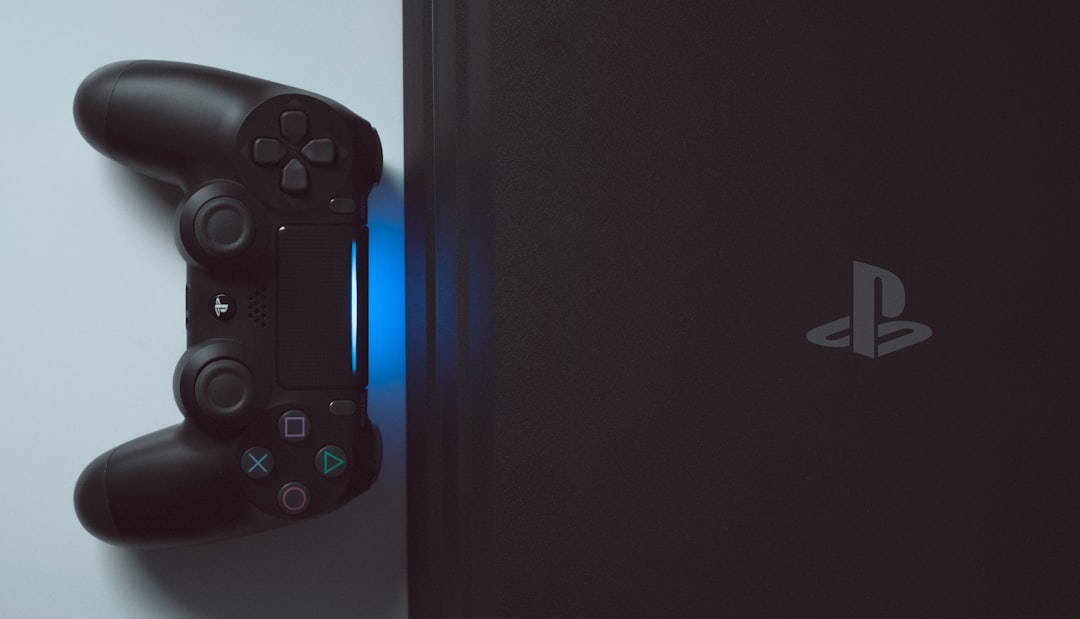

The PS4 is a tough little machine. But even tough machines have bad days. One of the most annoying problems you might see is Update Error SU-42477-4. It pops up during a system update and refuses to go away. Frustrating? Very. Fixable? Absolutely.
TL;DR: PS4 Update Error SU-42477-4 usually means your console cannot properly install a system update. This can happen because of hard drive issues, corrupted update files, or a failing Blu-ray drive connection. You can fix it by restarting, reinstalling the update via USB, checking hardware connections, or reinstalling system software. In rare cases, hardware repair may be needed.
What Is PS4 Error SU-42477-4?
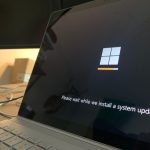
This error usually appears when you try to update your PS4 system software. The update starts. It looks normal. Then suddenly, boom. Error code SU-42477-4.
In simple terms, your PS4 is saying, “Something is wrong. I cannot continue.”
This error often points to one of three things:
- Corrupted update file
- Hard drive problem
- Blu-ray drive connection issue
Yes, even the Blu-ray drive matters. Even if you only play digital games.
Why Does This Error Happen?
Let’s break it down in simple language.
1. Corrupted Update File
If your internet cut out during download, the file may be broken. A broken file cannot install properly.
2. Hard Drive Issues
If the PS4 hard drive is loose or failing, updates may not install correctly.
3. Blu-ray Drive Problems
Here’s the weird part. The PS4 checks the Blu-ray drive during updates. If it detects a fault, it may block the update.
Even if you never use discs.
How To Fix PS4 Error SU-42477-4
Let’s move to the good stuff. The fixes. Start from the top and work your way down.
Fix 1: Restart Your PS4 (Yes, Really)
Sometimes the simplest fix works.
- Turn off your PS4 completely.
- Unplug it from the power source.
- Wait 5 minutes.
- Plug it back in.
- Try the update again.
This refreshes temporary system glitches.
Quick. Easy. Worth trying first.
Fix 2: Update Using Safe Mode
This method solves many update errors.
Here’s how:
- Turn off your PS4.
- Press and hold the power button.
- Release after the second beep (about 7 seconds).
- Connect your controller with a USB cable.
- Select Update System Software.
Safe Mode skips certain background processes. That helps avoid conflicts.
Fix 3: Reinstall Update via USB
If online updating fails, go manual.
You will need:
- A USB drive (at least 2GB)
- A PC or laptop
- Official PS4 update file
Steps:
- Format the USB to FAT32.
- Create a folder named PS4.
- Inside it, create another folder named UPDATE.
- Download the official update file.
- Save it as PS4UPDATE.PUP inside the UPDATE folder.
- Insert USB into PS4.
- Boot into Safe Mode.
- Choose Update from USB.
This replaces any corrupted downloaded file.
Fix 4: Check The Hard Drive
If the error keeps coming back, the hard drive might be loose.
Warning: Only do this if you are comfortable handling hardware.
- Turn off and unplug your PS4.
- Remove the hard drive cover.
- Unscrew and carefully pull out the drive.
- Reinsert it firmly.
- Screw everything back in place.
A loose connection can stop updates from installing.
If your PS4 makes clicking noises, the drive might be failing. In that case, consider replacing it.
Fix 5: Reinstall Full System Software
This is the nuclear option.
It erases everything.
But it often works.
Instead of downloading the normal update file, download the full system software reinstallation file.
Follow the same USB steps mentioned earlier. But in Safe Mode, choose:
Initialize PS4 (Reinstall System Software)
This gives your console a fresh start.
Fix 6: Check Blu-ray Drive Connections
This is the trickiest fix.
If your Blu-ray drive ribbon cable is loose or damaged, the system may block updates.
Common signs:
- Discs not reading
- Strange clicking sounds
- Update fails every time
Fixing this may require opening the console deeper. If you are unsure, see a technician.
Quick Comparison of Fix Methods
| Fix Method | Difficulty | Risk Level | Data Loss | Best For |
|---|---|---|---|---|
| Restart Console | Very Easy | None | No | Minor glitches |
| Safe Mode Update | Easy | Low | No | Software conflicts |
| USB Update | Medium | Low | No | Corrupted downloads |
| Reinstall System Software | Medium | Medium | Yes | Persistent errors |
| Check Hard Drive | Medium | Medium | No | Loose drive issues |
| Repair Blu-ray Drive | Hard | High | No | Hardware-related errors |
How To Prevent SU-42477-4 In The Future
You cannot prevent everything. But you can reduce the risk.
- Use a stable internet connection during updates.
- Do not turn off your PS4 during installation.
- Keep your system dust-free.
- Avoid physical shocks or drops.
- Back up data regularly.
Also, consider upgrading to an SSD if you still use the original hard drive. It makes the system faster and sometimes more stable.
When Should You Contact a Professional?
It may be time to seek help if:
- The error persists after full reinstallation.
- Your PS4 cannot read discs at all.
- You hear mechanical grinding noises.
- The system randomly shuts off.
At that point, the issue is likely hardware-related.
If your PS4 is still under warranty, do not open it yourself.
Is This Error Common in 2026?
Yes. Surprisingly, yes.
Even though the PS5 is widely available, millions still use the PS4 daily.
Aging hardware means errors like SU-42477-4 are becoming more frequent.
Hard drives wear out. Ribbon cables loosen. Dust builds up.
It’s normal for older consoles.
The good news? Most cases are fixable at home.
Final Thoughts
PS4 Update Error SU-42477-4 looks scary. But it is usually manageable.
Start simple. Restart. Use Safe Mode. Try a USB update.
If needed, move to deeper fixes like reinstalling software or checking hardware.
Take your time. Follow steps carefully. Do not panic.
Your PS4 probably just needs a little attention.
And once fixed, you can get back to what really matters.
Gaming.