
Opening the Linux command line can feel like stepping into a spaceship cockpit. There is a blinking cursor. There are no buttons. It looks serious. But do not panic. The terminal is just a place where you type commands and Linux does what you ask. Think of it as texting your computer.
TLDR: The Linux command line lets you control your computer by typing simple commands. You can move around folders, view files, create things, delete things, and check what your system is doing. Start with commands like pwd, ls, cd, mkdir, cp, mv, and rm. Go slowly, read messages carefully, and do not fear the blinking cursor.
What Is the Linux Command Line?
The command line is a text-based way to talk to your computer. It is also called the terminal, shell, or console. These words are close cousins. Beginners can treat them as the same thing for now.
Instead of clicking icons, you type commands. Then you press Enter. Linux answers with text. Sometimes it prints results. Sometimes it says nothing. In Linux, silence often means success. Very dramatic. Very mysterious.
The command line is powerful because it is fast. It is also great for servers, programming, automation, and fixing things. Once you learn the basics, you will feel like a wizard with a keyboard.
How to Open the Terminal
Most Linux systems make this easy.
- Press Ctrl + Alt + T on many Linux desktops.
- Search for Terminal in your app menu.
- Right-click a folder and choose Open in Terminal, if available.
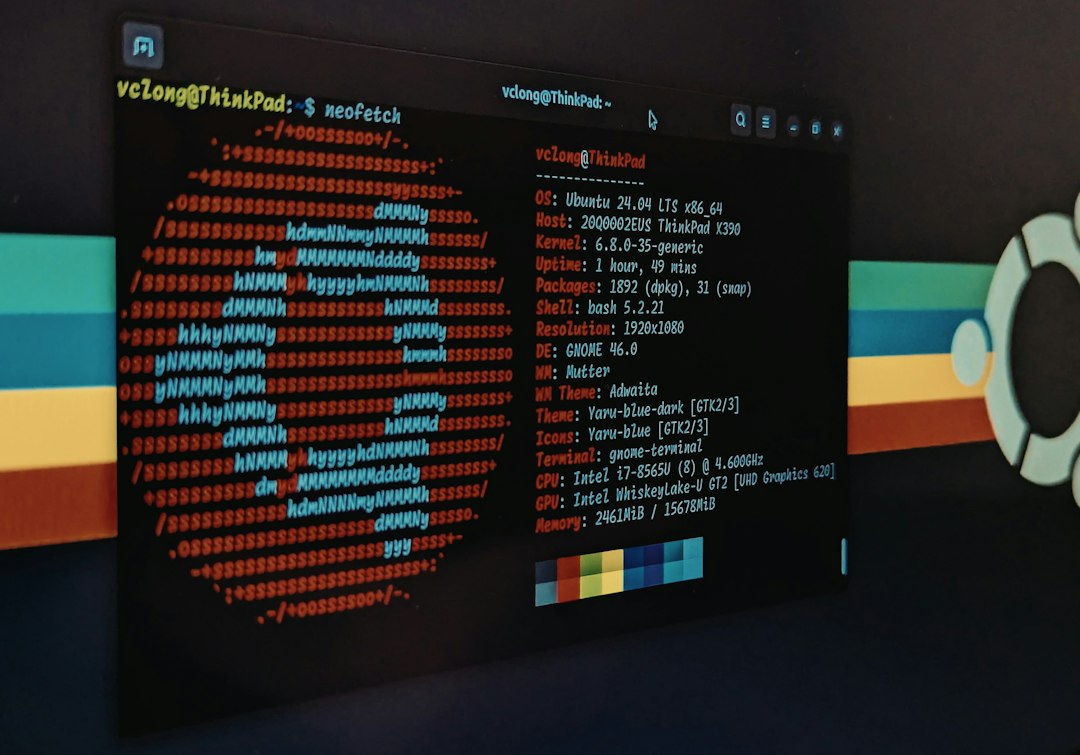
When it opens, you may see something like this:
alex@laptop:~$This is called the prompt. It waits for your command. The ~ symbol means your home folder. That is your personal space. It is like your bedroom, but with more config files.
The First Command: pwd
Let us start with a tiny command.
pwdpwd means print working directory. It tells you where you are right now.
You might see this:
/home/alexThat means you are in the home folder for the user named Alex. If your name is not Alex, do not worry. Linux is not confused. This is just an example.
Look Around with ls
Now let us see what is inside the current folder.
lsThis lists files and folders. You may see names like:
Desktop Documents Downloads Music PicturesWant more detail? Use:
ls -lThe -l part is called an option or flag. It changes how the command works. This one shows a long list with permissions, owners, sizes, and dates.
Want to see hidden files too?
ls -aHidden files in Linux often start with a dot. Like .bashrc. They are not gone. They are just wearing tiny invisibility cloaks.
You can combine options:
ls -laThis shows a long list, including hidden files.
Move Around with cd
cd means change directory. A directory is just a folder.
To move into your Documents folder, type:
cd DocumentsNow check where you are:
pwdYou may see:
/home/alex/DocumentsTo go back one level, use:
cd ..The two dots mean parent folder. In human language, it means “go up.”
To return to your home folder from anywhere, type:
cdThat is it. Just cd by itself. Like a homing pigeon.
Make Folders with mkdir
You can create a new folder with mkdir. It means make directory.
mkdir practiceThis creates a folder named practice.
Now enter it:
cd practiceYou are inside your new folder. It is empty. It is fresh. It smells like potential.
Create Files with touch
The touch command creates an empty file. It can also update a file’s modified time. But for now, it makes files.
touch notes.txtNow list the folder:
lsYou should see:
notes.txtCongratulations. You made a file from the command line. It may be empty, but it is yours.
Read Files with cat
The cat command prints a file’s contents to the terminal.
cat notes.txtIf the file is empty, nothing appears. That is normal. The cat is not broken.
Let us add text quickly using echo:
echo "Hello Linux!" > notes.txtNow read it:
cat notes.txtYou should see:
Hello Linux!The > symbol sends output into a file. Be careful. It replaces the file content. If you want to add to the file instead, use >>.
echo "I am learning commands." >> notes.txtCopy Files with cp
The cp command copies files.
cp notes.txt backup.txtThis makes a copy of notes.txt called backup.txt.
Check with:
lsYou should see both files.
To copy a folder, use -r. The r means recursive. That means “copy this folder and everything inside it.”
cp -r practice practice_copyRecursive sounds scary. It is not. It just means the command keeps going through the contents.
Move and Rename with mv
The mv command does two common jobs. It moves files. It also renames files.
Rename backup.txt to old_notes.txt:
mv backup.txt old_notes.txtMove a file into another folder:
mv old_notes.txt DocumentsIf the folder exists, the file moves there. If the second name is not a folder, Linux treats it as a new file name.
This is handy. It is also a reason to type carefully.
Delete with rm
Now we meet the spicy command. rm removes files.
rm old_notes.txtThis deletes the file. In many terminal cases, it does not go to the trash. It is gone. Like a cookie near a hungry programmer.
To remove a folder and everything inside it, use:
rm -r foldernameBe careful with this. Very careful. Read the command before pressing Enter.
Beginner safety tip: Do not copy random rm commands from the internet. Especially if you do not understand them.
Clear the Screen with clear
Your terminal can get messy. That is fine. Use:
clearThis cleans the screen. It does not delete files. It just gives you a fresh view. Like wiping a whiteboard.
Get Help with man and --help
Linux has built-in help. This is great because nobody remembers every option.
Try:
man lsman means manual. It opens the manual page for a command. Use the arrow keys to scroll. Press q to quit.
You can also try:
ls --helpMany commands support --help. It prints a shorter help message.
Use Tab Completion
This is one of the best terminal tricks.
Start typing a file or folder name. Then press Tab. Linux will try to finish it for you.
For example, if you have a folder named Documents, type:
cd DocThen press Tab. It may become:
cd DocumentsThis saves time. It also prevents spelling mistakes. The Tab key is your tiny robot assistant.
Use the Up Arrow
Press the Up Arrow key. You will see your previous command. Press it again to go further back.
This is useful when you need to repeat a command. It is also useful when you made a small typo. Use the arrow keys to edit the line, then press Enter.
Check Running Programs with ps and top
Linux can show what is running.
psThis shows processes in your current terminal session.
For a live system view, use:
topYou will see programs, CPU use, memory use, and more. It updates live. Press q to quit.
If your computer feels slow, top can help you spot the hungry program eating all the snacks.
Install Software with a Package Manager
Linux systems use package managers to install software. The command depends on your Linux type.
- Ubuntu and Debian use
apt. - Fedora uses
dnf. - Arch uses
pacman.
On Ubuntu, you can update package lists with:
sudo apt updateInstall a program like curl with:
sudo apt install curlsudo means “run this as an administrator.” It may ask for your password. When you type it, you may not see dots or stars. That is normal. Linux is being secretive.
Understand Paths
A path is the address of a file or folder.
An absolute path starts from the root of the system:
/home/alex/Documents/notes.txtA relative path starts from where you are now:
Documents/notes.txtThe root folder is written as /. It is the top of the Linux file tree. Everything lives under it. Your files, apps, drives, logs, and system settings all have places there.
Permissions in Simple Words
Linux cares about permissions. This helps protect your system.
When you run:
ls -lYou may see something like:
-rw-r--r--This shows who can read, write, or run a file. For beginners, the key idea is simple:
- Read means you can view it.
- Write means you can change it.
- Execute means you can run it like a program.
If Linux says permission denied, it means your user is not allowed to do that action. Sometimes sudo helps. Sometimes you should stop and ask why.
A Tiny Practice Mission
Let us do a mini quest. Type these commands one at a time.
cdmkdir terminal_funcd terminal_funtouch adventure.txtecho "I opened the terminal and survived." > adventure.txtcat adventure.txtcp adventure.txt copy.txtls -l
You just created a folder, entered it, made a file, wrote text, read it, copied it, and listed details. That is real command line work. Nice job.
Good Habits for Beginners
- Type slowly. Speed comes later.
- Use Tab completion. It saves your fingers.
- Read error messages. They often tell you the problem.
- Practice in a safe folder. Make a folder just for experiments.
- Be careful with
rm. Deleting is powerful. - Use
manpages. They are boring but useful.
Common Beginner Mistakes
Everyone makes mistakes. The terminal is not judging you. It is just waiting.
- Wrong folder: Use
pwdto check where you are. - Misspelled file name: Use
lsand Tab completion. - Permission denied: Check if you need admin rights.
- Command not found: Check spelling or install the program.
- Forgot how to quit: Try
q,Ctrl + C, orCtrl + D.
Ctrl + C stops many running commands. It is the terminal version of “please stop that now.” Very useful.
Final Thoughts
The Linux command line looks strange at first. But it is built from small ideas. You learn one command. Then another. Soon you can move through folders, manage files, install tools, and inspect your system.
Start with pwd, ls, and cd. Then add mkdir, touch, cat, cp, mv, and rm. Practice a little each day. Keep a test folder. Break nothing important.
Most of all, have fun. The terminal is not a monster. It is a very literal helper. Tell it exactly what to do, and it will usually do it. Sometimes too exactly. So type with care, press Enter with confidence, and enjoy your new Linux superpower.