


Wooting keyboards are known for their premium build quality and advanced analog input technology, but even high-end peripherals can run into issues. One common problem users encounter is RGB lighting not working properly. Whether the lights are completely off, stuck on one color, flickering, or partially lit, RGB issues can be frustrating—especially on a keyboard designed to stand out visually.
TLDR: If your Wooting keyboard RGB is not working, start by checking brightness settings and cable connections. Update or reinstall Wootility software and firmware, then reset the keyboard to factory settings if needed. Also verify USB ports and power delivery. In most cases, one of these six proven solutions will restore your RGB lighting quickly.
Below are six proven solutions to fix Wooting keyboard RGB problems, along with practical steps and troubleshooting advice.
1. Check RGB Brightness and Profile Settings
Before diving into technical fixes, make sure the issue isn’t caused by basic configuration settings. Sometimes RGB lighting appears “not working” when brightness is simply set to zero or the selected profile has lighting disabled.
Steps to verify RGB settings:
- Open Wootility (Wooting’s configuration software).
- Select your active profile.
- Check the RGB brightness slider.
- Ensure lighting effects are enabled.
- Switch to a different profile to test.
Many users accidentally switch to a low-brightness or non-RGB profile when experimenting with settings.

Also try increasing brightness using onboard shortcuts if your model supports them. Refer to your keyboard’s manual for the specific key combination.
2. Inspect and Reconnect the USB Cable
RGB lighting requires stable power delivery. A loose or faulty USB-C cable may provide enough power for typing functionality but not enough for full RGB performance.
What to do:
- Disconnect the USB cable from both the keyboard and PC.
- Inspect for dust or physical damage.
- Reconnect firmly to both ends.
- Test a different high-quality USB-C cable.
If you are using a USB hub, switch to a direct motherboard USB port. Some hubs limit power output, which can cause RGB failures.
Pro tip: Use a USB 3.0 or higher port directly on the back of your PC for optimal stability.
3. Update or Reinstall Wootility Software
Outdated or corrupted software is another common cause of RGB not working properly.
Wootility controls RGB effects, key mapping, and firmware updates. If it malfunctions, lighting profiles may fail to load.
To update or reinstall:
- Uninstall the existing Wootility version.
- Restart your computer.
- Download the latest version from Wooting’s official website.
- Install and reconnect your keyboard.
After reinstalling, reapply your RGB profile or set up a new one.
Image not found in postmetaImportant: Always use the official Wooting website to download software. Avoid third-party sources.
4. Perform a Firmware Update
Firmware controls how the keyboard hardware interacts with software. If RGB lighting stopped working after a system update or randomly malfunctioned, firmware might be the issue.
Steps to update firmware:
- Open Wootility.
- Navigate to the Firmware tab.
- Check for available updates.
- Start the update process.
- Do not disconnect the keyboard during installation.
Once completed, unplug and reconnect the keyboard.
Firmware updates often resolve:
- Partial RGB lighting
- Random color glitches
- Unresponsive lighting zones
If your RGB stopped working after a firmware update, try reinstalling the firmware to ensure proper installation.
5. Reset the Keyboard to Factory Settings
If configuration files become corrupted, a factory reset can restore default lighting behavior.
The reset process may vary slightly by model, but generally involves holding specific keys while plugging the keyboard in.
Typical reset process:
- Unplug the keyboard.
- Hold the designated reset key combination.
- Plug the keyboard back in while holding the keys.
- Wait for confirmation (usually flashing lights).
After resetting:
- Reconfigure RGB in Wootility.
- Update firmware if necessary.
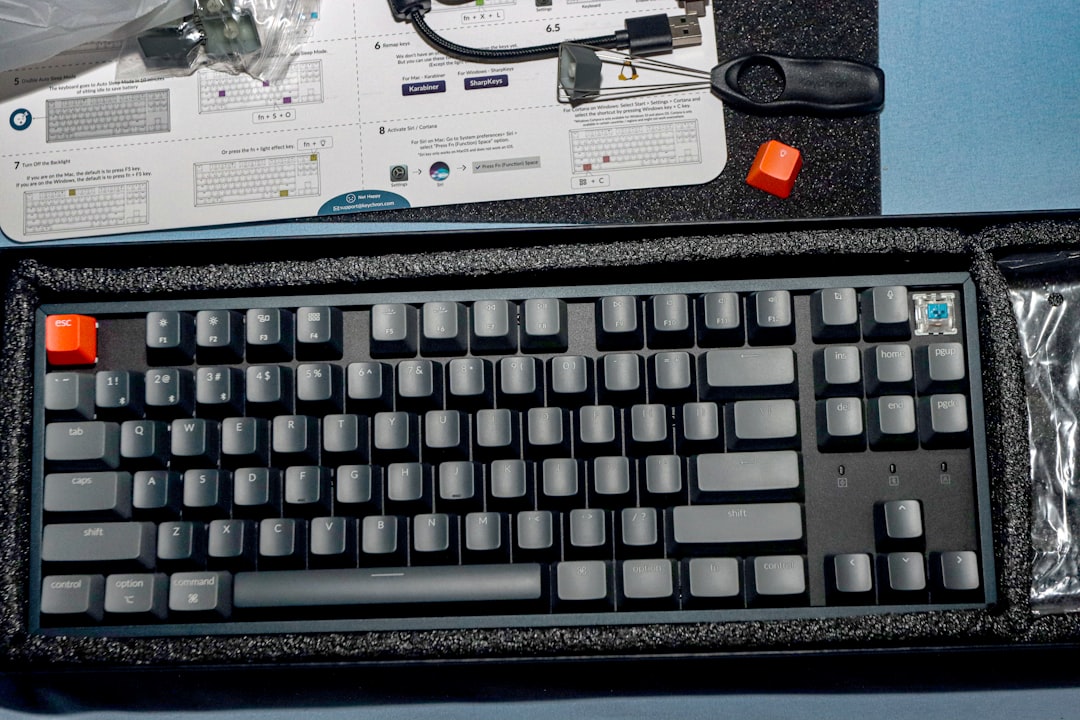
A factory reset solves many persistent issues caused by corrupted profiles or firmware conflicts.
6. Test Different USB Ports and PCs
Sometimes the problem isn’t the keyboard at all—it’s the computer.
Test your Wooting keyboard on:
- A different USB port
- A different PC or laptop
- Another operating system (if available)
If RGB works on another device, your main system likely has:
- USB driver conflicts
- Power delivery limitations
- Motherboard port issues
Updating chipset drivers and USB drivers on your primary machine can resolve compatibility issues.
Comparison Chart of Solutions
| Solution | Difficulty | Time Required | Effectiveness |
|---|---|---|---|
| Check RGB Settings | Very Easy | 2–5 minutes | High for simple cases |
| Reconnect or Replace Cable | Easy | 5 minutes | High if power-related |
| Reinstall Wootility | Moderate | 10–15 minutes | Very High |
| Firmware Update | Moderate | 10 minutes | Very High |
| Factory Reset | Moderate | 5–10 minutes | High |
| Test Other Ports or PC | Easy | 5–15 minutes | High for hardware conflicts |
When to Contact Wooting Support
If none of the above solutions resolve the issue, the RGB LEDs themselves may be defective. Signs of hardware failure include:
- Entire lighting zones permanently dead
- Burnt smell from keyboard
- Visible physical damage
In such cases:
- Check warranty status.
- Gather proof of purchase.
- Record a short video showing the issue.
- Contact Wooting customer support.
Wooting has a strong reputation for customer service and often provides replacement solutions when hardware defects are confirmed.
Frequently Asked Questions (FAQ)
1. Why is my Wooting keyboard working but RGB is off?
The most common reason is brightness set to zero or RGB disabled in the current profile. Check Wootility settings and active lighting profiles first.
2. Can a bad USB cable cause RGB to stop working?
Yes. Insufficient power delivery from a faulty or low-quality cable can disable RGB while allowing typing functionality to continue working.
3. Does updating firmware erase my RGB profiles?
Sometimes profiles may reset after firmware updates. It is recommended to back up profiles before updating.
4. How do I know if the RGB LEDs are damaged?
If specific keys remain permanently unlit across multiple PCs, profiles, and after a factory reset, the LEDs may be defective.
5. Is Wootility required for RGB to function?
Wootility is required to configure RGB settings, but once stored in onboard memory, lights should work even without the software running.
6. Can Windows updates break Wooting RGB?
Occasionally, Windows updates may interfere with USB drivers or connected software. Updating Wootility and firmware typically resolves compatibility issues.
Final Thoughts: RGB issues on a Wooting keyboard can usually be fixed within minutes using simple troubleshooting steps. From checking brightness profiles to reinstalling firmware, most problems stem from configuration or connectivity—not hardware failure. By following these six proven solutions, users can restore their keyboard’s vibrant lighting and get back to enjoying both performance and aesthetics.


