
The SEVP Portal is a vital online system for international students in the United States on F-1 status. It allows students to update personal information such as address, phone number, and employment details while on Optional Practical Training (OPT) or STEM OPT. But what happens when you try to save updates and are met with the frustrating message: “Failed to Save Changes”? This common issue can cause anxiety, especially when maintaining accurate information is crucial for visa compliance. Fortunately, most causes are simple and fixable.
TL;DR: If you see the “Failed to Save Changes” error in the SEVP Portal, the issue is usually related to browser compatibility, session timeouts, incorrect formatting, or system maintenance. Start by refreshing your session, clearing your browser cache, or switching browsers. Double-check that all required fields are filled correctly and formatted as instructed. If problems persist, contact your Designated School Official (DSO) for support.
Why the “Failed to Save Changes” Error Happens
The SEVP Portal is managed by U.S. Immigration and Customs Enforcement (ICE), and while generally reliable, it is not immune to technical glitches. Understanding the root causes can make resolving the issue far less stressful.
Common reasons include:
- Session timeout due to inactivity
- Browser compatibility problems
- Incorrect data formatting
- Incomplete required fields
- Temporary system outages or maintenance
- Connectivity issues
Identifying which category your problem falls into is the first step toward fixing it efficiently.

Step 1: Check for Session Timeout
The SEVP Portal automatically logs users out after a period of inactivity for security reasons. If you spend too much time reviewing or editing information without saving, your session may expire silently in the background.
How to fix it:
- Log out completely.
- Close your browser.
- Reopen the browser and log back in.
- Re-enter your updates and save promptly.
Tip: Prepare your information in a separate document beforehand so you can copy and paste it quickly into the portal.
Step 2: Verify Browser Compatibility
Not all browsers work equally well with government portals. While the SEVP system supports most major browsers, compatibility problems can still arise—especially after browser updates.
Recommended browsers:
- Google Chrome (latest version)
- Mozilla Firefox (latest version)
- Microsoft Edge
Steps to troubleshoot:
- Update your browser to the latest version.
- Clear cache and cookies.
- Disable browser extensions temporarily.
- Try using a different browser entirely.
If you are using Safari, switching to Chrome or Firefox often resolves the issue immediately.
Step 3: Double-Check Data Formatting
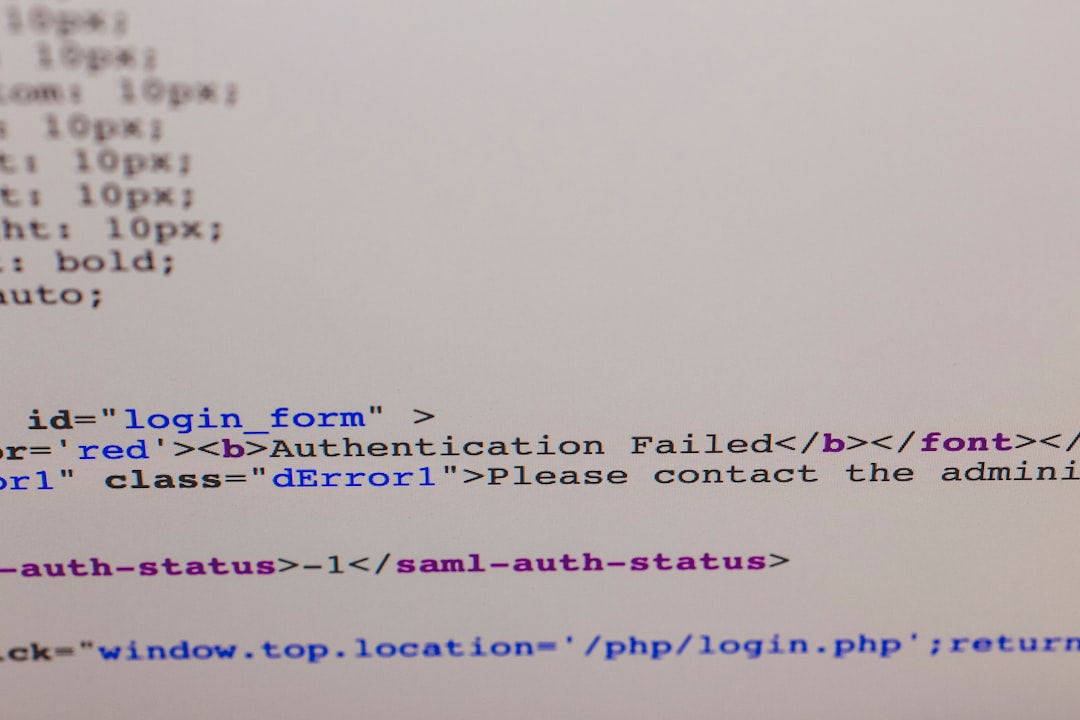
The SEVP Portal requires specific formatting for certain fields. Even small formatting inconsistencies can cause the save operation to fail.
Common formatting mistakes include:
- Entering phone numbers with spaces instead of dashes
- Adding special characters not permitted in the field
- Using abbreviations incorrectly for addresses
- Exceeding character limits
For example, job titles and employer names must not contain certain symbols. Carefully review each field before clicking save.
Quick Formatting Checklist
- ✔ Remove extra spaces at the beginning or end of text
- ✔ Avoid special symbols unless clearly allowed
- ✔ Follow U.S. address formatting standards
- ✔ Ensure date fields match the required format
Simply correcting formatting inconsistencies resolves the issue for many students.
Step 4: Confirm All Required Fields Are Completed
Sometimes the error appears because a mandatory field was left blank or filled incorrectly.
Be sure to check:
- Employer name
- Employer address
- Supervisor name and contact details
- Employment start and end dates
Even if the portal does not clearly mark the problem area, scroll carefully through the form to make sure no fields are highlighted or flagged.
Step 5: Check Your Internet Connection
Unstable internet connections can interrupt the save process. If your connection drops mid-save, the portal may display a generic failure message.
Try this:
- Switch to a more stable Wi-Fi network.
- Avoid public networks with weak signals.
- Restart your router if needed.
A wired connection often works better if you have access to one.
Step 6: Look for System Maintenance or Outages
Like many government platforms, the SEVP Portal occasionally undergoes scheduled maintenance or experiences temporary outages.
If none of the previous steps work, consider:
- Waiting a few hours and trying again.
- Attempting access during off-peak hours (early morning or late evening).
- Checking for announcements from ICE or SEVP.
If the issue resolves itself without changes on your end, it was likely a temporary system glitch.
When to Contact Your DSO
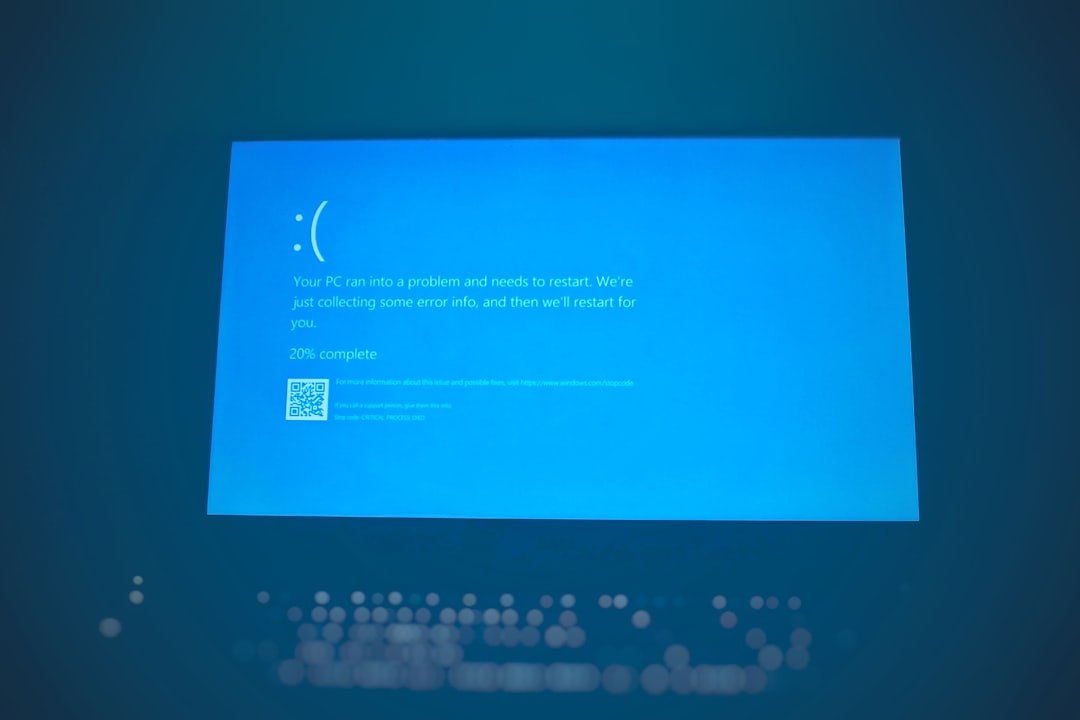
If you have tried all troubleshooting steps and still cannot save changes, it is time to reach out to your Designated School Official (DSO).
Your DSO can:
- Update certain information directly in SEVIS.
- Verify whether your SEVIS record contains errors.
- Report technical issues to SEVP on your behalf.
When contacting your DSO, include:
- A detailed description of the issue
- Screenshots of the error message
- The date and time the problem occurred
- Your SEVIS ID number
This helps them diagnose the issue faster.
Preventing Future SEVP Portal Save Errors
While some issues are unavoidable, you can reduce the risk of encountering the “Failed to Save Changes” error in the future.
Best practices:
- Keep your browser updated.
- Avoid long inactivity periods while logged in.
- Save information frequently when possible.
- Prepare your data in advance.
- Log out properly after each session.
Staying proactive ensures smoother compliance with reporting requirements.
Why Prompt Updates Matter
It is important to remember that SEVP reporting is not optional. F-1 students on OPT and STEM OPT are legally required to maintain accurate and updated employment and contact information. Delays in reporting could potentially affect:
- Your immigration status
- Future visa applications
- STEM OPT extensions
- H-1B petitions
That is why resolving portal issues quickly is so important. Document your attempts to update your information in case you need proof that you tried to comply on time.
Final Thoughts
Seeing the “Failed to Save Changes” message in the SEVP Portal can be stressful, especially when immigration compliance is on the line. However, most issues are technical and temporary rather than serious problems with your record. By systematically checking session timeouts, browser compatibility, formatting accuracy, required fields, and internet stability, you can resolve the problem in most cases within minutes.
If all else fails, your DSO is your strongest ally in ensuring your SEVIS record remains accurate and compliant. With the right troubleshooting steps and a calm, methodical approach, you can overcome this portal error and stay focused on what truly matters—your academic and professional journey in the United States.