

A OneNote notebook is deleted by removing its source file or cloud folder, not just by closing it inside the app. In OneNote, Close This Notebook only hides it from the notebook list. In Evernote, deleting a notebook usually happens inside the app, which feels simpler and more direct.
TLDR: OneNote treats notebooks like stored containers, so the user must delete the notebook from OneDrive, SharePoint, or local storage after closing it. Evernote handles notebook deletion inside its own interface, unless it is the default notebook or a restricted shared notebook. For example, a student with 14 old class notebooks may need about 30 seconds per OneNote notebook if each one must be found in OneDrive, while Evernote deletion often takes under 10 seconds. For clean notebook management, Evernote is faster, but OneNote gives stronger structure for large projects.
How deleting a notebook works in OneNote
OneNote can be confusing because it separates closing from deleting. A closed notebook disappears from the sidebar, but the notebook still exists. It may still sit in OneDrive, a SharePoint site, a local folder, or another storage location.
Honestly, this feels like a small thing that should have been fixed years ago. A user can right click a notebook and see Close This Notebook, but not always see a true delete option. That extra step sends many people hunting through cloud folders.
For most newer OneNote users, the notebook lives in OneDrive. The usual process looks like this:
- Open OneNote.
- Right click the notebook name.
- Select Close This Notebook.
- Open OneDrive in a browser or file explorer.
- Find the notebook folder or file.
- Delete it from OneDrive.
- Empty the recycle bin if permanent removal is needed.
If the notebook is stored on SharePoint or in a work account, the user may need permission to delete it. If the notebook is local, it may appear as a folder on the computer. Deleting that folder removes the notebook, though a backup may still exist.
Image not found in postmetaHow to delete a OneNote notebook step by step
The safest method is to close the notebook first, then delete the stored notebook from its location. This reduces sync errors and stops OneNote from trying to open a notebook that no longer exists.
For OneNote notebooks stored in OneDrive
- The user opens OneNote and checks the notebook name.
- The user right clicks the notebook and selects Close This Notebook.
- The user goes to OneDrive.com.
- The user opens the Documents folder or the folder where notebooks are stored.
- The user selects the notebook and clicks Delete.
For OneNote on Windows with local notebooks
- The user closes the notebook in OneNote.
- The user opens File Explorer.
- The user finds the notebook folder.
- The user deletes the folder or moves it to an archive drive.
For shared work notebooks
A shared notebook may not be removable by every person who can open it. If it is stored on SharePoint or Teams, only an owner or admin may be able to delete it. A regular member can often close it, but the notebook remains available to the group.
How deleting a notebook works in Evernote
Evernote handles notebook deletion in a cleaner way. The notebook list sits inside the app, and the delete command is usually available from that list. A user selects the notebook, opens its options, and chooses Delete notebook.
The catch is that Evernote may block deletion of the default notebook. Every account needs one default target for new notes. If a notebook is set as default, the user must assign another default notebook first. Only then can the old one be deleted.
Evernote also behaves differently with notes. If a notebook contains notes, the user may be asked what should happen to them. In many cases, deleting the notebook may move notes to trash or require the user to move them first, depending on app version and account setup.
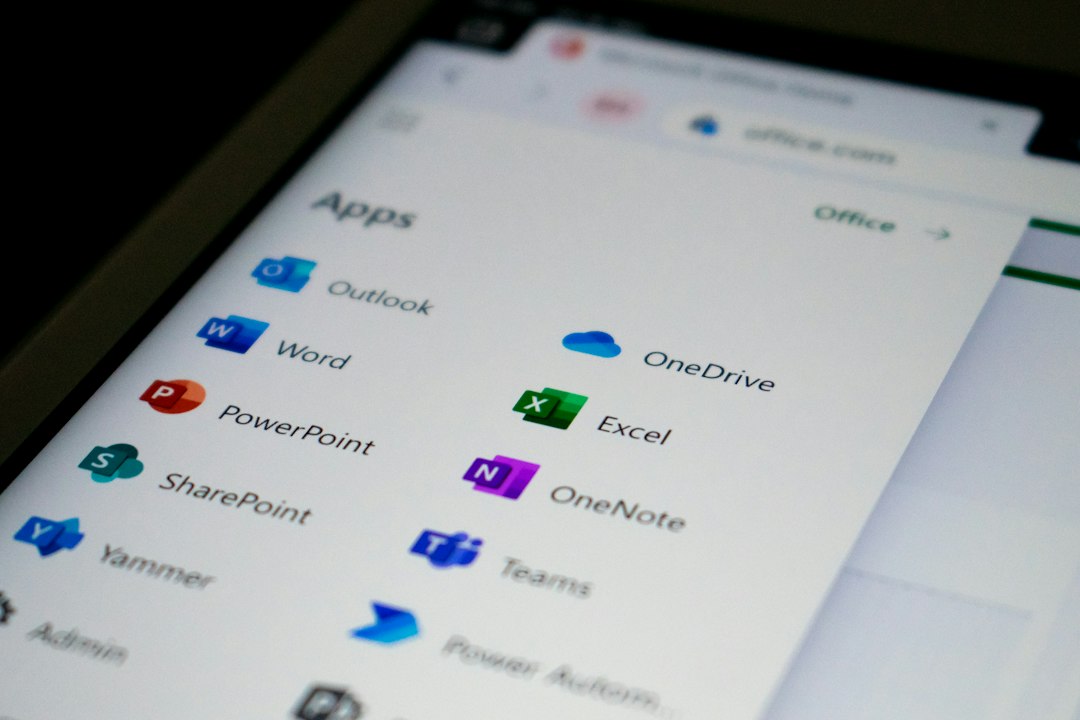
OneNote vs Evernote for notebook management
OneNote and Evernote use different mental models. OneNote acts like a digital binder system. A notebook contains sections, and sections contain pages. This is great for school subjects, client projects, research, and long term records.
Evernote acts more like a note database. Notebooks are containers, but tags and search do much of the heavy lifting. This makes deleting and reorganizing notebooks feel quicker.
| Feature | OneNote | Evernote |
|---|---|---|
| Notebook deletion | Usually requires deleting from OneDrive, SharePoint, or local storage | Usually done inside the app |
| Best structure | Large notebooks with sections and pages | Notebook stacks, notebooks, notes, and tags |
| Learning curve | Moderate, because storage matters | Lower for basic notebook cleanup |
| Best use case | Classes, teams, project binders | Personal notes, reference files, quick capture |
Which app is better for managing notebooks?
For users who clean up notebooks often, Evernote is easier. Its notebook deletion workflow is direct. It usually takes fewer clicks, and the user does not need to search through cloud storage.
For users with complex information, OneNote is stronger. Its sections and pages make it easier to split a large topic into parts. A project manager can keep meeting notes, research, checklists, and decisions in one notebook without turning everything into a long note list.
Still, OneNote’s storage logic causes friction. It drives some users a little crazy that removing a notebook from the app does not remove it from storage. A person may think old notebooks are gone, then find 8 of them still sitting in OneDrive months later.
Evernote has its own annoyances. Notebook stacks are useful, but they are not as rich as OneNote sections. Users who like deep hierarchy may feel boxed in. Tags help, but only if the user applies them with care.

Best practices before deleting any notebook
Before deleting a notebook in either app, the user should check three things: ownership, backups, and shared access.
- Check ownership: If the notebook belongs to a team, deletion may affect other people.
- Export key notes: Important records should be saved as PDF, HTML, or another backup format.
- Search before deleting: A quick search for client names, dates, or project labels can prevent mistakes.
- Review shared links: Deleted notebooks may break links used in emails, documents, or team chats.
- Empty trash later: Immediate permanent deletion is risky if the user is cleaning in bulk.
Common mistake: closing is not deleting
The biggest OneNote mistake is assuming that closing a notebook deletes it. It does not. It only removes the notebook from the visible list in that app.
Evernote is clearer, but mistakes still happen. A user may delete a notebook when only a few notes needed removal. Another common issue is trying to delete the default notebook without changing the default setting first.
The better rule is simple: archive first, delete later. If there is any doubt, the user can move the notebook to an archive folder or rename it with “Archive” and the year. After 30 or 60 days, deletion becomes safer.
FAQ
Does closing a notebook in OneNote delete it?
No. Closing a notebook only removes it from the OneNote notebook list. The notebook still exists in OneDrive, SharePoint, or local storage.
Where are OneNote notebooks stored?
Most personal OneNote notebooks are stored in OneDrive. Work and school notebooks may be stored in SharePoint, Teams, or a managed Microsoft 365 account.
Can a deleted OneNote notebook be recovered?
Often, yes. If it was deleted from OneDrive or SharePoint, it may be recovered from the recycle bin for a limited time. Local recovery depends on backups and system settings.
Why will Evernote not delete a notebook?
The notebook may be the default notebook, shared with restrictions, or controlled by a business account. The user may need to set another default notebook first.
Which is better for notebook cleanup, OneNote or Evernote?
Evernote is usually better for quick notebook cleanup. OneNote is better for structured projects that need sections, pages, and rich organization.
Should old notebooks be deleted or archived?
Archiving is safer when the notebook may contain useful records. Deletion is better for duplicates, test notebooks, and outdated material with no future value.