
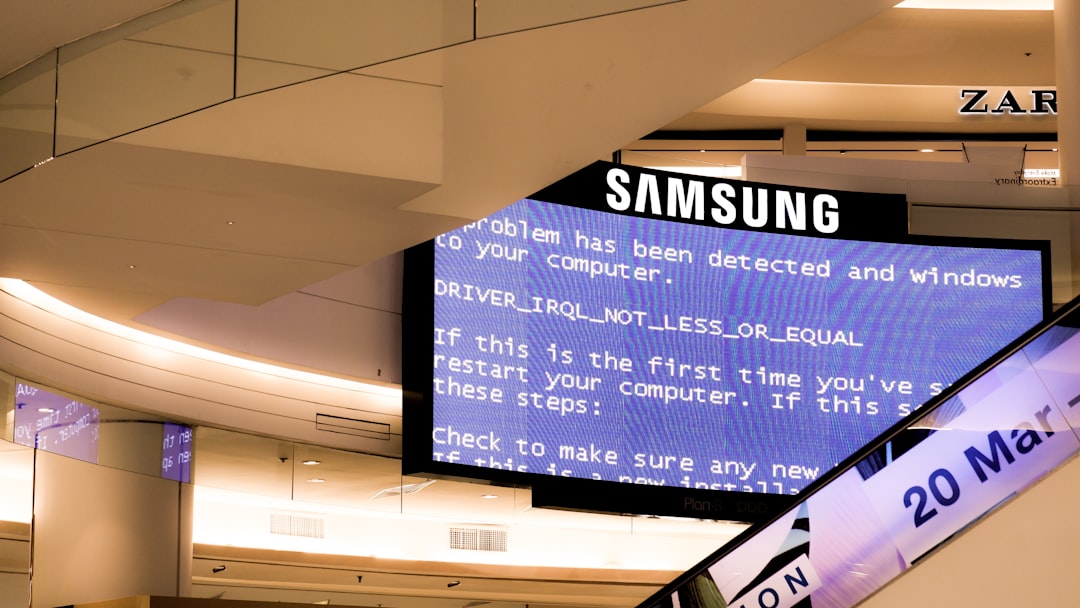

Nothing kills the vibe faster than getting ready for an epic gaming session, only to be stopped cold by a frustrating error. If you’ve tried launching an EA title only to be met with the annoying “EA Javelin AntiCheat encountered an error” message, you’re not alone. Good news? We’ve got the fix. And better news? We’ll make it easy, painless, and maybe even a little fun.
TL;DR (Too Long; Didn’t Read)
The Javelin AntiCheat error usually happens because of a conflict with Windows processes, outdated drivers, or permission issues. Simple fixes like restarting the PC, running the game as admin, or updating anti-cheat files work for most people. If not, reinstalling Javelin or adjusting BIOS settings (yes, really!) might do the trick. Keep reading to squash this bug for good.
What Is EA Javelin AntiCheat Anyway?
Before we fix it, let’s understand what we’re dealing with. Javelin is EA’s shiny new anti-cheat tech, built to catch cheaters in their iconic titles like Battlefield and FIFA. Think of it as the security guard at the front door of your game. If Javelin doesn’t like something (like missing files or a system setting), it slams the door shut—hence, the error.

Common Causes of the Error
Here are the usual suspects that cause this pesky pop-up:
- Lack of Admin Privileges – Javelin needs higher permissions to do anti-cheat magic.
- Secure Boot Disabled – Some anti-cheat systems require Secure Boot to be on.
- Corrupted Javelin Files – Anti-cheat files might be broken or missing.
- Conflicting Software – Background apps can conflict with Javelin (like overprotective antivirus tools).
- Outdated System Drivers – Old drivers can mess with how the anti-cheat interacts with your system.
Fix the Error in 5 Simple Steps
Alright, let’s dive into the fixes. Try them in order—they’re ranked from easiest to most advanced.
1. Restart Your PC
Yes, really. A simple reboot can shake loose whatever glitch is stopping Javelin.
2. Run the Game as Administrator
Give Javelin the power it craves:
- Right-click your EA game icon.
- Click “Run as administrator.”
- Try launching again.
3. Reinstall Javelin AntiCheat
Time to turn it off and on again—but officially.
- Navigate to your game’s installation folder.
- Find a folder named “EAAC” or “AntiCheat”.
- Run Uninstall.exe or similar.
- Restart your PC.
- Launch the game to prompt a fresh Javelin install.
4. Enable Secure Boot in BIOS
This one’s a bit more technical, but don’t worry—we’ll walk you through:
- Restart your PC and press DEL, F2, or ESC (depends on your PC) during boot to enter BIOS.
- Look for Secure Boot under Boot or Security tab.
- Set it to Enabled.
- Save and exit BIOS (usually F10).
- Boot back into Windows and try the game again.
Note: Don’t panic if BIOS feels scary. It’s just the settings panel for your motherboard, not a hacker movie.
5. Check for Driver & Windows Updates
Outdated drivers could be sabotaging your fun. Update them all!
- Head to Device Manager (search for it in Start).
- Check for yellow warning signs—update those first.
- Also, go to Settings > Windows Update and click “Check for Updates”.
Still Not Working? Try These Bonus Fixes
If the error is still clinging on, here are a few more tricks:
Disable Conflicting Apps
Things like overlays from Discord, GeForce Experience, or even MSI Afterburner can crash Javelin.
- Close background apps using Task Manager.
- Especially close anything with overlays or performance monitoring.
Add Exceptions to Antivirus Software
Your security software might think Javelin is a bad guy. Spoiler alert: it’s not.
- Open your antivirus software.
- Add your game folder and Javelin files to the “Exclusions” or “Allowlist”.
Reinstall the Game
The nuclear option, but sometimes needed. Uninstall, restart, and reinstall from the EA App, Steam, or Origin.
Games Known to Get the Error
Wondering if your game is one of the unlucky ones? These titles often run into the Javelin error:
- EA Sports FC 24
- Battlefield 2042
- FIFA 23
- The Sims 4 (mods involved)
Quick Pro Tips
- Always run your EA games from their launchers (EA App, Steam, etc.).
- Turn off any VPNs or proxies before launching.
- Keep your system clean from unnecessary startup apps.
FAQs
Q: Is Javelin AntiCheat safe?
A: Yes, it’s developed by EA and is designed only to prevent cheaters. It won’t spy on you.
Q: Do I need Secure Boot enabled permanently?
A: Only for some games using Javelin to work properly. You can toggle it off, but you might see the error again.
Q: Can I just turn off Javelin AntiCheat?
A: Nope! The game won’t start without it. Anti-cheat is required to keep online play fair.
Final Thoughts
The “EA Javelin AntiCheat Encountered an Error” message can be annoying, but it’s usually fixable without pulling out your hair. Follow the steps above, and you’ll be back gaming in no time. Whether it’s a permissions hiccup or BIOS glitch, there’s always a way forward.
So the next time Javelin tries to gatekeep your game, you’ll be ready to kick that gate right back open—like a true gaming hero.


