
Use Google Safe Browsing and Microsoft SmartScreen together when possible, but do not treat either warning as optional noise. Google says Safe Browsing helps protect more than five billion devices, which makes it one of the largest website warning systems in use [source: Google].
TLDR: Google Safe Browsing is strongest when you rely on Chrome, Firefox, Safari, or Android browsing protection, while Microsoft SmartScreen is strongest inside Microsoft Edge, Windows, and Microsoft security tooling. For example, if 100 staff members get a fake Microsoft 365 login link, SmartScreen may stop many Edge users before the page loads, while Safe Browsing may block the same URL for Chrome users once it is flagged. Neither system catches every fake site in the first few minutes of an attack. The safest setup is layered protection, user training, and a strict rule: never ignore a deceptive website warning unless your security team confirms it.
What a deceptive website warning really means
A deceptive website warning appears when a browser or operating system believes a page may steal passwords, push malware, imitate a trusted brand, or trick the user into unsafe action. In Chrome, this often appears as “Deceptive site ahead.” In Microsoft Edge, the warning may say the site has been reported as unsafe.
These alerts are not cosmetic. They usually mean the URL, domain, script, download, or page behavior has matched known abuse signals. That can include phishing kits, fake login forms, suspicious redirects, malware payloads, or newly registered domains used in scams.
It drives me crazy that some users still click through because the page “looks normal.” That is exactly the point of phishing. It is built to look normal.
Google Safe Browsing: strong web scale protection
Google Safe Browsing checks websites against lists and threat signals maintained by Google. It is built into Chrome and used by several other browsers and apps. Its main job is to warn users before they visit phishing pages, malware sites, or unwanted software pages.
Safe Browsing is especially useful because of its reach. A malicious site reported through one channel can help protect a huge number of users across many platforms. For everyday web use, that coverage matters.
Chrome users can also choose different levels of protection. Standard protection checks sites against known unsafe URLs. Enhanced protection sends more real-time security data to Google and can give stronger warnings. That may help against newer threats, but it also shares more browsing-related signals with Google.
Best fit for Google Safe Browsing:
- Chrome-heavy workplaces.
- Android users.
- Organizations with mixed browsers such as Chrome, Firefox, and Safari.
- Consumers who need strong default protection without extra setup.
- Teams that want broad phishing and malware site detection.
Microsoft SmartScreen: strong Windows and Edge protection
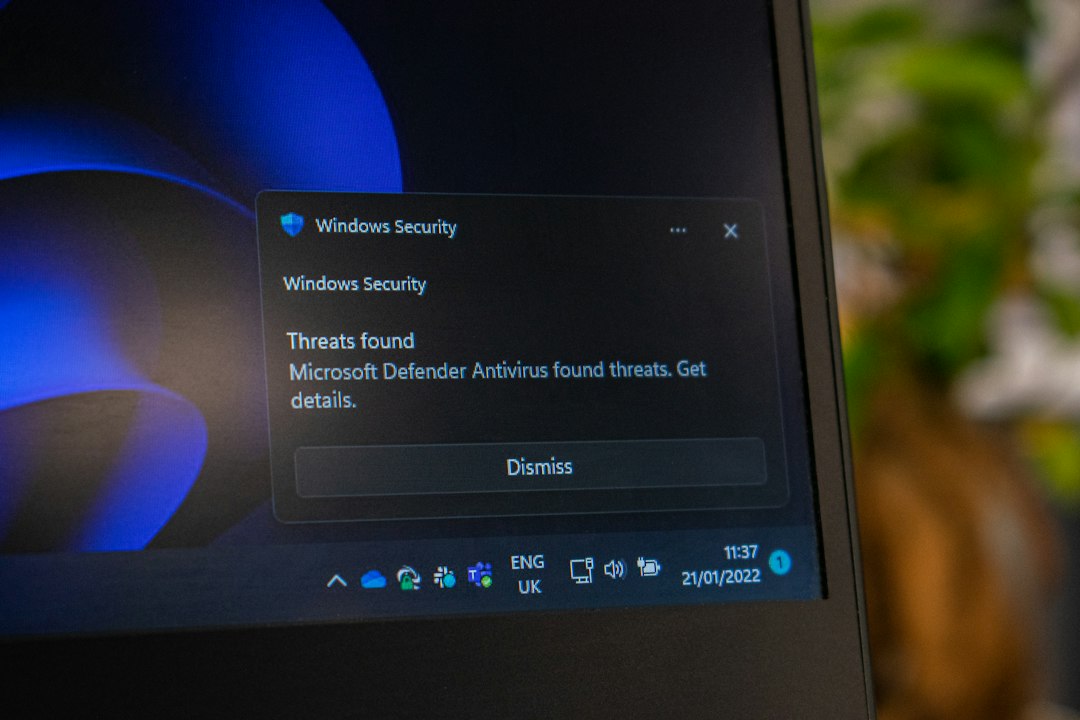
Microsoft SmartScreen is built into Microsoft Edge and Windows security features. It checks suspicious websites, downloads, and apps. That gives it a wider role than browser-only warnings in many business settings.
SmartScreen uses reputation checks. If a site, file, or app has a bad or unknown reputation, Edge or Windows may warn the user before allowing access. Microsoft says SmartScreen helps protect users from phishing and malware sites, and it also checks downloaded files and apps [source: Microsoft].
This is where SmartScreen can feel more useful in a Windows office. A phishing site is bad enough. A fake invoice that drops a malicious file is worse. SmartScreen can warn at both points: the site and the download.
Best fit for Microsoft SmartScreen:
- Microsoft Edge users.
- Windows-based companies.
- Microsoft 365 and Defender environments.
- Teams that need download and application reputation checks.
- Managed devices with group policy or Intune controls.
Google Safe Browsing vs Microsoft SmartScreen
The two systems overlap, but they are not identical. Google Safe Browsing is more web-centered and browser-centered. Microsoft SmartScreen is more tied to Edge, Windows, and file reputation.
| Feature | Google Safe Browsing | Microsoft SmartScreen |
|---|---|---|
| Primary strength | Phishing and malware website warnings at massive scale | Unsafe site, download, and app reputation checks |
| Best browser fit | Chrome and browsers using Safe Browsing data | Microsoft Edge |
| Operating system link | Strong on Android and Chrome-based use | Strong on Windows |
| Enterprise control | Chrome admin policies and browser settings | Group Policy, Intune, Defender, Edge policies |
| Download protection | Present in Chrome, focused on dangerous files | Strong reputation checks for files and apps |
Which one catches more phishing?
There is no honest universal answer. Detection changes by hour, campaign, region, and browser. A phishing page may be caught by Google first in one case and by Microsoft first in another.
Phishing kits move fast. Attackers rotate domains, use URL shorteners, compromise real sites, and close pages after a few hours. That creates a painful gap. A page can be live before any major system labels it as unsafe.
This is why a user should not rely on the absence of a warning. No red screen does not mean safe. It only means the site has not been blocked at that moment.
Privacy and data tradeoffs
Both systems need data to work. That means some website, file, or threat information may be checked against Google or Microsoft services. The exact amount depends on browser settings, protection level, enterprise policy, and product version.
Google’s Enhanced Protection in Chrome may send more security signals for faster and more personal protection. Microsoft SmartScreen may check URLs, file hashes, and reputation data with Microsoft services. In managed companies, admins should review those settings before rollout.
This is not a reason to turn protection off. It is a reason to configure it with care. Security and privacy should be discussed together, not treated as rival goals.
What users should do when they see the warning
Most users need a simple rule. Stop. Do not enter a password. Do not download the file. Do not click “continue anyway” just because the email seemed urgent.
- Close the tab if the site was not expected.
- Report the link to IT or the security team.
- Check the sender through a separate channel.
- Open the service manually by typing the known address.
- Change your password if you entered credentials.
- Enable multi-factor authentication if it is not already active.
Expect to waste time on false positives now and then. A real business site may get flagged after a compromise or bad ad script. Still, five minutes of checking is cheaper than a stolen mailbox, a wire fraud incident, or ransomware.

Best setup for businesses
For most companies, the best answer is not “Google or Microsoft.” It is both, plus policy. If users work in Chrome, keep Safe Browsing on. If users work in Edge and Windows, keep SmartScreen on. If the company uses both browsers, manage both.
A serious setup should include:
- Managed browser policies that prevent users from turning protection off.
- DNS filtering to block known malicious domains before the browser loads them.
- Email security to reduce phishing links before users see them.
- Multi-factor authentication for all major accounts.
- Security awareness training with real examples, not vague warnings.
- Incident reporting buttons in email clients.
- Endpoint detection for malware that gets past browser checks.
Final verdict
Google Safe Browsing is excellent for broad website protection across popular browsers. Microsoft SmartScreen is excellent for Edge, Windows, and file reputation checks. They solve similar problems from different angles.
If you are a home user, keep the default protection enabled in your browser and avoid bypassing warnings. If you are a business, enforce both protections where they apply. A deceptive website warning is not an inconvenience. It is a last clear stop sign before a possible account theft, malware infection, or financial loss.