

Most Apple TV remote problems are fixed by charging the remote, restarting it, and pairing it again. Apple says a remote with low battery should be charged for about 30 minutes before it is tested again [source: Apple]. If that fails, the issue is often a frozen Apple TV box, a weak Bluetooth link, or a stuck button.
TLDR: The Apple TV owner should charge the remote for 30 minutes, restart the Apple TV, then hold Back or Menu + Volume Up to pair the remote again. For example, if the remote worked at breakfast but stopped at night, a drained battery is the most likely cause. In many homes, this fix takes under 5 minutes after charging. If the remote still fails, the Apple TV Remote app on an iPhone can be used as a quick backup.
1. Charge the Remote First
The first fix is boring, but it works often. The Apple TV remote may look alive for a moment, then stop. That usually means the battery is too low to hold a steady connection.
- Siri Remote: Uses a Lightning or USB C cable, based on the model.
- Older aluminum remote: Uses a coin cell battery that may need replacement.
- Charging time: At least 30 minutes before testing.
Honestly, it feels silly when a remote needs half an hour before it gives any sign of life. Still, the Apple TV owner should not skip this step. A weak battery can cause random pauses, missed clicks, and failed pairing.
2. Restart the Apple TV Box
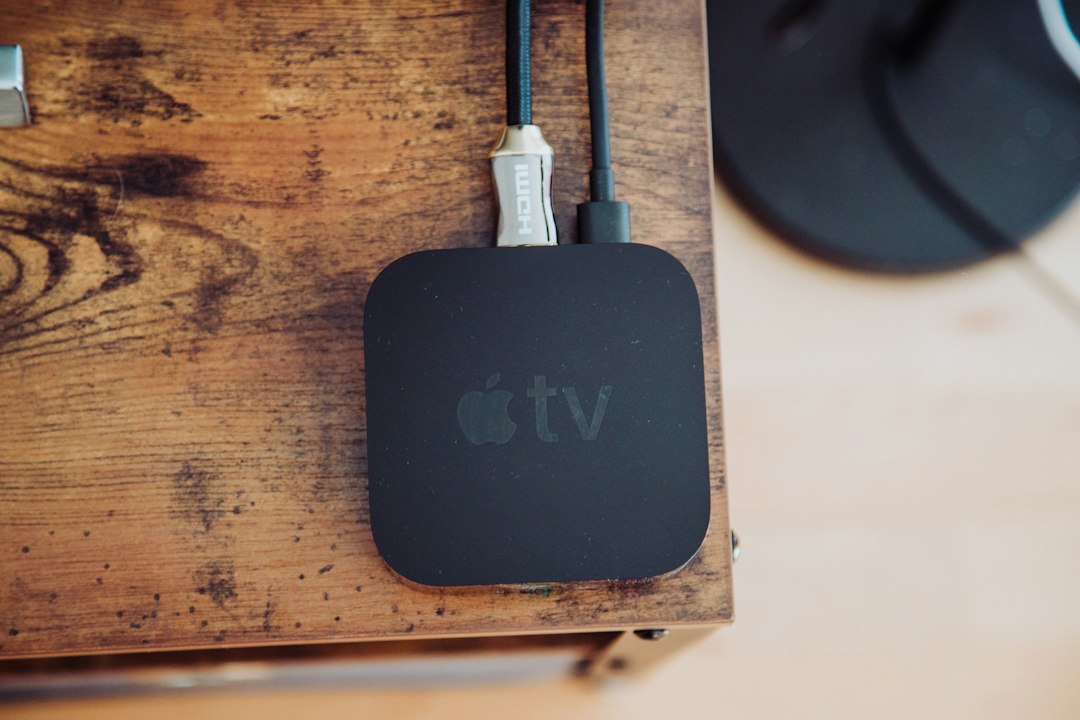
If the remote has power, the Apple TV box may be frozen. This happens after app crashes, updates, or long standby periods. The screen may look normal, but the box may ignore commands.
The owner should unplug the Apple TV from power, wait 10 seconds, then plug it back in. After the home screen returns, the remote should be tested again. This simple reset clears temporary glitches without deleting apps or settings.
3. Re Pair the Remote
If charging and restarting do not help, the remote may have lost its link to the Apple TV. The pairing steps depend on the remote model.
- Siri Remote or Apple TV Remote: Hold the remote about 3 inches from the Apple TV. Press and hold Back and Volume Up for about 5 seconds.
- Older remote with Menu button: Press and hold Menu and Volume Up for about 5 seconds.
- White or aluminum remote: Press and hold Menu and Right for about 6 seconds.
A message may appear on the TV asking the owner to place the remote on top of the Apple TV. That step helps the devices connect. It can feel oddly picky, but it often works.
4. Check for Blocked Signals or Interference
Newer Apple TV remotes use Bluetooth for most controls. Older models use infrared. Both can fail when the setup gets messy.
- Move game consoles, soundbars, and routers away from the Apple TV.
- Remove objects in front of the Apple TV box.
- Make sure the front of an older remote is clean.
- Try standing closer to the Apple TV.
If the remote only works from one side of the room, interference or a hidden Apple TV box may be the issue. Cabinets, thick shelves, and metal TV stands can weaken the signal.

5. Use the iPhone Remote as a Backup
If the physical remote is still dead, the Apple TV Remote feature on iPhone or iPad can help. It is built into Control Center on many current iOS versions. Apple explains that an iPhone can control Apple TV from Control Center when both devices are on the same Wi Fi network [source: Apple].
This is useful when the Apple TV owner needs to check settings, update software, or confirm that the box still works. If the iPhone remote works but the physical remote does not, the problem is almost certainly the remote itself.
6. Update Apple TV Software
Software bugs can make remote behavior strange. Clicks may lag. Volume may fail. The touch surface may act jumpy. Expect to waste time on this if the Apple TV has not been updated in months.
Using the iPhone remote, the owner can go to Settings, then System, then Software Updates. If an update is ready, it should be installed. The Apple TV should stay plugged in until the update finishes.
7. Clean the Remote and Check for Damage
Sticky buttons can make the remote seem broken. A stuck Volume, Mute, or TV button may block other commands. The owner should wipe the remote with a soft, dry cloth. A lightly damp cloth can help with grime, but liquid should never be poured onto the remote.
If the remote was dropped, bent, or exposed to water, repair may not be worth it. A replacement remote may be the cleaner fix.

FAQ
Why is the Apple TV remote not responding?
The most common causes are a low battery, lost pairing, a frozen Apple TV box, interference, or a damaged remote.
How does someone reset an Apple TV remote?
For many Siri Remote models, the owner can hold TV or Control Center and Volume Down for about 5 seconds, then release. After the light on the Apple TV blinks, the remote can be paired again.
Can an iPhone replace the Apple TV remote?
Yes. The Apple TV Remote in Control Center can control the Apple TV if both devices use the same Wi Fi network.
Why does the volume work but nothing else does?
The remote may be controlling the TV volume by infrared while losing its Bluetooth link to the Apple TV. Re pairing usually fixes this.
When should the remote be replaced?
If charging, restarting, pairing, cleaning, and software updates do not help, the remote may have hardware damage. At that point, replacement is usually the fastest fix.