

The safest first move is to check a device that is already connected to the Wi-Fi network. On Windows, the network security key is simply the saved Wi-Fi password, and Microsoft shows that it can be viewed through the adapter’s Wireless Properties screen after selecting Show characters [source: Microsoft]. If that fails, use the router admin page. Use Wi-Fi apps only when they come from the router maker or a trusted platform.
TLDR: If your Windows PC is already connected, check Windows Settings first because it is quick and avoids changing anything on the router. For example, in a home with 12 connected devices, finding the key on one laptop can save you from resetting the router and retyping the password on every phone, TV, tablet, and printer. The router admin page is better when you need to confirm or change the Wi-Fi password. Wi-Fi apps can help, but treat unknown apps with suspicion.
What Is a Network Security Key?
A network security key is the password used to join a private Wi-Fi network. You may also see it called a Wi-Fi password, WPA key, or wireless password. It protects your network from people nearby who should not connect.
Most home networks use WPA2 or WPA3 security. That means the key matters. If someone has it, they may be able to use your internet, see shared devices, or try attacks on weak equipment.

Method 1: Find the Key in Windows Settings
Use this method when your Windows laptop or desktop is already connected to the Wi-Fi network. It is often the cleanest option.
- Open Settings.
- Go to Network & internet.
- Open Advanced network settings.
- Select the Wi-Fi adapter options or related adapter settings.
- Open Wi-Fi Status, then choose Wireless Properties.
- Go to the Security tab.
- Check Show characters.
You may need administrator rights. That is normal. Windows is protecting a sensitive password, not being difficult for fun. Still, it drives me crazy that this screen is buried several clicks deep when people usually need it in a hurry.
Best for: a personal PC that is already connected.
Weak point: it may not help if the PC has never joined the network, or if your account lacks permission to reveal saved passwords.
Method 2: Use the Router Admin Page
The router admin page is the control panel for your Wi-Fi. It usually shows the current network name and password. It also lets you change them.
To use it, connect to the router by Wi-Fi or Ethernet. Then open a browser and enter the router’s gateway address. Common addresses include:
- 192.168.0.1
- 192.168.1.1
- 10.0.0.1
Sign in with the router admin username and password. This is not always the same as the Wi-Fi password. Look for sections named Wireless, Wi-Fi, Security, or WLAN.
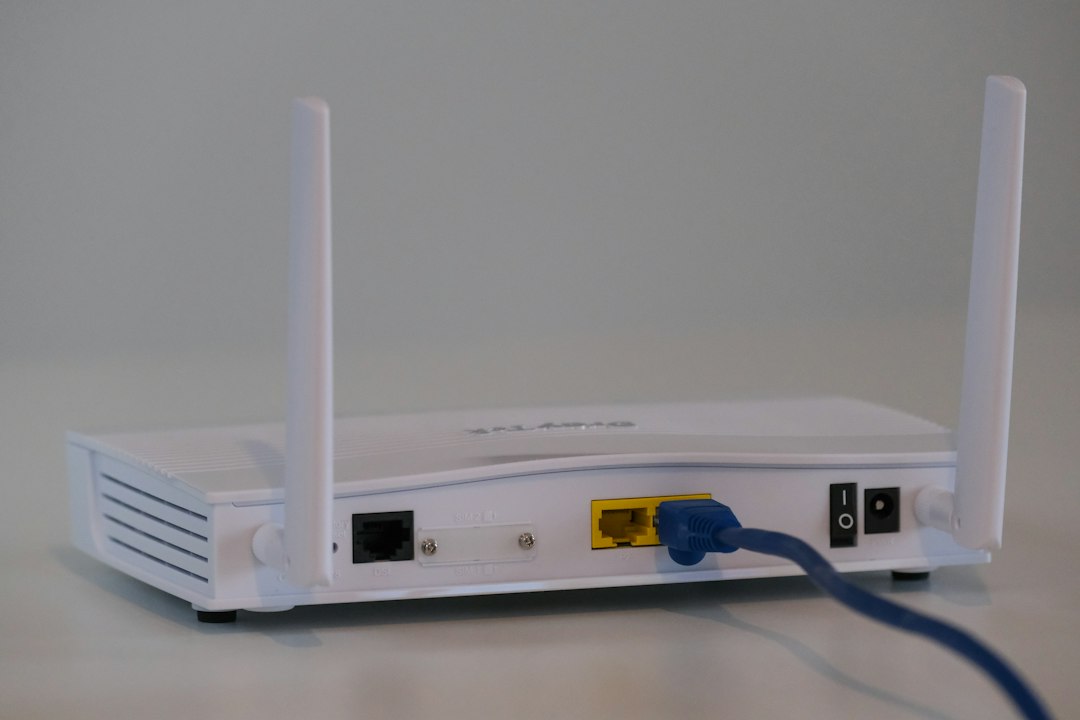
Best for: checking the active Wi-Fi password, changing a weak password, or managing a router used by several people.
Weak point: router interfaces can be rough. Expect to waste time on odd labels like “pre-shared key” or “wireless passphrase.” Some routers also hide the password and only allow you to replace it.
Method 3: Check the Router Label
If the Wi-Fi password was never changed, the original key may be printed on the router. Look for a sticker on the back, bottom, or side. It may say Wi-Fi Password, Wireless Key, WPA Key, or Network Key.
This is useful after moving into a new place or setting up an internet provider’s router. But do not rely on the label forever. Default passwords are often long, but they may have been shared with guests, workers, or old roommates.
Method 4: Use the Router Maker’s Wi-Fi App
Many routers now use mobile apps. Examples include apps from TP-Link, Netgear, ASUS, Eero, Google Nest, and internet providers. These apps often show the Wi-Fi name and password in plain text after you sign in.
Best for: mesh networks and newer routers where the app is the main control center.
Weak point: apps can be slower than the web admin page. Some require cloud sign-in. Some take 20 or 30 seconds just to load the router dashboard. That feels silly when all you need is one password.
Use only official apps from the router maker or your internet provider. Do not install random “Wi-Fi password finder” apps. Many are useless. Some are risky. A phone app should not ask for contacts, photos, or microphone access just to show a router password.
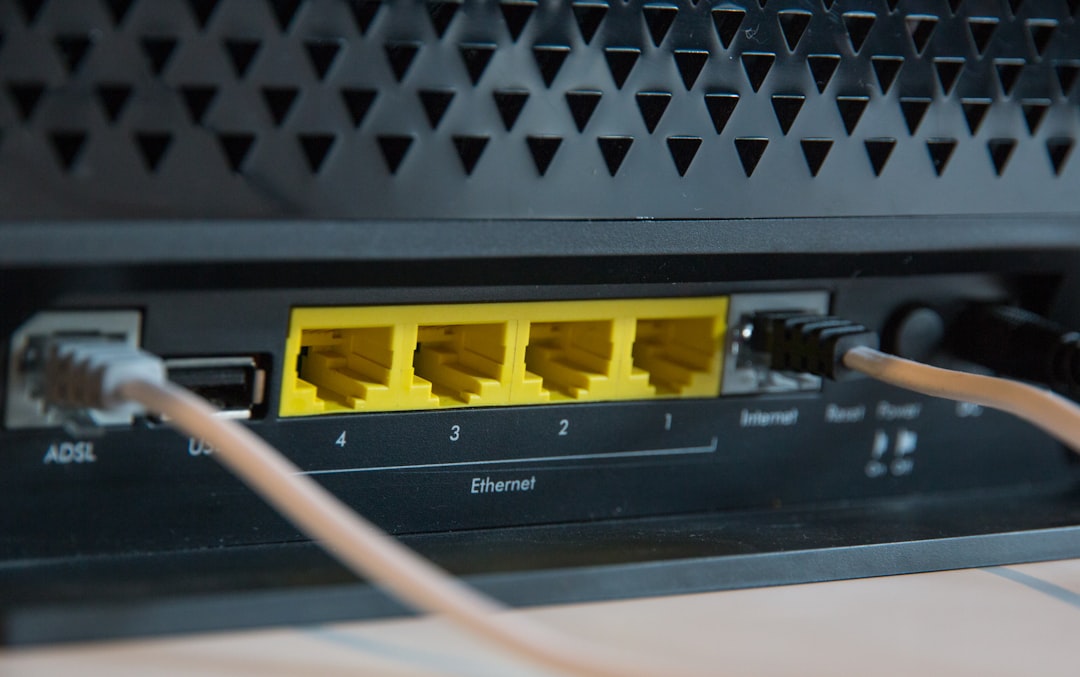
Windows Settings vs Router Admin Pages vs Apps
- Windows Settings: fastest when the PC is connected. Low risk. No router changes.
- Router admin page: best source of truth. Good for changing the key. Requires admin login.
- Router app: convenient for modern mesh systems. Trust matters. Use official apps only.
- Router label: good for default passwords. Not reliable if anyone changed the Wi-Fi key.
Security Tips Before You Share the Key
Only share your Wi-Fi password with people you trust. If guests visit often, create a guest network. This keeps phones and laptops away from your main devices, such as printers, storage drives, and work computers.
Use a strong Wi-Fi password. Aim for at least 12 to 16 characters. Mix words, numbers, and symbols. Avoid names, addresses, birthdays, and simple patterns.
If you suspect someone else has the key, change it from the router admin page or official app. Then reconnect your trusted devices. Yes, it is annoying. But it is better than leaving your network open to a person you no longer trust.
Bottom line: start with Windows if a trusted PC is already connected. Use the router admin page when you need control. Use official Wi-Fi apps when they make sense. Skip unknown password finder apps completely.