MP4 is usually the best choice for sharing, while MOV is often the better choice for serious editing. That is the simple answer. YouTube recommends the MP4 container with H.264 video and AAC audio for uploads, which says a lot about its reach and reliability [source: YouTube Help]. MOV still has a strong place in editing rooms, especially when projects use Apple workflows, ProRes, or high-quality camera files.
TLDR: MP4 is best for sharing because it creates smaller files and plays almost everywhere. MOV is best for editing when quality, color data, and smooth timeline performance matter more than file size. For example, a 10-minute 4K ProRes MOV can easily pass 50 GB, while a 10-minute 4K H.264 MP4 may sit closer to 3–5 GB. A wedding editor may cut in MOV, then export MP4 for the couple, social media, and cloud delivery.
MOV vs MP4: The Short Difference
MOV is a video container created by Apple for QuickTime. It can hold video, audio, subtitles, timecode, metadata, and high-quality codecs such as Apple ProRes. It is common in professional editing, especially on macOS.
MP4 is also a container. It is based on the MPEG-4 standard and is built for broad playback. Phones, browsers, TVs, social platforms, and video apps all support it well. It is often paired with codecs such as H.264 or H.265.
The confusing part is that MOV and MP4 are not codecs. They are wrappers. The codec inside the file often matters more than the extension. A MOV file may contain ProRes. An MP4 may contain H.264. That is why two files with the same length can behave very differently.

Which Format Is Better for Editing?
MOV is usually better for editing, mainly when it uses an editing-friendly codec such as ProRes or DNxHR. These codecs create larger files, but they are easier for editing software to read frame by frame. That means smoother playback, faster scrubbing, and fewer stutters on complex timelines.
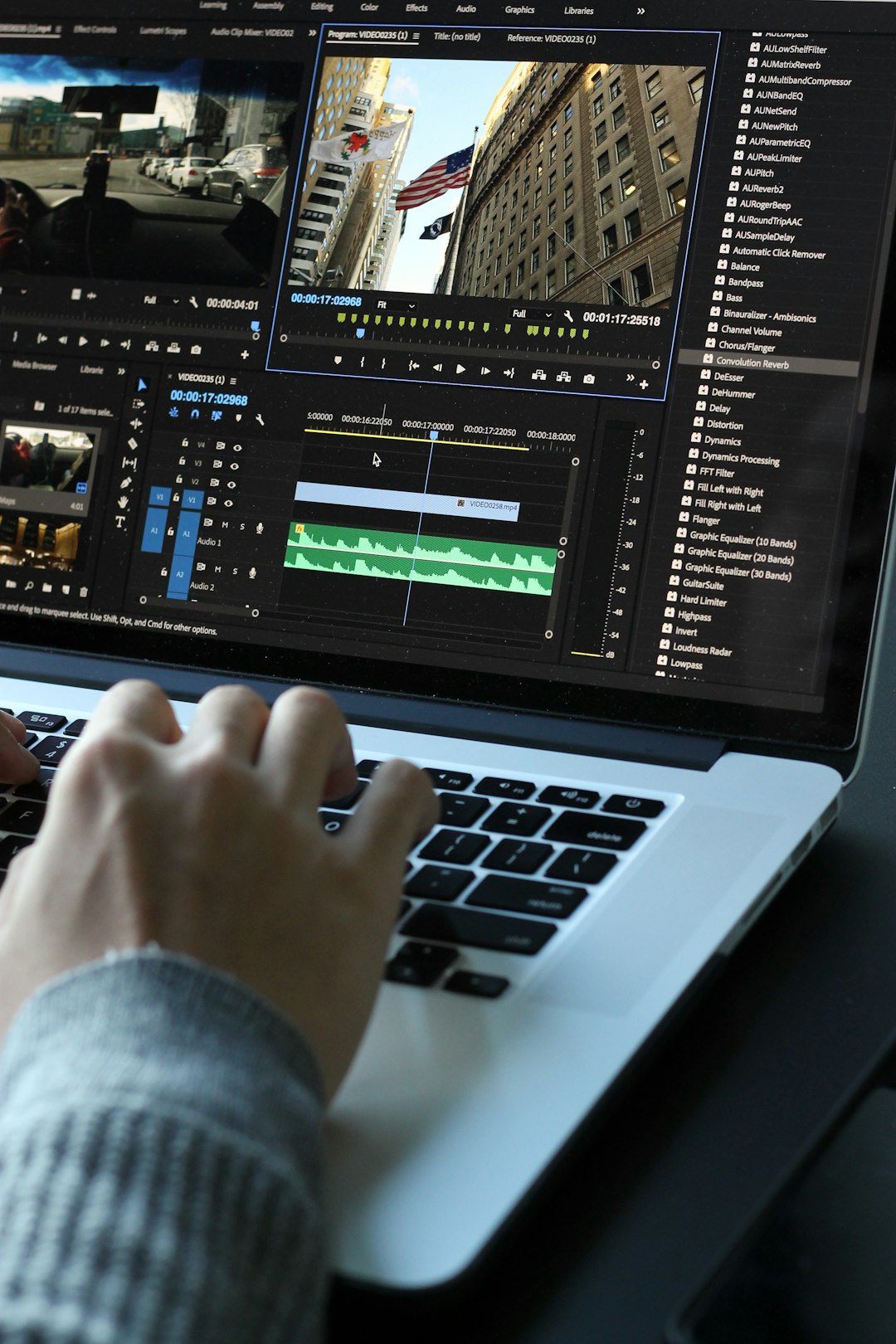
Editors working in Final Cut Pro, Adobe Premiere Pro, DaVinci Resolve, or Avid often prefer MOV for source files. It can preserve higher bitrates, better color depth, alpha channels, and more metadata. This matters for color grading, VFX, multicam edits, and broadcast work.
The catch is that MOV files can get huge. A folder that feels normal on a studio RAID can feel absurd on a laptop SSD. It drives editors crazy when a simple transfer takes 18 minutes longer because the camera saved everything as massive MOV files. Still, the tradeoff can be worth it when playback stays smooth and the image holds up under heavy editing.
- Best MOV use cases: professional editing, ProRes workflows, color grading, VFX, archiving masters.
- Best MP4 use cases: social uploads, email delivery, websites, streaming, client previews.
- Common editor workflow: edit MOV files, export MP4 files.
Which Format Is Better for Sharing?
MP4 is the better format for sharing. It wins because it is smaller, easier to upload, and widely supported. Most platforms accept it without complaint. Instagram, TikTok, YouTube, LinkedIn, Facebook, browsers, Android phones, iPhones, smart TVs, and messaging apps can usually play MP4 files with no extra steps.
MOV can still be shared, but it is less convenient. Some Windows users may need extra software. Some platforms may recompress it more aggressively. Some upload tools reject large MOV files outright. Honestly, it feels like such a small file extension should not cause that much friction, yet it still does.
MP4 also helps when bandwidth matters. A marketing team sending 20 product clips to a client will save time with MP4. Smaller files upload faster, download faster, and use less storage. For remote teams, that difference adds up quickly.

Quality: Does MOV Look Better Than MP4?
Not always. MOV does not automatically look better than MP4. Quality depends on the codec, bitrate, resolution, frame rate, and compression settings. A poorly exported MOV can look worse than a well-made MP4.
That said, MOV is often used with less compressed codecs. ProRes MOV files keep more image data than many H.264 MP4 files. This gives editors more room for color correction and effects. Shadows, skin tones, gradients, and fast motion often survive better in high-bitrate MOV files.
MP4 usually uses stronger compression. This is great for delivery, but less ideal for editing. Heavy compression can create blocked shadows, banding in skies, or soft detail. Those flaws may become more visible after color grading or resizing.
Compatibility: MP4 Has the Wider Reach
MP4 is the safer compatibility choice. It works across operating systems, browsers, phones, media players, and websites. For public delivery, client review, online courses, ads, and social feeds, MP4 is the practical pick.
MOV works best in Apple-heavy settings. It also works in many professional apps on Windows, but playback can be less predictable outside editing software. A client who double-clicks a MOV on an older PC may run into trouble. That kind of support email wastes time.
For teams, the rule is simple:
- Use MOV for capture, editing, and master exports when quality is the priority.
- Use MP4 for review links, downloads, social posts, and final delivery.
- Keep a high-quality master before creating smaller MP4 versions.
File Size and Performance
MOV files, especially ProRes MOV files, are large because they preserve more information. This helps editing performance but punishes storage. A studio can manage that with fast drives and backup systems. A solo creator with a 512 GB laptop may struggle fast.
MP4 files are smaller because they are more compressed. This makes them easier to store and send. The downside appears during editing. H.264 and H.265 MP4 files can be processor-heavy. They may look small on disk, but they can lag on the timeline.
A common fix is to use proxy files. Editors can generate lightweight editing copies, then reconnect to the original files for export. This helps when working with 4K or 8K MP4 footage from mirrorless cameras, drones, or phones.
Best Choice by Scenario
- YouTube upload: MP4 with H.264 or H.265 is usually best.
- Instagram or TikTok: MP4 is the safest option.
- Professional color grading: MOV with ProRes is often stronger.
- Client preview: MP4 keeps things simple.
- Archiving a finished master: MOV with a high-quality codec is a smart option.
- Email attachment: MP4, possibly compressed further.
So, Which One Should a Creator Choose?
The best workflow is not MOV versus MP4 forever. It is MOV first, MP4 last in many professional cases. Editors can keep quality high during editing, then export a compact MP4 for the audience.
For casual creators, MP4 may be enough from start to finish. A phone video, quick vlog, screen recording, or social ad does not always need a heavy MOV workflow. If the footage plays smoothly and the final platform wants MP4, staying with MP4 saves time.
For filmmakers, agencies, and video teams, MOV still earns its place. It protects image quality during creative work. MP4 then carries the finished video to the world. That split keeps both quality and convenience under control.
FAQ
Is MOV better than MP4?
MOV is better for editing when it uses high-quality codecs like ProRes. MP4 is better for sharing because it is smaller and more compatible.
Can an MP4 file be edited?
Yes. MP4 files can be edited in most modern video editors. However, heavily compressed MP4 files may lag more than editing-friendly MOV files.
Does converting MOV to MP4 reduce quality?
It can. Quality loss depends on export settings, bitrate, codec, and resolution. A high-bitrate MP4 can still look excellent.
Why are MOV files so large?
MOV files often use less compressed codecs. They keep more video data, which helps editing and color work but increases file size.
Which format should be sent to clients?
MP4 is usually best for clients. It opens easily, downloads faster, and works on most devices without extra software.
Should creators delete the MOV after exporting MP4?
Not if the project matters. The MOV master or source files should be kept for future edits, higher-quality exports, and backup safety.