
The most reliable way to convert a PDF to an InDesign format is to treat the PDF as a source file for reconstruction, not as a perfect editable original. A PDF can be converted into an INDD or IDML workflow with specialist tools, but every result needs checking for fonts, text flow, images, layers, colors, and page geometry. The best outcome comes from combining automated conversion with a careful cleanup pass inside Adobe InDesign.
TLDR: A designer can preserve layout and editable elements by opening the PDF with a dedicated PDF-to-InDesign converter, exporting or saving the result as IDML or INDD, then fixing fonts, linked images, text frames, and styles manually. For example, a 24-page product catalog may convert with 85–95% visual accuracy, but still need 1–3 hours of cleanup if fonts are missing or tables break. Scanned PDFs need OCR first, or the “editable text” will remain flat image data. The fastest route is always to obtain the original InDesign package when possible.
Why PDF to InDesign Conversion Is Tricky
A PDF is usually a final output format. It is built for printing, sharing, and viewing. InDesign files are working documents. They contain editable text frames, paragraph styles, master pages, linked assets, swatches, layers, grids, and live objects.
That difference causes the main problem. A PDF may show a brochure perfectly, yet contain fragmented text, outlined fonts, flattened transparency, compressed images, and no usable style structure. Honestly, it feels unfair when a one-page flyer looks simple but opens as 200 tiny text fragments after conversion.
Still, good results are possible. They are most likely when the PDF was exported cleanly from InDesign, Illustrator, QuarkXPress, or another layout tool. Results are weaker when the PDF came from a scan, a web export, Canva-style output, or a heavily compressed file.
Best Methods for Converting a PDF to InDesign Format
1. Ask for the original InDesign package first
The cleanest conversion is no conversion at all. If an agency, printer, freelancer, or internal team created the PDF, the original package should be requested. A proper package includes:
- INDD file or IDML file
- Linked images
- Document fonts, if licensing allows sharing
- PDF proof
- Instructions or print specs
This preserves the true structure of the document. Text frames remain intact. Styles stay usable. Images remain linked at full quality. Master pages and margins are retained. It also avoids most hidden print issues.
2. Use a dedicated PDF-to-InDesign converter
Adobe InDesign cannot directly open a PDF as a fully editable layout. It can place a PDF as artwork, but that does not make the content editable. For editable conversion, a third-party conversion tool is usually required.
Common professional options include tools such as PDF2ID by Recosoft and PDFMarkz by Markzware. These tools analyze the PDF and rebuild pages as InDesign-compatible documents. Text, images, vector shapes, and page items may become editable objects.
The catch is that conversion can take longer than expected. A 60-page report may process in minutes, but cleanup can eat half a day if headings split into separate boxes or charts turn into grouped vector clutter. It gets annoying fast when a two-word heading becomes six tiny text frames.
3. Convert to IDML when version compatibility matters
IDML is often the safest interchange format. It allows layout data to move between different InDesign versions. If a converter offers both INDD and IDML, IDML is useful when a designer does not know which InDesign version will open the file later.
After opening the IDML in InDesign, the file should be saved as a fresh INDD document. This creates a more stable working copy. It also helps InDesign rebuild document data cleanly.
Recommended Workflow for Preserving Layout
- Inspect the PDF. The operator should check whether text is selectable, whether pages are cropped correctly, and whether images look sharp.
- Check document size. Trim size, bleed, margins, and page count should be recorded before conversion.
- Run the PDF through a converter. The chosen tool should output INDD or IDML.
- Open in InDesign and relink assets. Missing links and embedded images should be reviewed.
- Fix fonts. Missing fonts should be installed, substituted carefully, or matched with approved alternatives.
- Rebuild styles. Paragraph and character styles should be recreated for clean editing.
- Compare against the original PDF. Each page should be checked visually at 100% and in proof mode.
- Preflight before export. Overset text, low-resolution images, RGB objects, and missing links should be corrected.

How to Preserve Editable Text
Editable text depends on the source PDF. If the PDF contains real text, conversion software can often rebuild text frames. If the text was outlined, flattened, rasterized, or scanned, it will not convert as normal text without OCR.
For scanned PDFs, OCR should be run first with software such as Adobe Acrobat or another OCR tool. After OCR, text may become selectable. Even then, line breaks, hyphenation, ligatures, and special characters may need manual repair.
Designers should also watch for these common text issues:
- Words split into separate text boxes
- Columns converted as disconnected frames
- Missing ligatures such as “fi” and “fl”
- Soft returns replaced by hard returns
- Incorrect font substitutions
- Overset text after font changes
How to Preserve Images, Graphics, and Colors
Images inside a PDF may be embedded, downsampled, or compressed. A converter can extract them, but quality depends on what is inside the PDF. If a 300 DPI print image was exported as 150 DPI, conversion cannot restore the lost detail.
Vector graphics often convert better than raster images. Logos, icons, rules, and simple shapes may remain editable. Complex charts and transparent objects can become large groups of paths. Those groups may look correct but feel painful to edit.
Color also needs a careful check. A converted document may contain unexpected RGB colors, unnamed swatches, rich black text, or altered spot colors. Print work should be checked with InDesign Preflight and Acrobat Output Preview.
What Usually Needs Manual Cleanup
Even strong conversion results need polish. The most common cleanup tasks include rebuilding master pages, applying consistent styles, fixing alignment, merging text frames, resetting tables, and replacing extracted images with original high-resolution files.
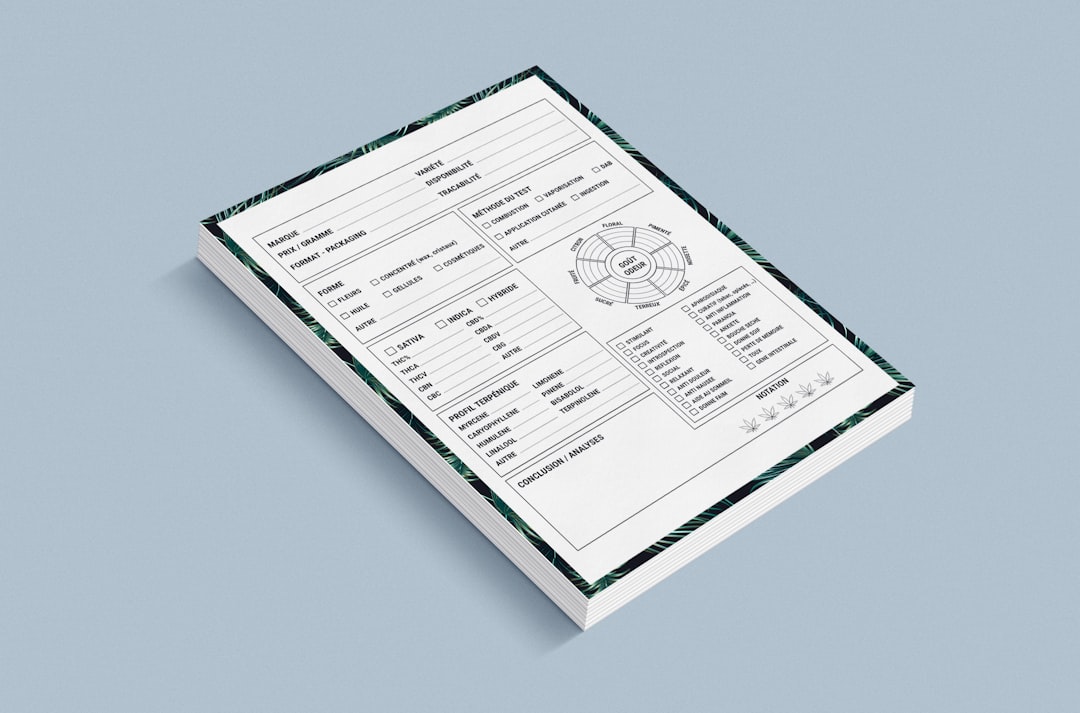
Tables are a frequent pain point. Many converters rebuild tables as separate text boxes and lines rather than live InDesign tables. Forms can also break apart into individual fields, labels, and shapes. Catalogs with pricing grids may need special attention.
For long documents, cleanup should be planned page by page. A realistic estimate is useful. A clean 8-page brochure may need under an hour. A 100-page technical manual with tables, footnotes, and diagrams may need several days.
Best Practices for Better Results
- Start with the highest-quality PDF available. Print-ready PDFs usually convert better than web PDFs.
- Keep a visual reference open. The original PDF should remain beside the converted InDesign file.
- Use the same fonts. Font mismatch changes line breaks and spacing.
- Recreate styles early. Clean styles save time during revisions.
- Replace key images manually. Original assets are better than extracted PDF images.
- Run Preflight often. Errors are easier to fix before the final export.
FAQ
Can Adobe InDesign open a PDF as an editable file?
No. InDesign can place a PDF as a linked or embedded graphic, but it cannot natively open it as a fully editable layout. A third-party converter is needed for editable reconstruction.
What is the best format after conversion?
IDML is best for compatibility across InDesign versions. INDD is best once the file is cleaned and saved in the active version of InDesign.
Will the converted InDesign file match the PDF perfectly?
Not always. The visual layout may be close, but text flow, fonts, tables, transparency, and image quality can change. Manual review is required.
Can a scanned PDF become an editable InDesign file?
Yes, but only after OCR. The text may still need correction, and the layout may require more rebuilding than a normal digital PDF.
Is PDF conversion good enough for print production?
It can be, if the converted file is checked carefully. Fonts, links, bleed, color mode, image resolution, and overset text must be verified before final export.