
Logging into Asset Essentials should feel like opening a well labeled toolbox. You want the right tool fast. You want no mystery. This guide walks you through account access, simple login steps, and the maintenance features that help teams fix things before chaos starts doing cartwheels.
TLDR: Asset Essentials helps teams log in, track work orders, manage assets, and plan maintenance from one place. For example, a facilities team with 250 monthly work requests can sort jobs by priority, assign technicians, and cut response time by 20% or more with better scheduling. Keep your login details safe, use clear work order notes, and check dashboards often. Small habits make the system much more powerful.
What Is Asset Essentials?
Asset Essentials is a maintenance management platform used by schools, cities, hospitals, property teams, and other organizations. It helps people manage equipment, buildings, repairs, inspections, and daily tasks.
Think of it as a digital command center. Instead of sticky notes, random emails, and “Did someone fix that?” conversations, everything goes into one system. Nice, right?
With Asset Essentials, teams can:
- Create and track work orders.
- Assign jobs to technicians.
- Manage assets like HVAC units, vehicles, pumps, and generators.
- Schedule preventive maintenance.
- View reports and performance trends.
- Use mobile tools in the field.
It is built to help teams work faster and stay organized. It also helps managers see what is happening without walking around with a clipboard and a worried face.

How to Access the Asset Essentials Login Page
Your organization usually gives you the correct login link. This may come from an administrator, manager, or IT team. Save that link as a bookmark. Future you will be grateful.
To log in, follow these simple steps:
- Open your web browser.
- Go to your organization’s Asset Essentials login page.
- Enter your username or email address.
- Enter your password.
- Click the login button.
If your organization uses single sign on, you may log in with your work account. This can be the same account you use for email or internal systems. In that case, you may be redirected to a secure company login page.
Tip: Do not search random login links and guess. Use the official link from your organization. It keeps your account safer.
First Time Login Tips
Your first login may include a few setup steps. Do not panic. This is normal. The system may ask you to create a new password, confirm your email, or set up security questions.
A strong password matters. Use a mix of letters, numbers, and symbols. Avoid simple passwords like password123. That one is basically a welcome mat for trouble.
You may also need to choose your role or site, depending on your permissions. For example, a technician may see assigned work orders. A manager may see reports, budgets, and team schedules. A requester may only submit and check work requests.
Common Login Problems and Easy Fixes
Login issues happen. They are annoying, but usually easy to fix. Before calling IT in full emergency mode, try these steps.
- Wrong password: Use the password reset link if available.
- Forgot username: Check your welcome email or ask your administrator.
- Page will not load: Try another browser or clear your cache.
- Account locked: Wait a few minutes or contact your admin.
- Single sign on error: Make sure your work account is active.
If nothing works, send a clear message to support. Include your name, email, organization, browser, and a screenshot if possible. Screenshots are like little detectives. They explain things fast.
Understanding the Dashboard
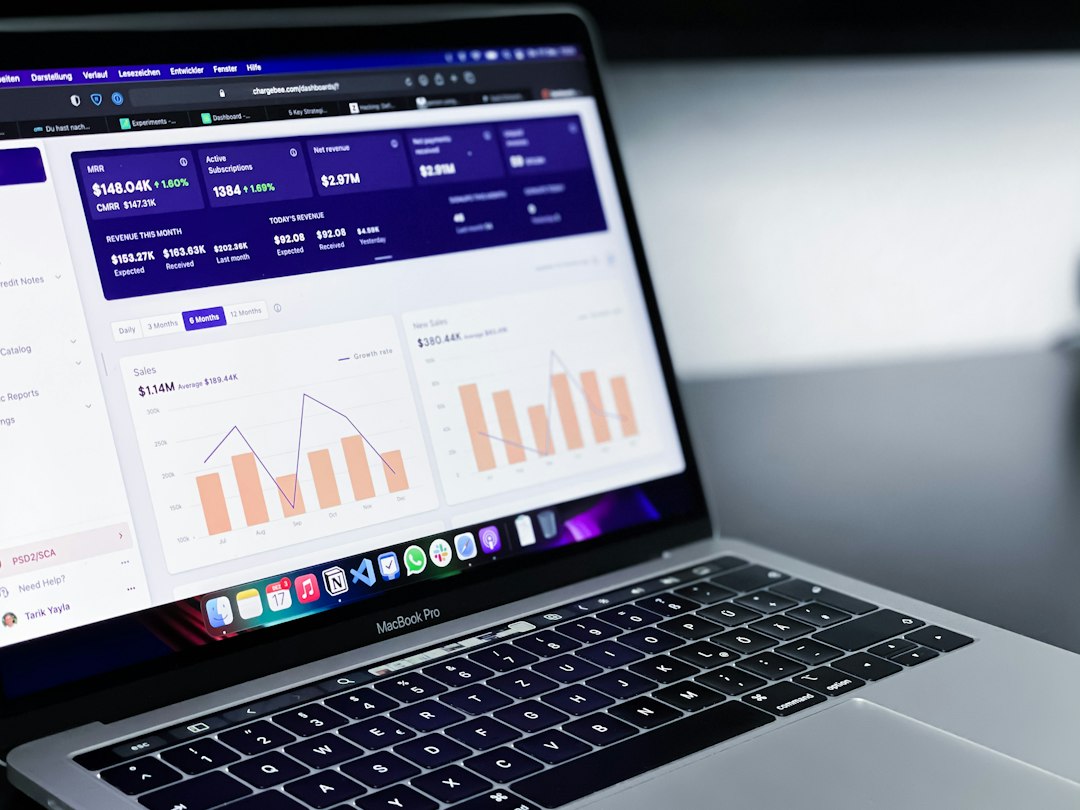
After login, you will usually land on a dashboard. This is your home base. It may show open work orders, overdue tasks, assigned jobs, asset alerts, and maintenance trends.
A good dashboard answers three big questions:
- What needs attention today?
- Who is working on it?
- What is falling behind?
Managers can use dashboard data to spot bottlenecks. For example, if plumbing requests take an average of 5 days while electrical requests take 2 days, the team can investigate. Maybe parts are missing. Maybe one technician is overloaded. Maybe the pipes are just being dramatic.
Work Orders: The Heart of the System
Work orders are the main action items in Asset Essentials. A work order tells the team what needs to be done, where it is, who owns it, and how urgent it is.
A strong work order should include:
- A clear title.
- The location.
- The asset involved.
- A short problem description.
- Photos, if useful.
- Priority level.
- Any safety notes.
Bad work order: “Thing broken.”
Better work order: “Second floor restroom sink is leaking under the left basin. Water is pooling near the wall.”
See the difference? One makes a technician squint. The other helps them show up ready.
Asset Tracking Made Simple
An asset is any important item your team maintains. This can include air conditioners, boilers, vehicles, elevators, lawn equipment, computers, or kitchen appliances.
Asset Essentials lets teams store key details for each asset. This can include model number, serial number, location, warranty dates, service history, and replacement cost.
This is helpful because machines have memories, but only if you write things down. When an asset keeps failing, the history tells a story. Maybe it needs a new part. Maybe it needs a full replacement. Maybe it is just tired and wants retirement.
Preventive Maintenance Features
Preventive maintenance is planned work that helps stop breakdowns before they happen. It is like brushing your teeth for buildings and equipment. Not glamorous. Very important.
Asset Essentials can help schedule recurring tasks such as:
- Monthly HVAC filter changes.
- Quarterly fire extinguisher checks.
- Annual roof inspections.
- Vehicle oil changes.
- Generator tests.
This feature is powerful because it turns “We should remember that” into “The system already scheduled it.” That is a big upgrade.
Preventive maintenance can also reduce emergency repairs. If a team performs 80% of maintenance as planned work, it may spend less time chasing surprise failures. Planned work is calmer. Emergency work is coffee, panic, and phone calls.
Mobile Access for Field Teams
Many maintenance teams do not sit at desks all day. They are in hallways, mechanical rooms, rooftops, trucks, and basements. Asset Essentials often supports mobile use, so technicians can view and update work from the field.
With mobile access, technicians can:
- Open assigned work orders.
- Add labor time.
- Upload photos.
- Update job status.
- Scan asset tags, if enabled.
- Close completed work orders.
This saves time. It also keeps records fresh. No more trying to remember at 4:45 p.m. what happened at 9:10 a.m.
Account Roles and Permissions
Not every user needs the same access. Asset Essentials uses roles and permissions to keep things organized and secure.
Common user types may include:
- Requester: Submits work requests and checks status.
- Technician: Completes assigned work.
- Supervisor: Assigns work and monitors progress.
- Administrator: Manages users, settings, sites, and permissions.
This setup helps prevent confusion. It also protects sensitive information. A requester does not need to change system settings. A technician does not need to rebuild the entire account before lunch.
Best Practices for Smooth Use
Asset Essentials works best when the whole team uses it consistently. The system is only as good as the information inside it.
Try these simple habits:
- Use clear work order titles.
- Update statuses quickly.
- Add photos when the problem is visual.
- Close work orders when finished.
- Review overdue tasks weekly.
- Keep asset records current.
- Train new users early.
Small habit, big result. If 10 technicians save just 10 minutes per day by using cleaner work orders and mobile updates, that is more than 40 hours saved each month. That is a full work week rescued from the swamp.
Keeping Your Account Secure
Account security is not boring. Well, maybe a little. But it matters. A maintenance system can contain building details, equipment information, schedules, and staff activity.
Keep your account safe with these rules:
- Do not share passwords.
- Log out on shared devices.
- Use approved devices when possible.
- Report strange account activity.
- Update passwords when required.
If someone leaves the organization, their access should be removed quickly. This is a simple admin task, but it is very important.
Final Thoughts
Asset Essentials can turn busy maintenance work into a clearer process. The login is the front door. The real value begins once teams use dashboards, work orders, asset records, and preventive maintenance together.
Start simple. Learn the dashboard. Write better work orders. Keep asset data clean. Then let the system do what it does best: bring order to the daily repair parade.
With the right habits, Asset Essentials is not just software. It is your maintenance team’s digital sidekick. Cape optional.