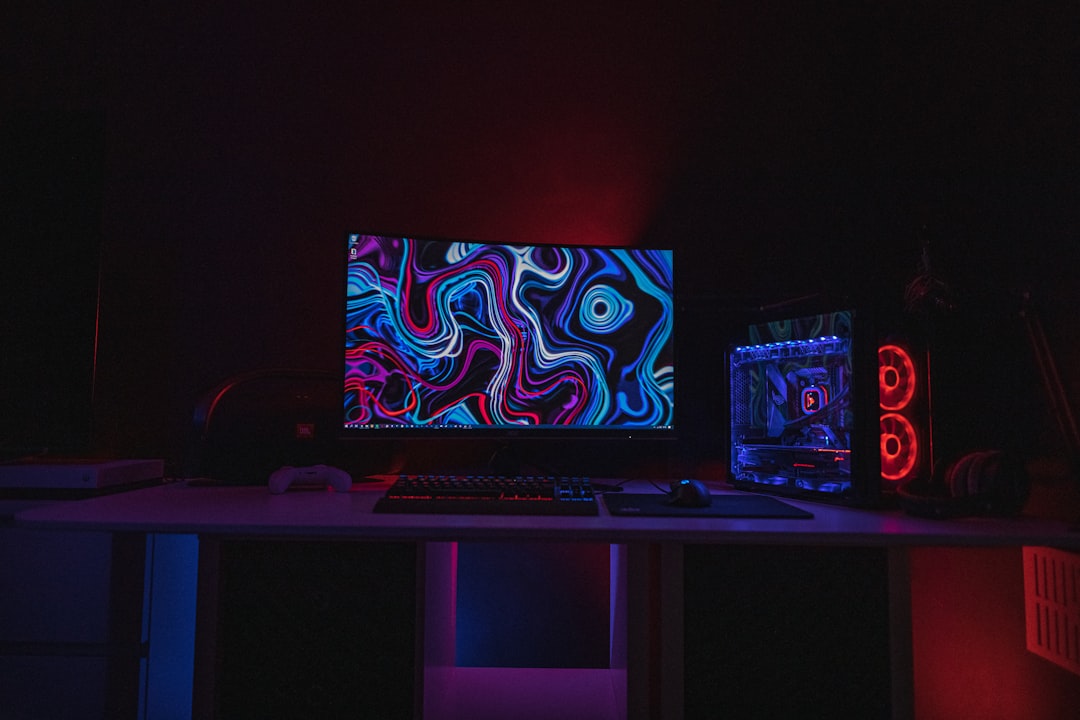

Overheating is one of the most common and frustrating issues PC users face. Whether it is a gaming rig pushed to its limits or an office desktop struggling through basic tasks, excessive heat can slow performance, trigger random shutdowns, and even shorten hardware lifespan. Understanding what causes a computer to overheat—and how to fix it quickly—can save both money and valuable data.
TLDR: PCs overheat due to poor airflow, dust buildup, failing fans, dried thermal paste, heavy workloads, or hardware problems. Signs include loud fans, lag, crashes, and high temperature readings. Quick fixes include cleaning the interior, improving airflow, reapplying thermal paste, and monitoring temperatures. Long-term solutions may involve upgrading cooling systems or adjusting system settings.
Why Overheating Is a Serious Problem
Heat is a natural byproduct of electronic operation. Components like the CPU and GPU generate significant heat when processing data. Under normal circumstances, cooling systems efficiently move this heat away. However, when something disrupts that process, internal temperatures rise rapidly.
Prolonged overheating can result in:
- Thermal throttling (automatic performance slowdown)
- Unexpected shutdowns or reboots
- Reduced hardware lifespan
- Permanent component damage
Recognizing the causes early can prevent more serious complications.
Common Causes of PC Overheating
1. Dust Buildup
Dust is a silent enemy of computer systems. Over time, it accumulates on fans, vents, heat sinks, and internal components. This layer acts like insulation, trapping heat and preventing proper airflow.
When dust clogs cooling fans, the system must work harder to maintain safe temperatures. In severe cases, airflow becomes nearly nonexistent.
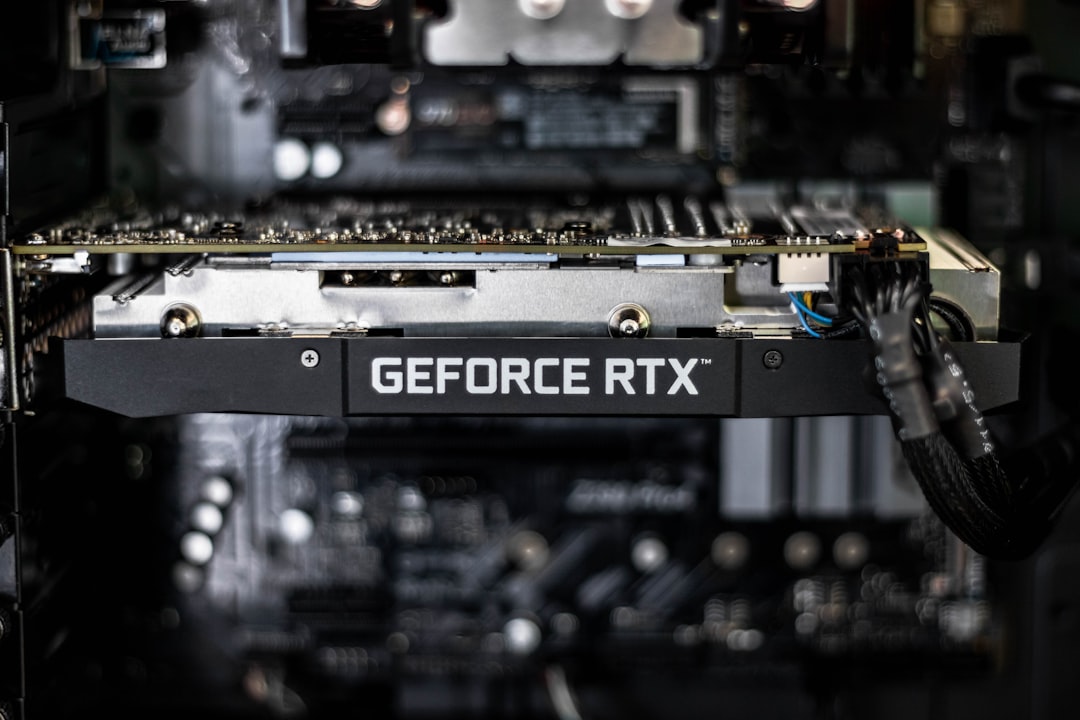
Quick Fix: Power down the PC, unplug it, and use compressed air to remove dust from fans, vents, and heat sinks. Cleaning every 3–6 months can significantly reduce overheating risks.
2. Poor Airflow
Airflow is critical to temperature control. If hot air becomes trapped inside the case, temperatures rise quickly.
Common airflow problems include:
- Blocked air vents
- Cable clutter inside the case
- Incorrect fan placement
- PC positioned against a wall or inside a tight cabinet
Quick Fix: Ensure the PC has at least a few inches of clearance on all sides. Organize internal cables to prevent obstruction. Confirm that intake and exhaust fans are properly positioned.
3. Failing or Insufficient Cooling Fans
Cooling fans wear out over time. Bearings may degrade, causing fans to spin slowly or stop completely. Some systems also ship with minimal cooling setups that struggle under heavy workloads.
Warning signs of fan issues include grinding noises, rattling, or unusually high temperatures despite normal usage.
Quick Fix: Inspect fans visually. Replace any non-functioning units. Consider upgrading to higher-quality or additional fans if temperatures remain high.
4. Dried or Improperly Applied Thermal Paste
Thermal paste sits between the CPU (or GPU) and its heat sink. Its job is to improve heat transfer by filling microscopic air gaps. Over time, this paste can dry out, crack, or lose effectiveness.
Without proper thermal conductivity, heat builds up rapidly inside the processor.
Quick Fix: Remove the heat sink, clean old paste with isopropyl alcohol, and apply a thin, even layer of new thermal paste. This can dramatically improve temperature performance.
5. High Ambient Room Temperature
Sometimes the issue is not inside the PC but in the surrounding environment. Computers rely on cool external air to regulate temperature. If the room itself is hot, airflow cannot effectively dissipate heat.
Quick Fix: Improve room ventilation or use air conditioning. Keeping the ambient temperature lower than 25°C (77°F) can help maintain safe operating conditions.
6. Heavy Workloads and Background Processes
Gaming, video editing, 3D rendering, and cryptocurrency mining place intense demands on hardware. Even background applications can consume processing power without the user realizing it.
High CPU or GPU usage translates directly to higher temperatures.
Quick Fix:
- Check Task Manager for high-usage applications
- Close unnecessary programs
- Scan for malware
- Reduce in-game graphics settings
7. Overclocking
Overclocking pushes components beyond factory speed settings to gain performance. However, increased voltage and processing speed produce additional heat.
If cooling systems are not upgraded accordingly, overheating becomes almost inevitable.
Quick Fix: Revert to default clock speeds or invest in advanced cooling solutions such as liquid cooling systems.
8. Faulty Power Supply
A malfunctioning power supply unit (PSU) may generate excessive heat or fail to distribute power efficiently. Inadequate power delivery can stress components and indirectly raise temperatures.
Quick Fix: Test with a known reliable PSU if possible. Replace aging or underpowered units.
How to Diagnose Overheating
Identifying overheating requires monitoring internal temperatures. Various software tools allow users to track CPU and GPU temperatures in real time.
Typical safe temperature ranges are:
- Idle CPU: 30–50°C
- Load CPU: 60–85°C
- Idle GPU: 30–50°C
- Load GPU: 65–85°C
Temperatures consistently above these ranges signal a problem.
Quick Fix Checklist
For those needing immediate action, the following checklist helps address most overheating problems quickly:
- Shut down and unplug the PC.
- Clean dust from internal components.
- Verify that all fans are spinning properly.
- Improve cable management.
- Ensure proper ventilation around the case.
- Monitor temperatures after reboot.
These simple steps resolve a significant percentage of overheating complaints.
Long-Term Solutions
Upgrade to Better Cooling
If problems persist, upgrading cooling hardware provides a more permanent solution. Options include:
- Larger or additional case fans
- High-performance air coolers
- All-in-one liquid cooling systems
- Custom water cooling loops
Replace the PC Case
Some cases restrict airflow due to poor design. Investing in a case specifically built for high airflow can dramatically reduce temperatures.
Adjust Fan Curves
Many motherboards allow users to customize fan speed curves in BIOS settings. Increasing fan speed at lower temperatures can prevent heat buildup before it becomes critical.
Undervolting
Undervolting reduces the voltage supplied to the CPU or GPU while maintaining stable performance. This technique lowers heat output without sacrificing noticeable power.
Laptop Overheating: Special Considerations
Laptops are more prone to overheating due to compact designs. Limited airflow and tightly packed components make heat management challenging.
Common laptop-specific fixes include:
- Using a cooling pad
- Keeping vents unobstructed
- Avoiding soft surfaces like beds or couches
- Regular internal cleaning
If a laptop frequently overheats despite these measures, professional servicing may be necessary.
When to Seek Professional Help
If cleaning, airflow improvements, and thermal paste replacement do not resolve the issue, internal components may be damaged. Persistent overheating accompanied by crashes or graphical artifacts could indicate deeper hardware failure.
In such cases, consulting a qualified technician ensures safe and accurate diagnosis.
FAQ
1. How do I know if my PC is overheating?
Common signs include loud fans, lagging performance, sudden shutdowns, hot air blowing from vents, and high temperature readings in monitoring software.
2. Is 90°C too hot for a CPU?
Yes. While some CPUs can briefly tolerate 90°C under heavy load, sustained temperatures at or above this level increase the risk of throttling and long-term damage.
3. Can dust alone cause overheating?
Absolutely. Heavy dust buildup can block airflow, insulate components, and significantly impair cooling performance.
4. How often should a PC be cleaned?
It depends on the environment, but every 3–6 months is generally recommended. Homes with pets or heavy dust may require more frequent cleaning.
5. Does replacing thermal paste really help?
Yes. Old or poorly applied thermal paste can dramatically reduce heat transfer efficiency. Reapplying fresh paste often lowers temperatures noticeably.
6. Can overheating permanently damage my PC?
Yes. Repeated exposure to high temperatures can shorten component lifespan or cause irreversible hardware failure.
7. Are gaming PCs more prone to overheating?
Gaming PCs generate more heat due to powerful components, but with proper cooling and maintenance, they can operate safely for years.
Final Thought: Overheating is not just an annoyance—it is a warning sign. With regular maintenance, proper airflow, and attentive monitoring, most overheating issues can be prevented or quickly resolved. A cool PC is a stable, high-performing PC.