
Few things are more frustrating for video editors than opening a project in Adobe Premiere Pro and being greeted by the dreaded MME Device Internal Error. This audio-related issue can stop playback, prevent exports, and disrupt an otherwise smooth workflow. Fortunately, the problem is usually fixable with a series of simple troubleshooting steps. By understanding what causes the error and how Premiere Pro interacts with your sound hardware, users can restore audio functionality quickly.
TLDR: The MME Device Internal Error in Premiere Pro is typically caused by audio hardware conflicts, outdated drivers, incorrect audio settings, or sample rate mismatches. Switching audio hardware settings, updating drivers, or resetting preferences often resolves the issue. In some cases, adjusting the default input and output devices in the operating system or changing sample rates can fix the conflict. Following a structured troubleshooting approach helps identify and correct the root cause efficiently.
Understanding the MME Device Internal Error
The MME (Multimedia Extensions) system is part of Windows’ audio architecture. Premiere Pro uses audio drivers like MME, WASAPI, or ASIO to communicate with sound hardware. When Premiere Pro fails to properly connect with the selected device, it throws the MME Device Internal Error message.
This issue commonly appears:
- After updating Premiere Pro
- After updating Windows
- When plugging in or removing audio devices
- When using USB microphones or external sound cards
Common Causes of the Error
To fix the problem efficiently, it helps to understand its underlying triggers. The most frequent causes include:
- Outdated or corrupted audio drivers
- Incorrect default input or output device settings
- Sample rate mismatch between Premiere Pro and Windows
- Conflicts between MME, WASAPI, and ASIO drivers
- Damaged Premiere Pro preferences
Each of these causes requires a slightly different fix, but most can be resolved in just a few minutes.
Step-by-Step Fixes for MME Device Internal Error
1. Check Audio Hardware Settings in Premiere Pro
The first step is verifying that Premiere is connected to the correct audio device.
- Open Premiere Pro.
- Go to Edit > Preferences > Audio Hardware.
- Under Default Input and Default Output, select the correct device.
- Click OK and restart Premiere.
If unsure which device to choose, selecting the system default often resolves the conflict.
2. Change the Default Input Device
In many cases, Premiere tries to use a disconnected microphone or disabled device as the default input source.
- Open Control Panel in Windows.
- Select Sound.
- Under the Recording tab, right-click the preferred device.
- Choose Set as Default Device.
Disabling unused input devices can also prevent further conflicts.
3. Match Sample Rates
Premiere Pro projects often run at 48000 Hz, while Windows devices may default to 44100 Hz. A mismatch between these two values can trigger the internal error.
To fix this:
- Go to Control Panel > Sound.
- Select the playback device and click Properties.
- Open the Advanced tab.
- Set the default format to 48000 Hz if that matches your project.
- Repeat for the recording device.
Restart Premiere after making changes.
4. Switch Audio Driver (MME to WASAPI or ASIO)
Some systems handle alternative drivers more reliably. Switching away from MME can eliminate persistent errors.
- Open Preferences > Audio Hardware.
- Change the Device Class from MME to WASAPI or ASIO.
- Click OK and restart the program.
If ASIO is available (often with dedicated sound interfaces), it is typically more stable for professional setups.
Comparison of Audio Driver Options
| Driver | Best For | Latency | Stability |
|---|---|---|---|
| MME | Basic Windows setups | Higher | Moderate |
| WASAPI | General multimedia use | Medium | Good |
| ASIO | Professional audio interfaces | Low | Excellent |
5. Update Audio Drivers
Outdated drivers are a leading cause of device communication errors.
- Right-click the Start button.
- Select Device Manager.
- Expand Sound, video and game controllers.
- Right-click the sound device and select Update driver.
For best results, downloading the latest driver directly from the manufacturer’s website is recommended instead of relying on Windows updates.
6. Reset Premiere Pro Preferences
Corrupted preference files can interfere with device detection.
To reset preferences:
- Close Premiere Pro.
- Hold Alt while launching the application.
- Continue holding until the splash screen appears.
This resets settings without removing project files.
7. Disconnect Unnecessary Audio Devices
Multiple connected devices can confuse Premiere. USB microphones, webcams, HDMI monitors, and Bluetooth headsets may all register as audio devices.
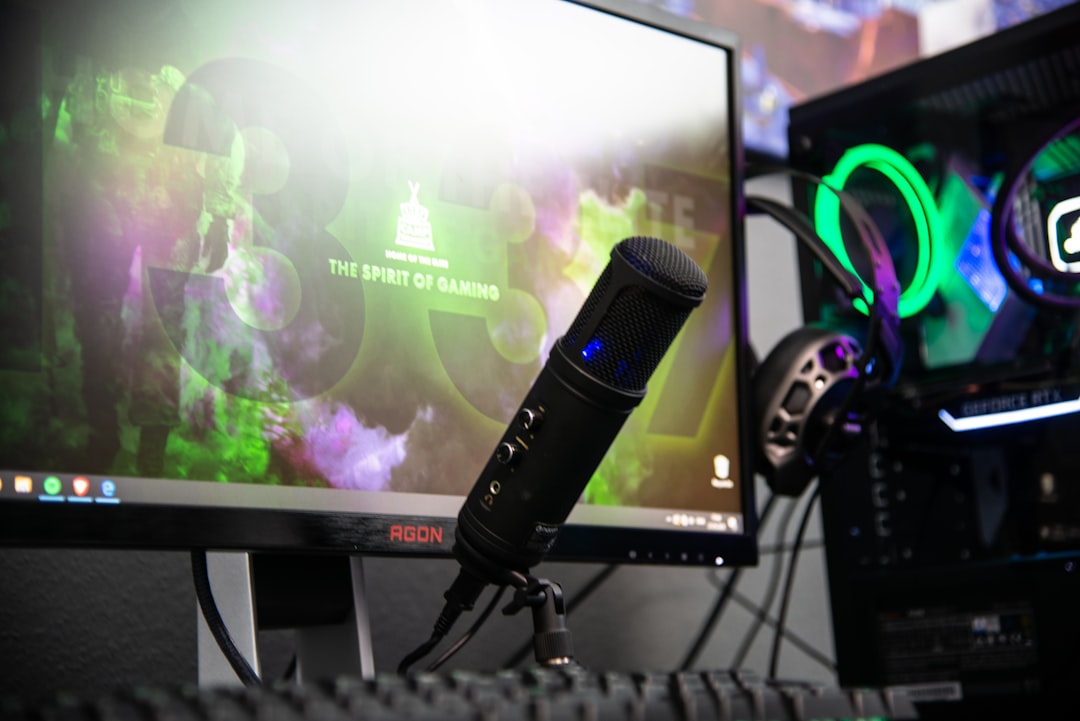
Disconnect unused devices and relaunch Premiere to see if the problem resolves.
Advanced Troubleshooting Tips
If the issue persists, more advanced steps may be required:
- Disable exclusive mode: In Sound settings, uncheck “Allow applications to take exclusive control of this device.”
- Create a new Windows user profile: Corrupted system profiles sometimes affect device configuration.
- Reinstall Premiere Pro: Perform a clean reinstall with Adobe Creative Cloud.
- Update Windows: Ensure the operating system is fully up to date.
These methods address deeper system-level conflicts that standard troubleshooting may not resolve.
Preventing the Error in the Future
While most fixes are straightforward, prevention is always preferable. Editors can minimize recurrence by:
- Keeping audio drivers updated regularly
- Avoiding unnecessary device switching mid-session
- Maintaining consistent sample rates across projects
- Using dedicated audio interfaces for professional work
Establishing a stable hardware workflow significantly reduces disruptions during editing sessions.
FAQ
What does MME stand for in Premiere Pro?
MME stands for Multimedia Extensions, a legacy Windows audio driver system that allows software to interact with sound devices.
Why does the MME Device Internal Error keep coming back?
The issue may reappear due to driver updates, Windows updates, device reconnection, or changes in default audio settings. Ensuring stable configuration and up-to-date drivers usually prevents recurrence.
Is ASIO better than MME?
Yes, in professional environments. ASIO drivers provide lower latency and greater stability, especially when using dedicated audio interfaces.
Can this error affect exports?
Yes. If Premiere cannot initialize audio hardware, it may block playback and cause export errors, particularly in sequences containing audio tracks.
Does resetting Premiere delete projects?
No. Resetting preferences only restores default settings. Project files remain intact.
Should Bluetooth audio devices be avoided?
Bluetooth devices can introduce latency and connectivity instability. For critical editing work, wired headphones or dedicated interfaces are recommended.
What sample rate should be used?
Most video projects use 48000 Hz. Ensuring both Windows and Premiere match this sample rate prevents many audio-related issues.
By methodically diagnosing hardware settings, drivers, and configuration conflicts, users can eliminate the MME Device Internal Error and restore smooth editing performance inside Premiere Pro.