Snapchat is all about quick moments. A fast snap. A funny filter. A streak you do not want to lose. So it is super frustrating when your pictures refuse to load or send. You tap. You wait. Nothing happens. Annoying, right?
TLDR: If Snapchat pictures are not loading or sending, the problem is usually your internet, the app itself, or your phone’s settings. Start by checking your connection and restarting the app. Then update Snapchat, clear cache, and check permissions. Most issues are simple and fixable in minutes.
Let’s break this down in a simple way. Here are 7 easy fixes you can try today.
1. Check Your Internet Connection
This is the most common reason. Snapchat needs a stable internet connection. If your Wi-Fi is slow or your mobile data is weak, snaps may not load or send.
Ask yourself:
- Are other apps loading slowly?
- Is your Wi-Fi signal weak?
- Are you in airplane mode?
If yes, here is what to do:
- Turn Wi-Fi off and on again.
- Switch between Wi-Fi and mobile data.
- Restart your router if you are at home.
- Move to a place with better signal.
Sometimes, that tiny signal bar is the real villain.
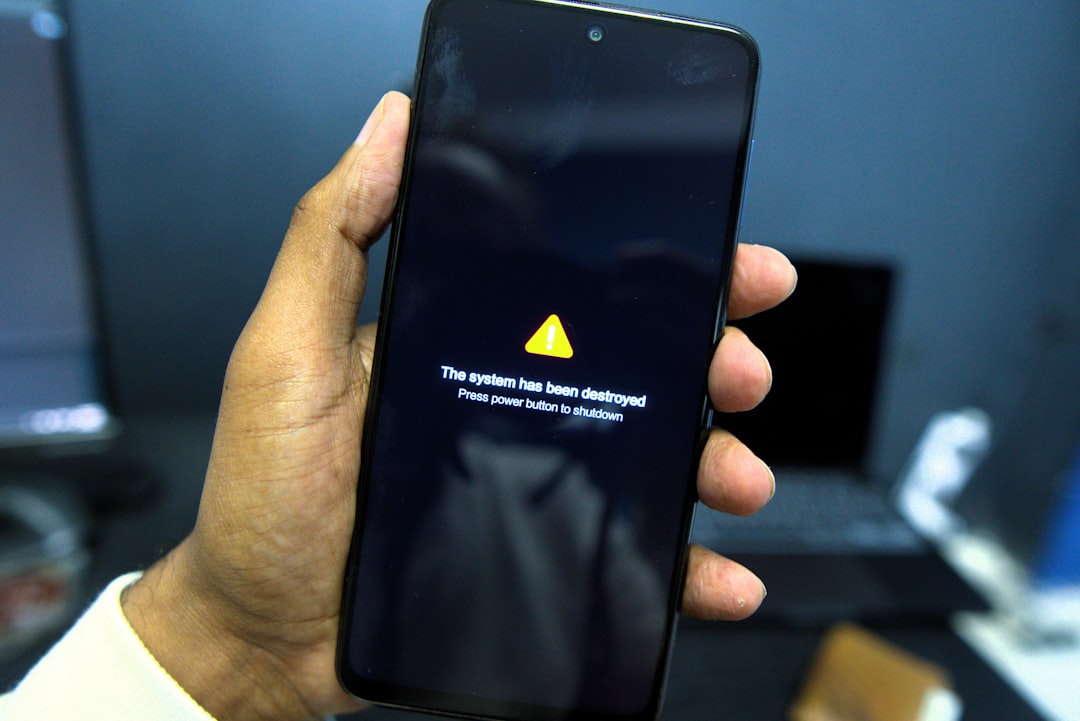
Pro tip: Snapchat works better on strong, stable connections. Public Wi-Fi can be slow and unreliable.
2. Restart Snapchat
Apps glitch. It happens.
If your snap is stuck on “Sending…” or stories won’t load, close the app completely.
Do not just minimize it. Fully close it:
- Open your recent apps screen.
- Swipe Snapchat away.
- Open it again.
This often clears small bugs instantly.
Still not working? Restart your phone. Yes, the classic trick. It works more often than people admit.
3. Update the Snapchat App
Running an old version of Snapchat can cause problems. Developers constantly fix bugs and improve performance.
To update:
- Go to the App Store (iPhone) or Google Play Store (Android).
- Search for Snapchat.
- Tap “Update” if available.
Updates can fix:
- Pictures not loading
- Snaps failing to send
- Crashes
- Camera glitches
It takes less than two minutes. Totally worth it.
4. Clear Snapchat Cache
Snapchat stores temporary files called cache. Over time, this can get messy. Too much cache may slow things down or cause loading issues.
Good news? Clearing it is easy.
On Snapchat:
- Open your profile.
- Tap the gear icon (Settings).
- Scroll to “Clear Cache.”
- Confirm.
This will not delete your memories or snaps. It just removes temporary data.

After clearing cache, restart the app and try sending a snap again.
5. Check App Permissions
If Snapchat cannot access your camera, photos, or data, it will not work properly.
Check these permissions:
- Camera
- Photos
- Mobile data
- Background app refresh
On iPhone:
- Go to Settings.
- Scroll to Snapchat.
- Make sure all necessary permissions are enabled.
On Android:
- Go to Settings.
- Tap Apps.
- Tap Snapchat.
- Select Permissions.
If camera access is off, Snapchat cannot take pictures. Simple as that.
6. Check If Snapchat Is Down
Sometimes… it is not you. It is Snapchat.
Servers can go down. When that happens:
- Snaps will not send.
- Stories will not load.
- The app may crash.
You can check:
- Downtime tracking websites
- Snapchat’s official social media accounts
- Twitter or Reddit for user reports
If servers are down, you just have to wait. Grab a snack. Touch some grass. Snapchat will be back.
7. Reinstall Snapchat
If nothing else works, delete and reinstall the app.
This is the “big reset” move.
Steps:
- Press and hold the Snapchat app.
- Tap Delete or Uninstall.
- Restart your phone (optional but helpful).
- Reinstall from the App Store or Play Store.
Important: Make sure you remember your login details before deleting the app.

A fresh install can remove hidden bugs or corrupted files causing snaps to fail.
Quick Comparison Chart
Here is a simple table to help you decide what to try first:
| Fix | Difficulty | Time Needed | Best For |
|---|---|---|---|
| Check Internet | Very Easy | 1–3 minutes | Snaps stuck sending |
| Restart App | Very Easy | 1 minute | Minor glitches |
| Update App | Easy | 2–5 minutes | Bug issues |
| Clear Cache | Easy | 2 minutes | Loading problems |
| Check Permissions | Medium | 3–5 minutes | Camera not working |
| Check Server Status | Very Easy | 2 minutes | Widespread issues |
| Reinstall App | Medium | 5–10 minutes | Persistent problems |
Extra Tips to Prevent Future Problems
Want fewer Snapchat headaches? Try this:
- Keep your app updated.
- Restart your phone weekly.
- Avoid using sketchy third-party Snapchat apps.
- Make sure your phone storage is not full.
Low storage space can also cause pictures not to load. Your phone needs breathing room.
Delete old apps. Remove duplicate photos. Free up space.
When to Contact Snapchat Support
If you tried everything and it still does not work, it might be account-related.
Contact support if:
- Your account seems locked.
- You receive repeated error messages.
- Snaps fail only on your account across multiple devices.
Support is not always instant. But they can help with deeper issues.
Final Thoughts
Snapchat is built to be fast and fun. When pictures do not load or send, it feels like the whole app is broken. But most of the time, the fix is simple.
Start with your internet. Restart the app. Clear the cache. Update everything.
Work through the list step by step. Do not panic. You will likely fix it in under 10 minutes.
And when your snaps finally send? That streak is safe. Crisis avoided.
Now go snap something fun.